97. Viewing Sensor Sim Results
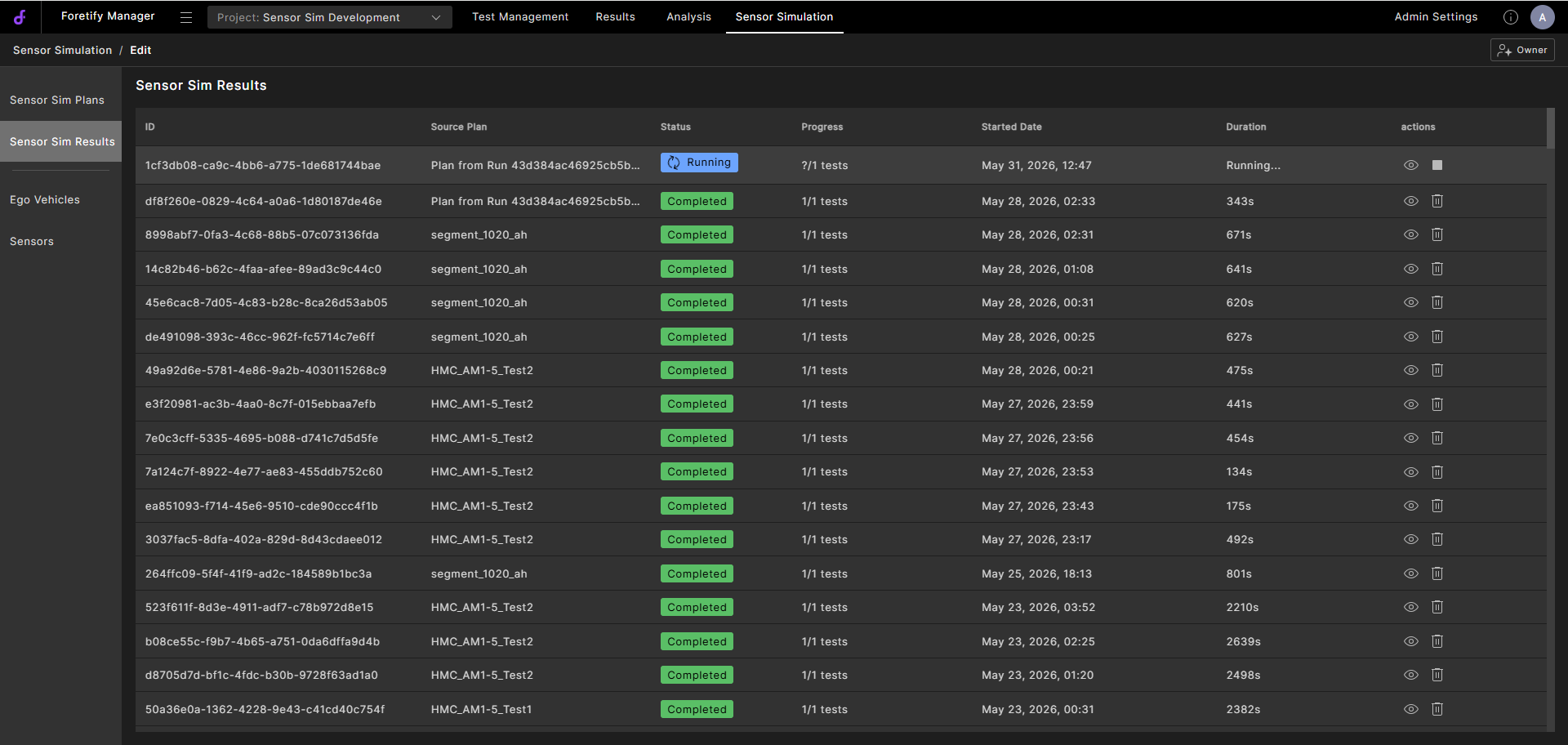
The Sensor Sim Results view lists all executed simulations. For each simulation, it shows the source plan name, status, progress, start date, duration, and available actions.
-
Runs that are still in progress show a Running status.
-
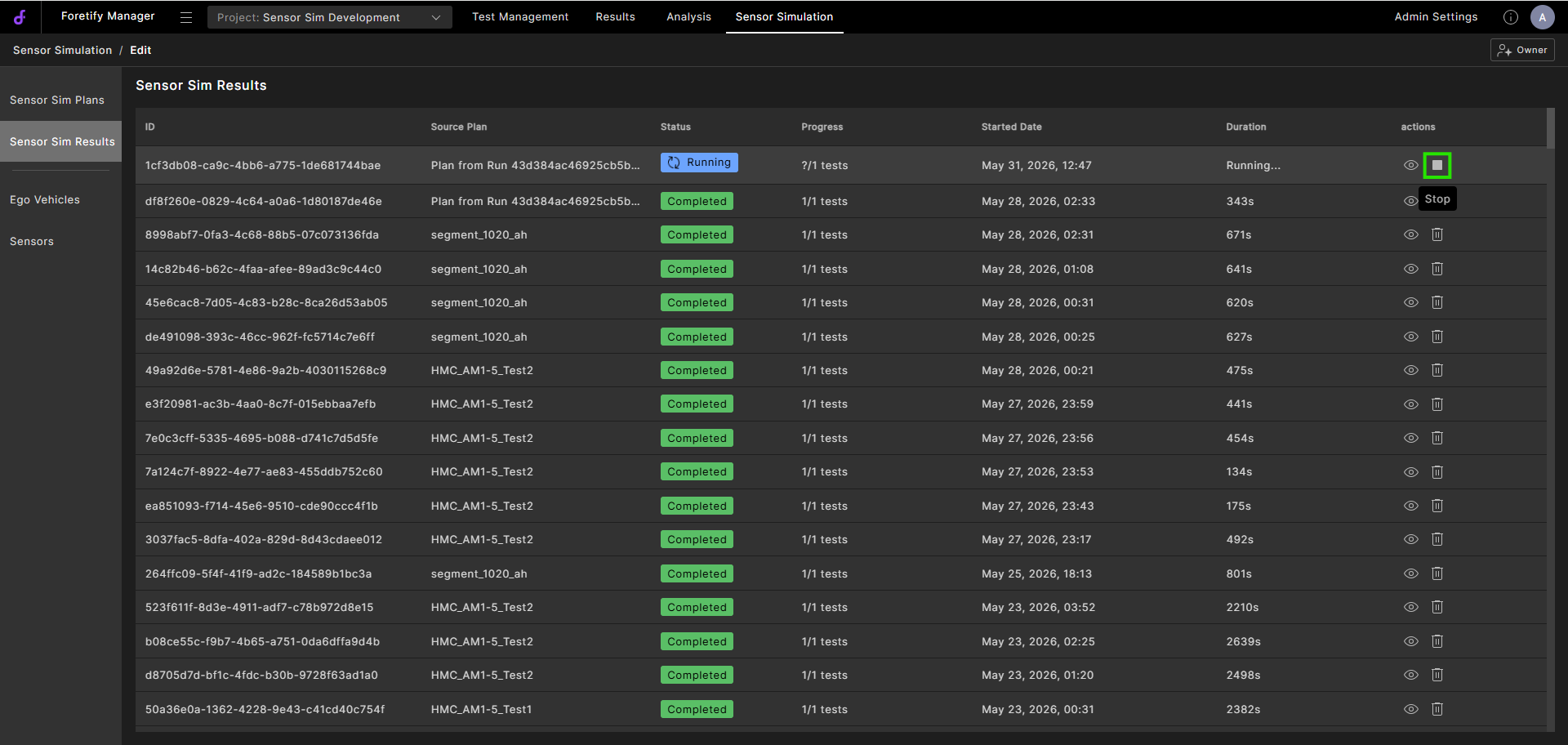
Click the Stop icon to stop the run.
-
At the prompt, click Stop.
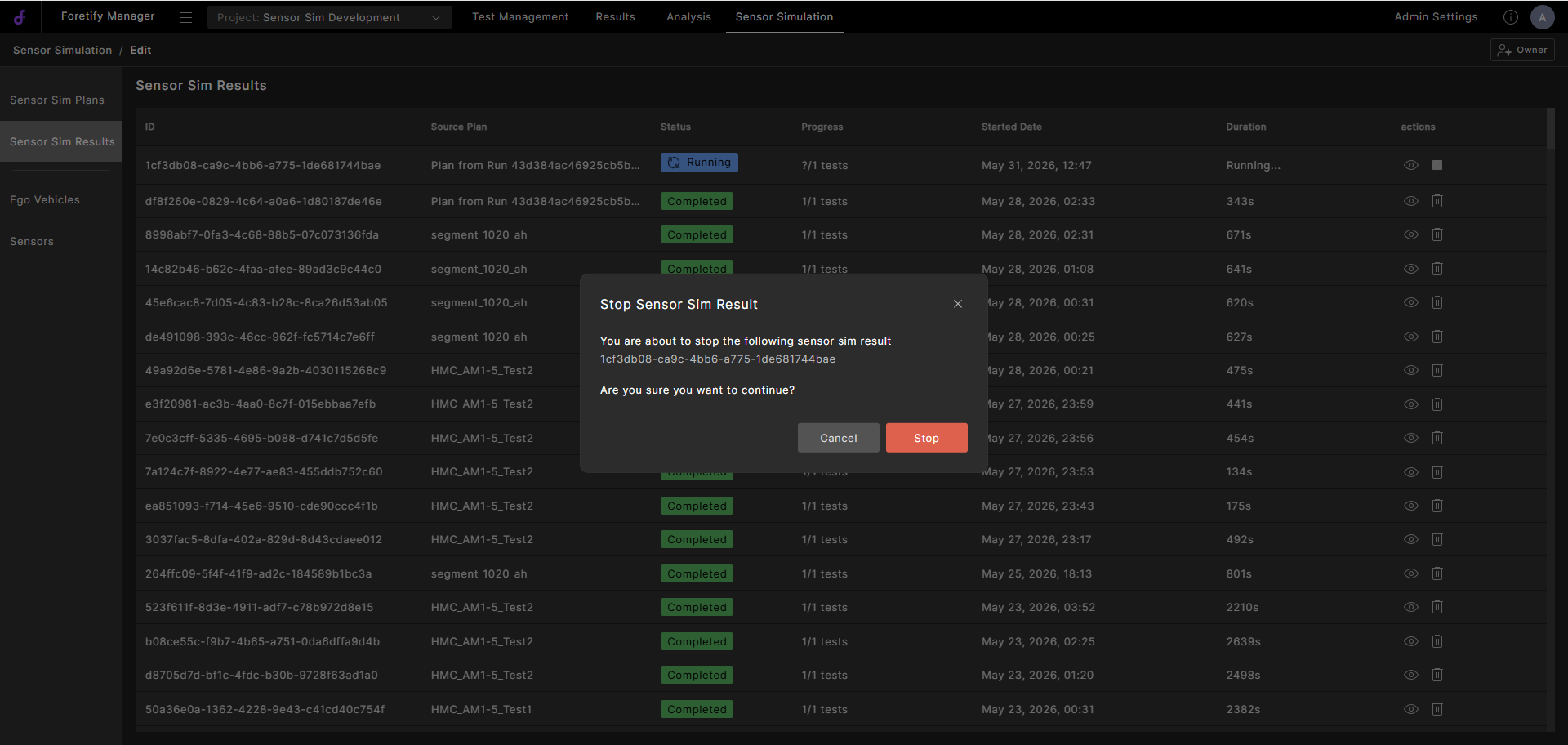
A message appears confirming that the run is being stopped.
-
-
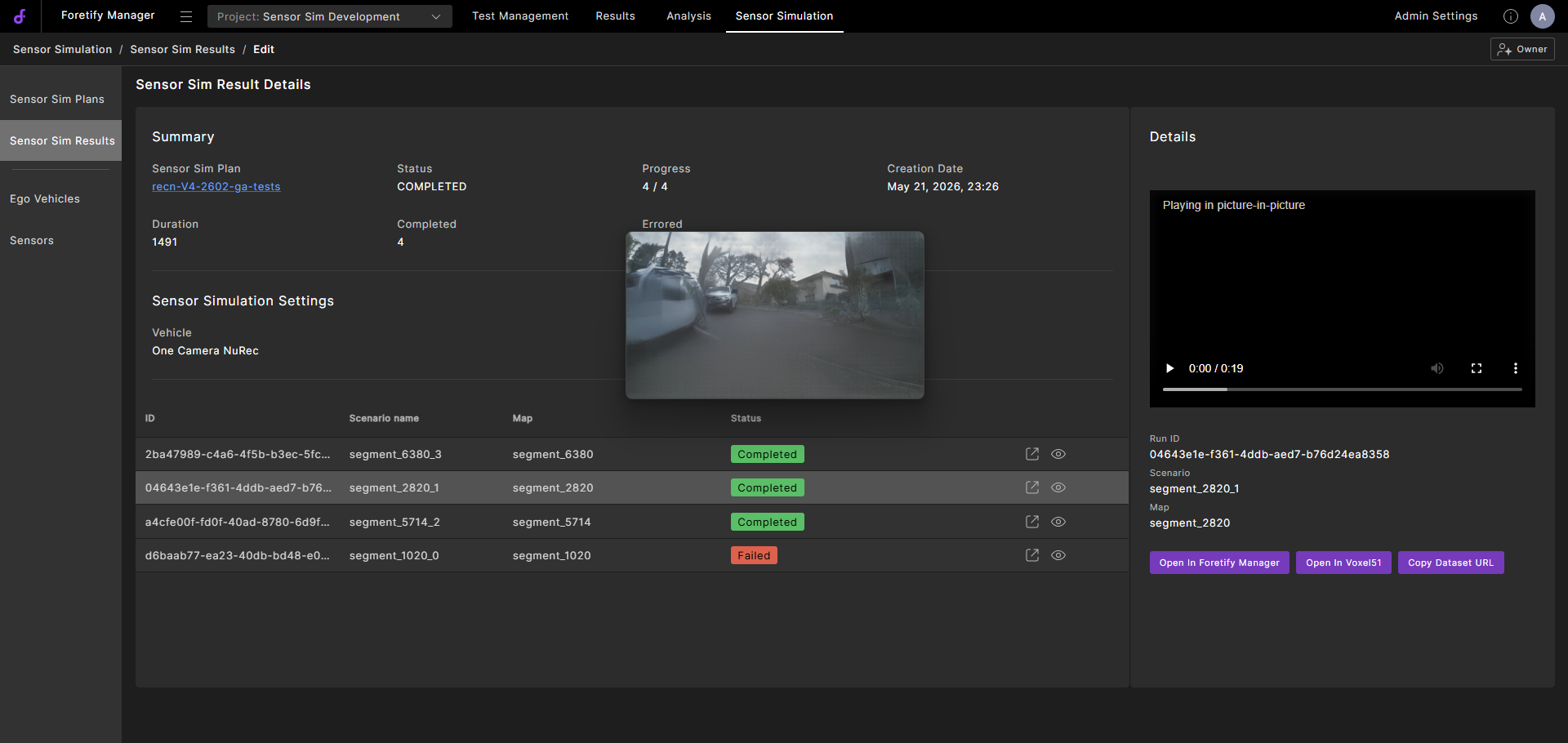
When a run is marked as Completed, click the Results
 icon.
icon.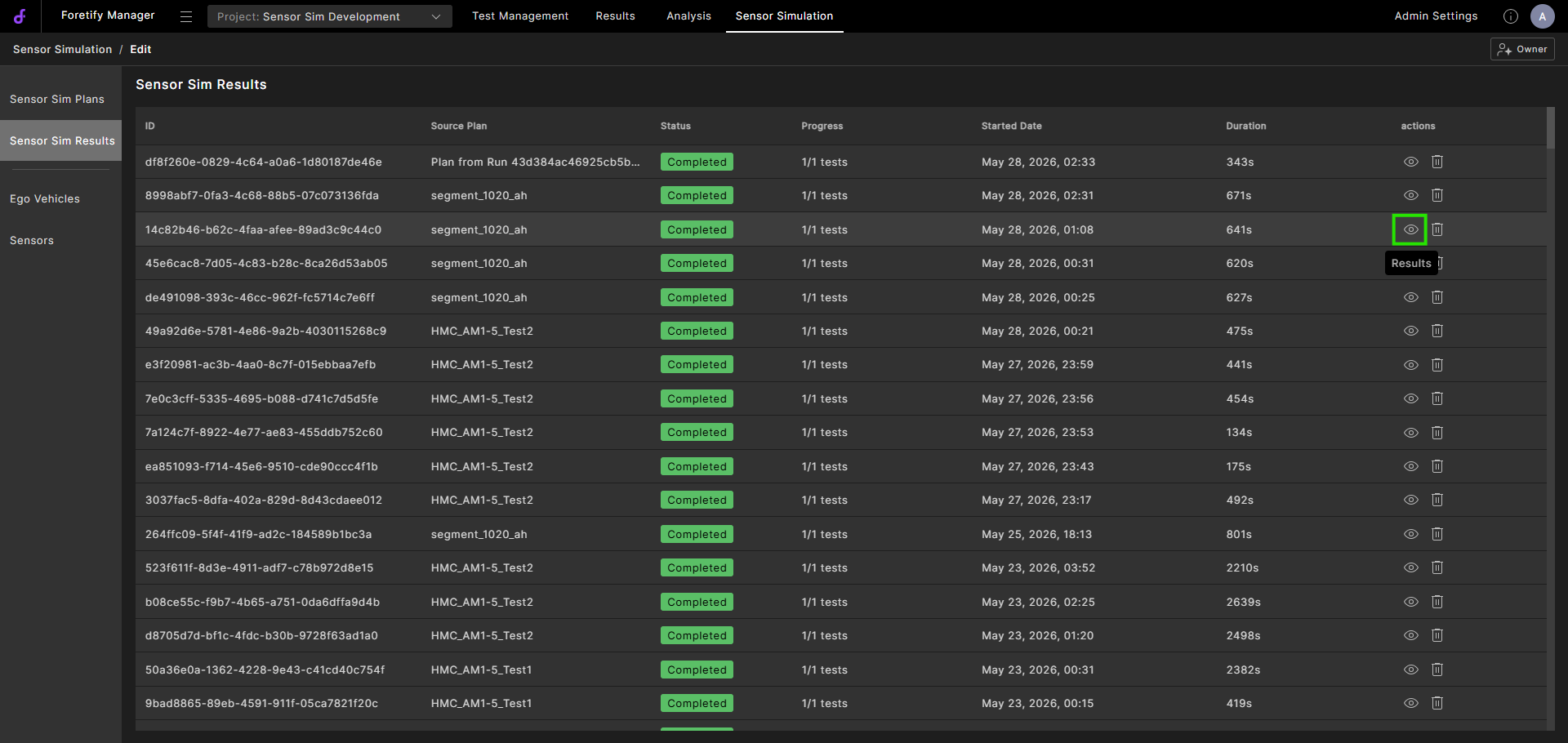
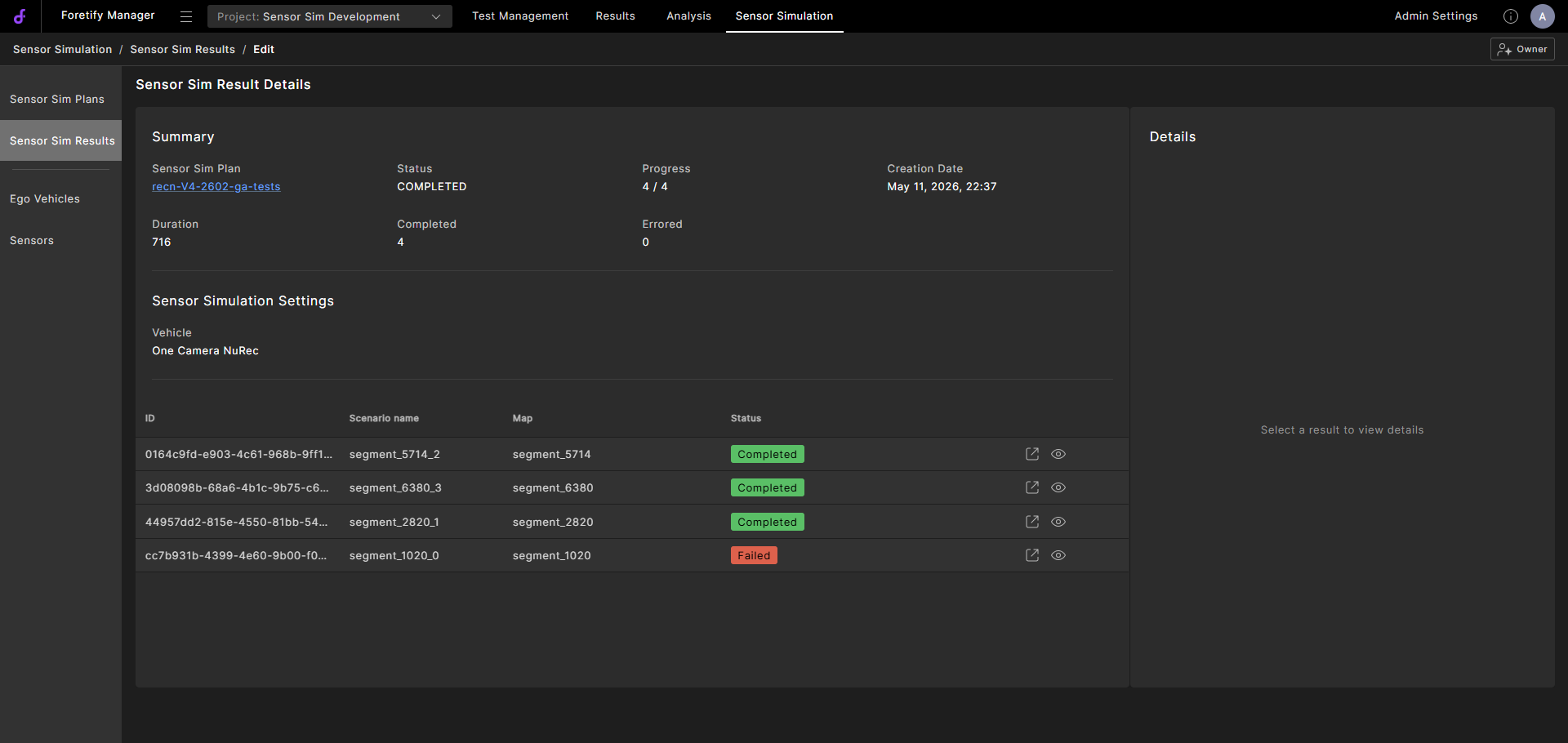
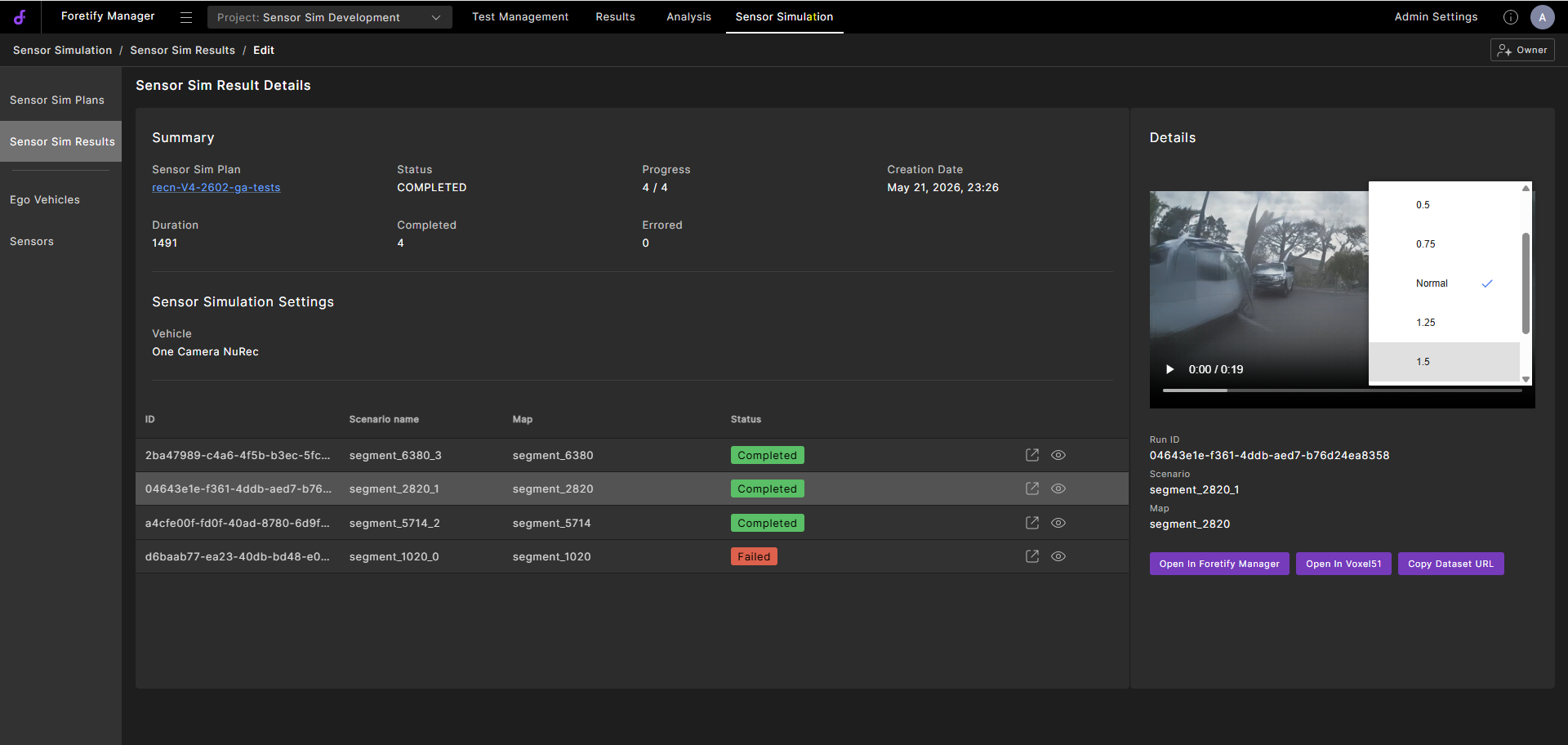
The Sensor Sim Result Details opens.
-
The runs display in the Sensor Simulation Settings pane.
-
Select the
 icon to display the run in Vox51.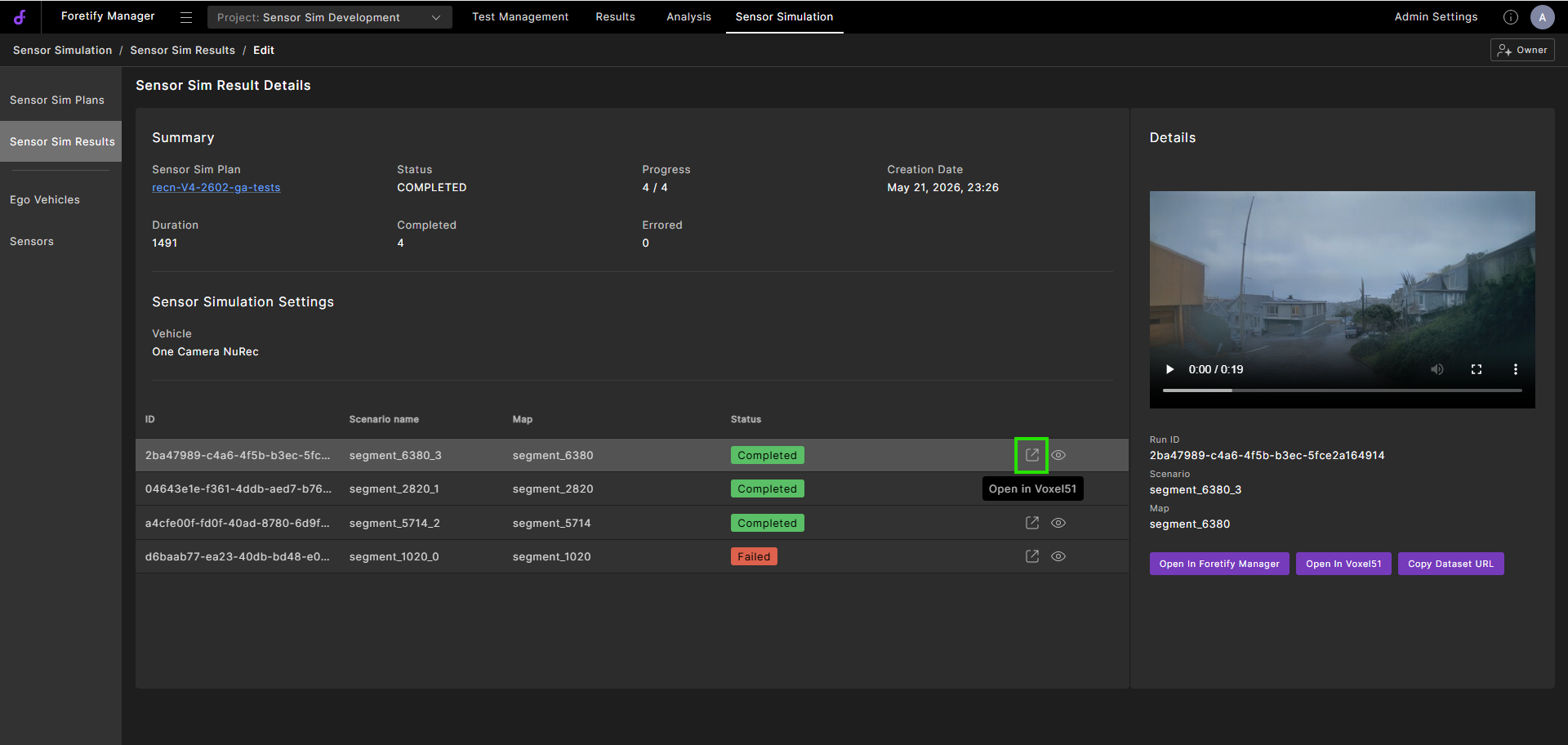
-
Select the
 icon to open the run in Foretify Manager.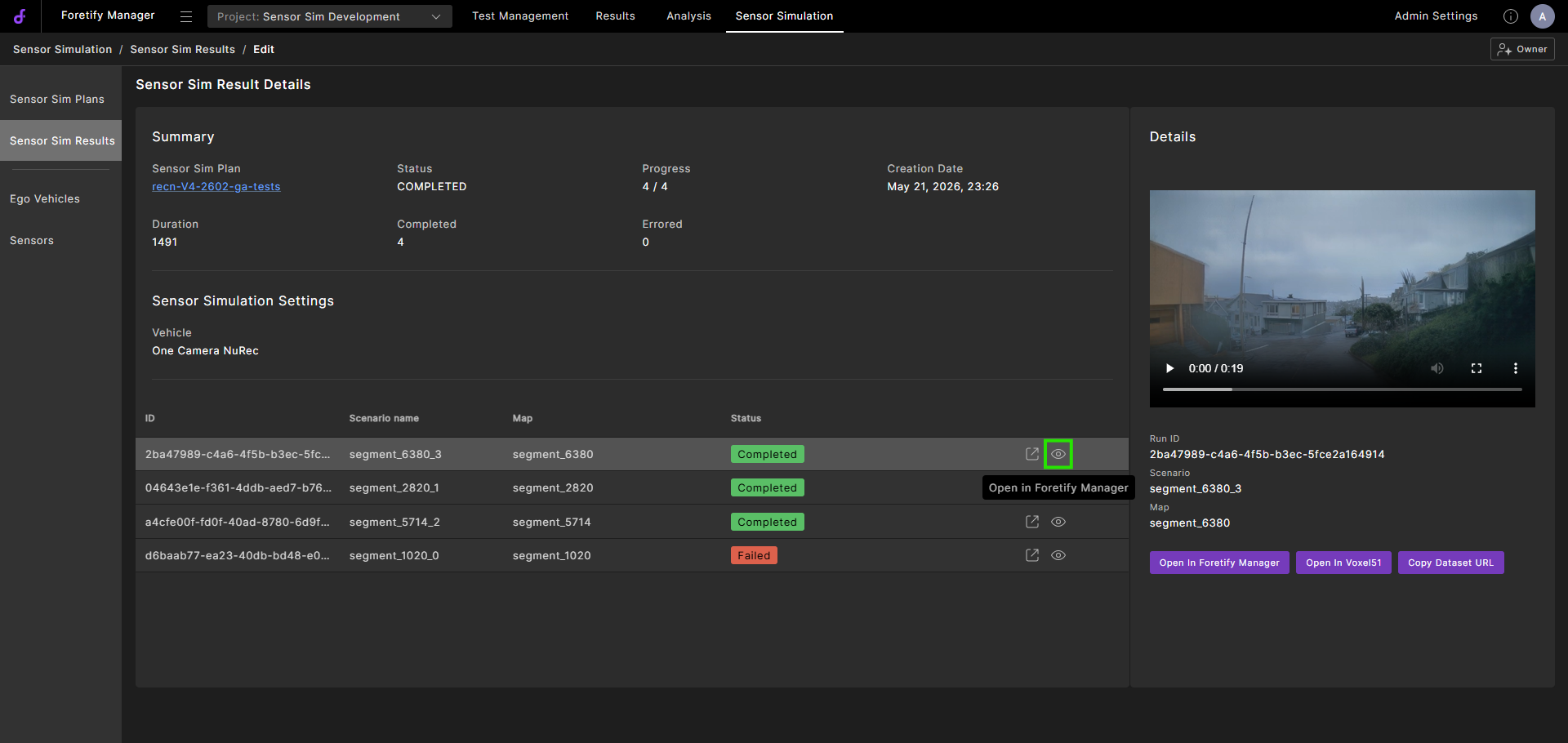
-
-
In the Details pane, select from the tabs to:
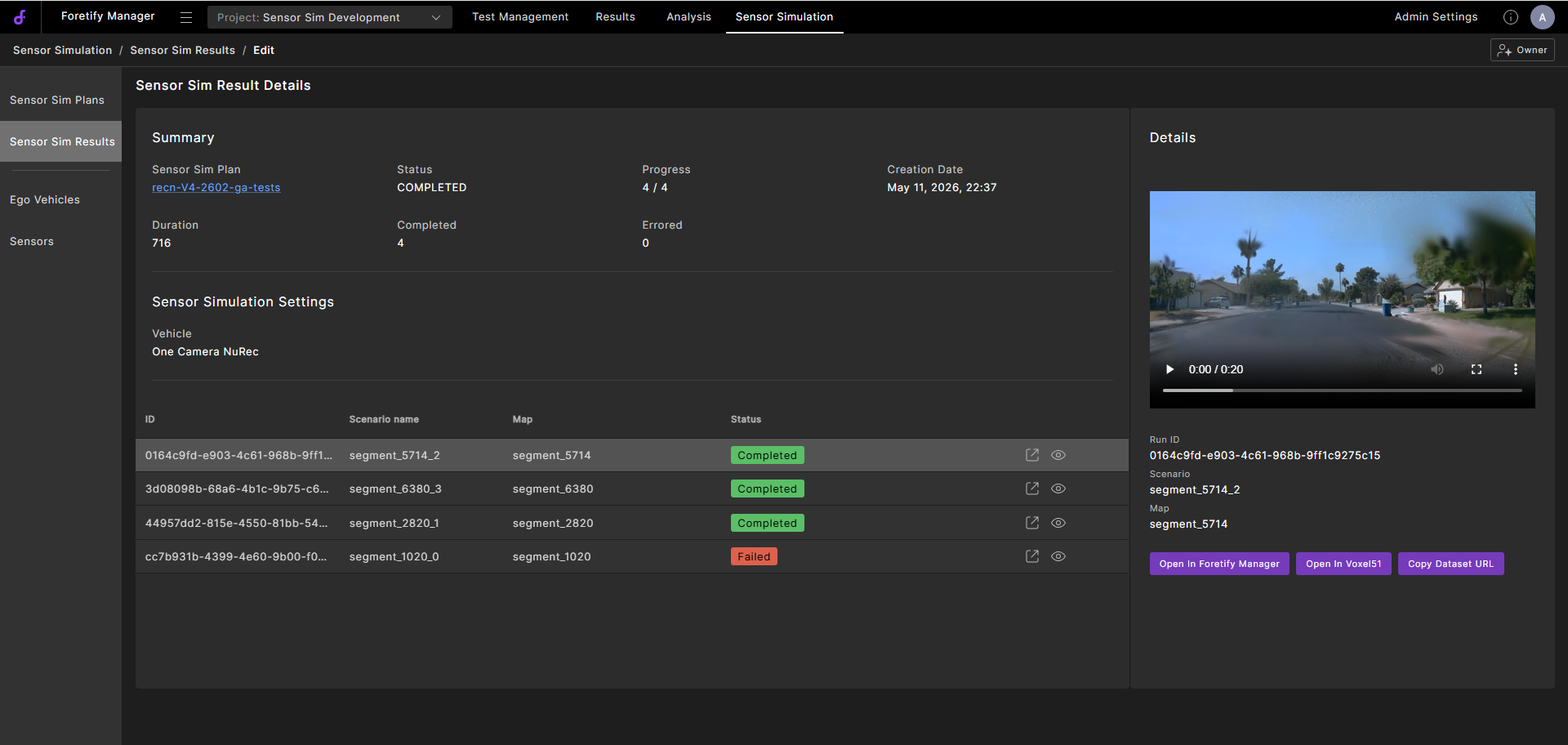
-
Open in Foretify Manager — View the run in the Foretify Manager Run Debugger.
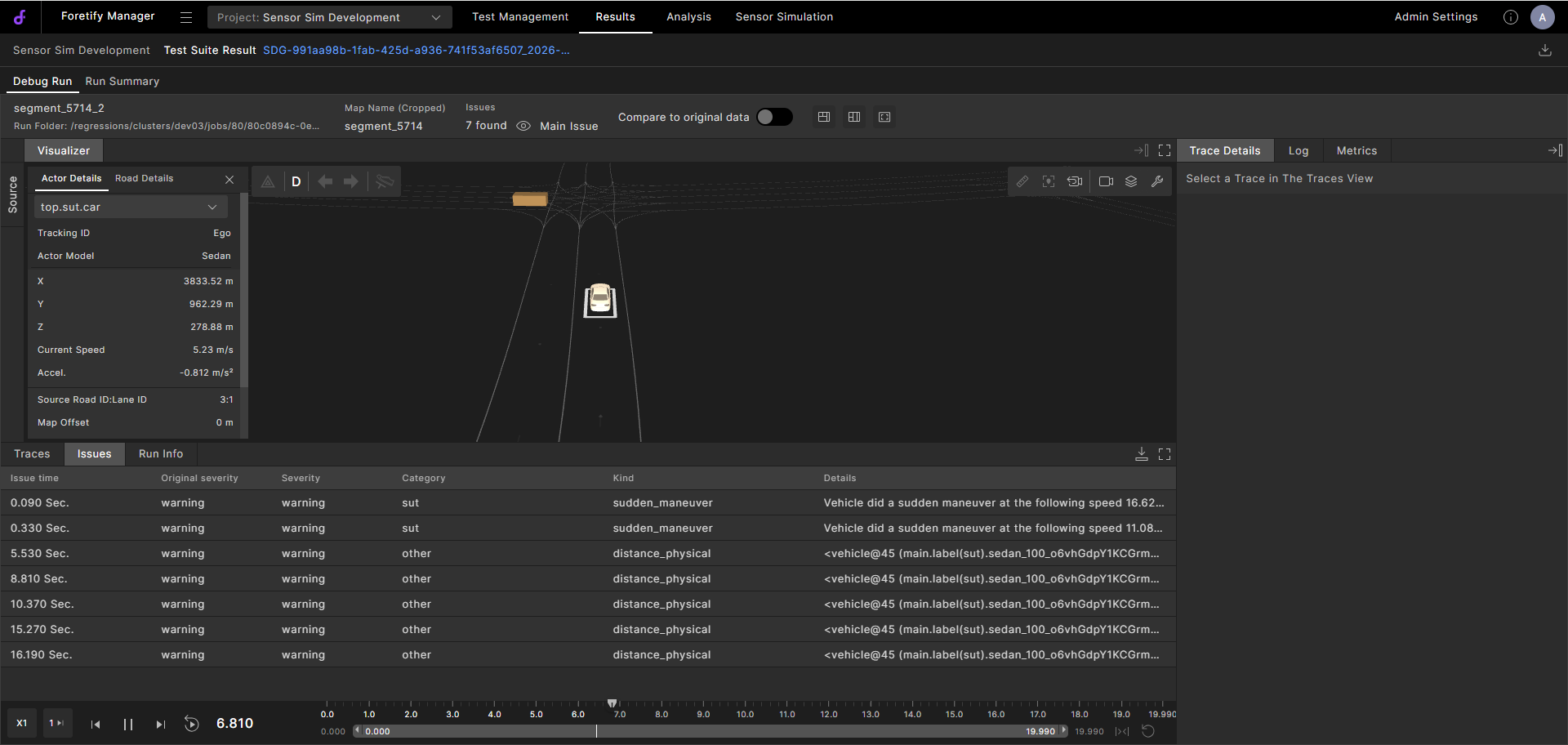
-
Open in Voxel51 — View the run in Voxel51 for AI-based video analysis.
-
Copy Dataset URL — Download or share the simulation output.
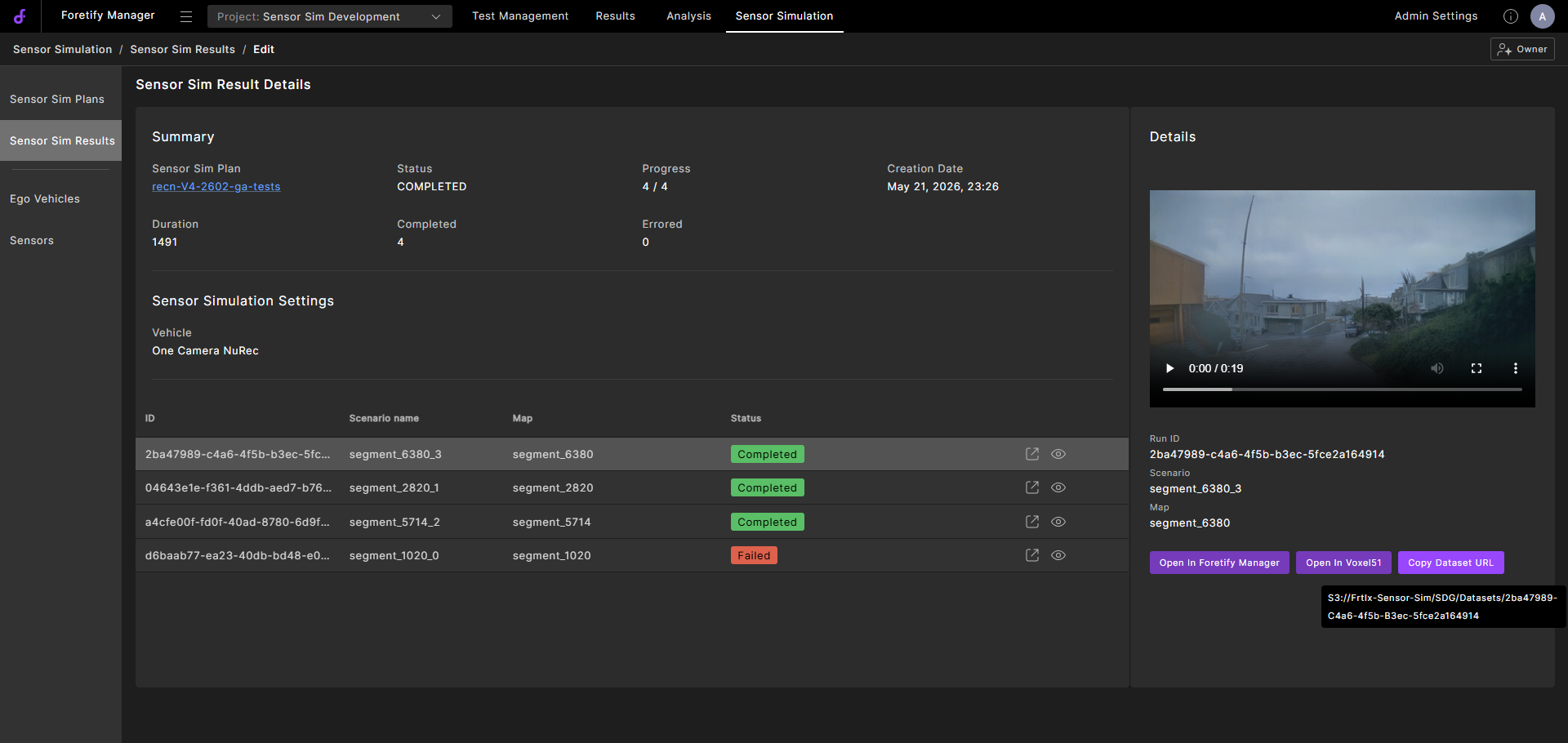
-
-
Click the video More options menu to select playback options:
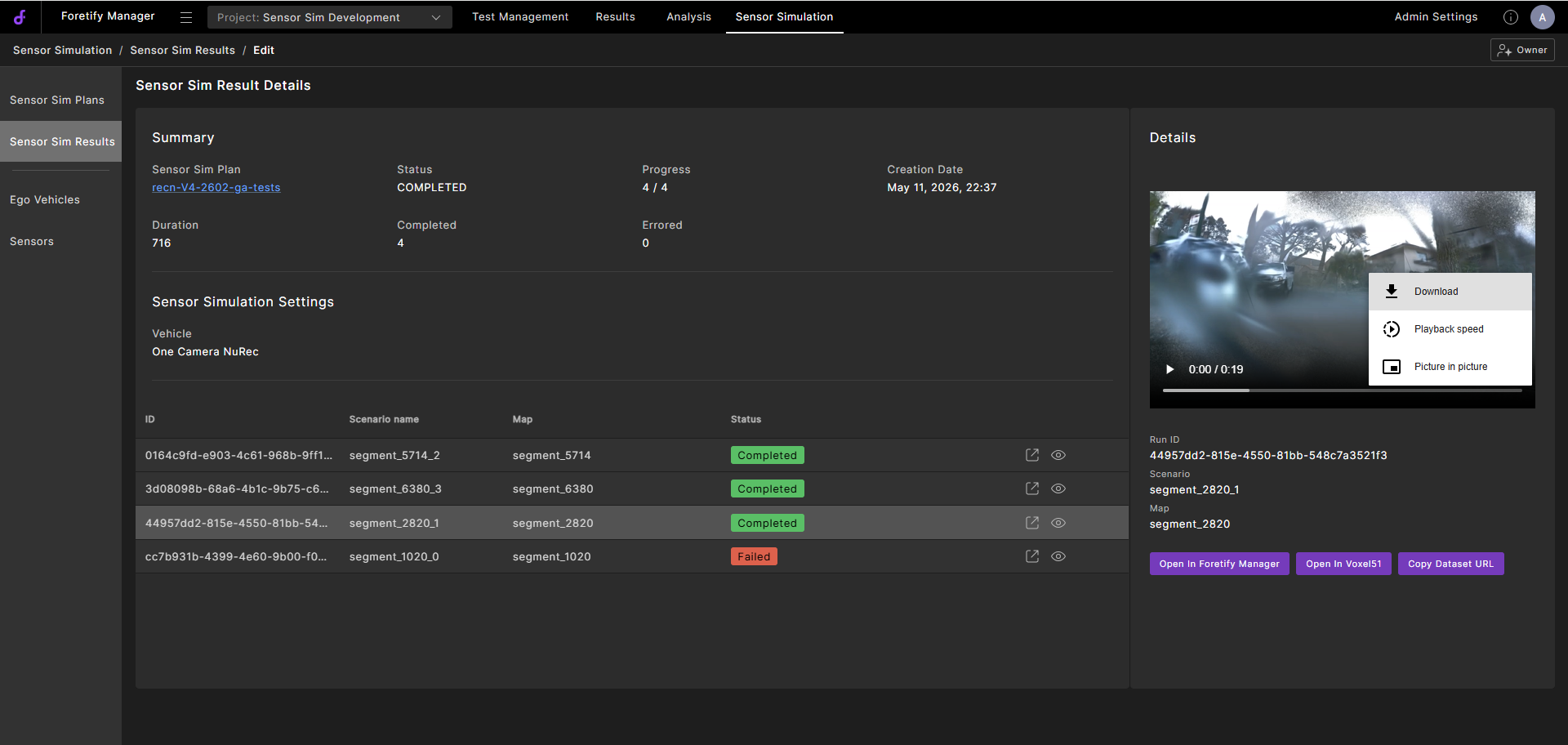
- Download — Download the mp4 video clip.
-
Playback speed — Select a playback speed between 0.25× and 2×.
-
Picture in picture — Display the video in a floating window on your screen.
Move the floating window to reposition it anywhere on your screen.