108. Smoke tests
Smoke tests are provided to check the functionality of an installed release.
Important
Releases undergo extensive testing to ensure a release is stable, reliable and meets quality and SLA standards. and validation before distribution. These smoke tests are not central or critical to the final validation process.
The $FTX/logiq/smoke directory contains two smoke tests:
108.1 Full flow test
The full-flow test flow begins with the object list, which is then processed by the denoiser. After denoising, the data is ingested, and finally, scenario matching is performed.
108.1.1 Run Ingestion
Ingestion will run the denoiser first and then Foretify. The output run-results directory will be created under /tmp/results/runs with an 'ingest_' prefix.
Copy and paste the following shell command:
$FTX/logiq/bin/logiq_ingest --osc_file $FTX/logiq/smoke/full_flow_test/ingest_xodr.osc \
--work_dir /tmp/results/  \
--map $FTX/logiq/smoke/full_flow_test/map.xodr \
--object_list $FTX/logiq/smoke/full_flow_test/object_list.pb \
--denoise $FTX/logiq/smoke/full_flow_test/denoiser_config.yaml \
--output_prefix ingest_
108.1.2 Run Matching
-
Identify the Foretify run results directory by listing the newest run under /tmp/results/runs. Run the following shell command to save the directory path to INGEST_RESULTS:
INGEST_RESULTS=`ls -td /tmp/results/runs/ingest_* | head -1` -
Next, identify the denoised object list. Run the following shell command to save the path to $DENOISED_OL.
DENOISED_OL=`ls -td /tmp/results/object_lists/*/denoised_object_list.pb | head -1` -
Copy and paste the following shell command to run the matcher:
$FTX/logiq/bin/logiq_matcher \
--input_dir $INGEST_RESULTS \
--work_dir   /tmp/results/  \
--osc_file $FTX/logiq/smoke/full_flow_test/scenarios.osc \
--output_prefix matcher_ \
--object_list $DENOISED_OL
108.1.3 Viewing results
The matcher output is saved to a directory which is displayed on the screen.
-
Save the directory path in a shell variable using the following command:
MATCH_RESULTS=`ls -td /tmp/results/runs/matcher_* | head -1` -
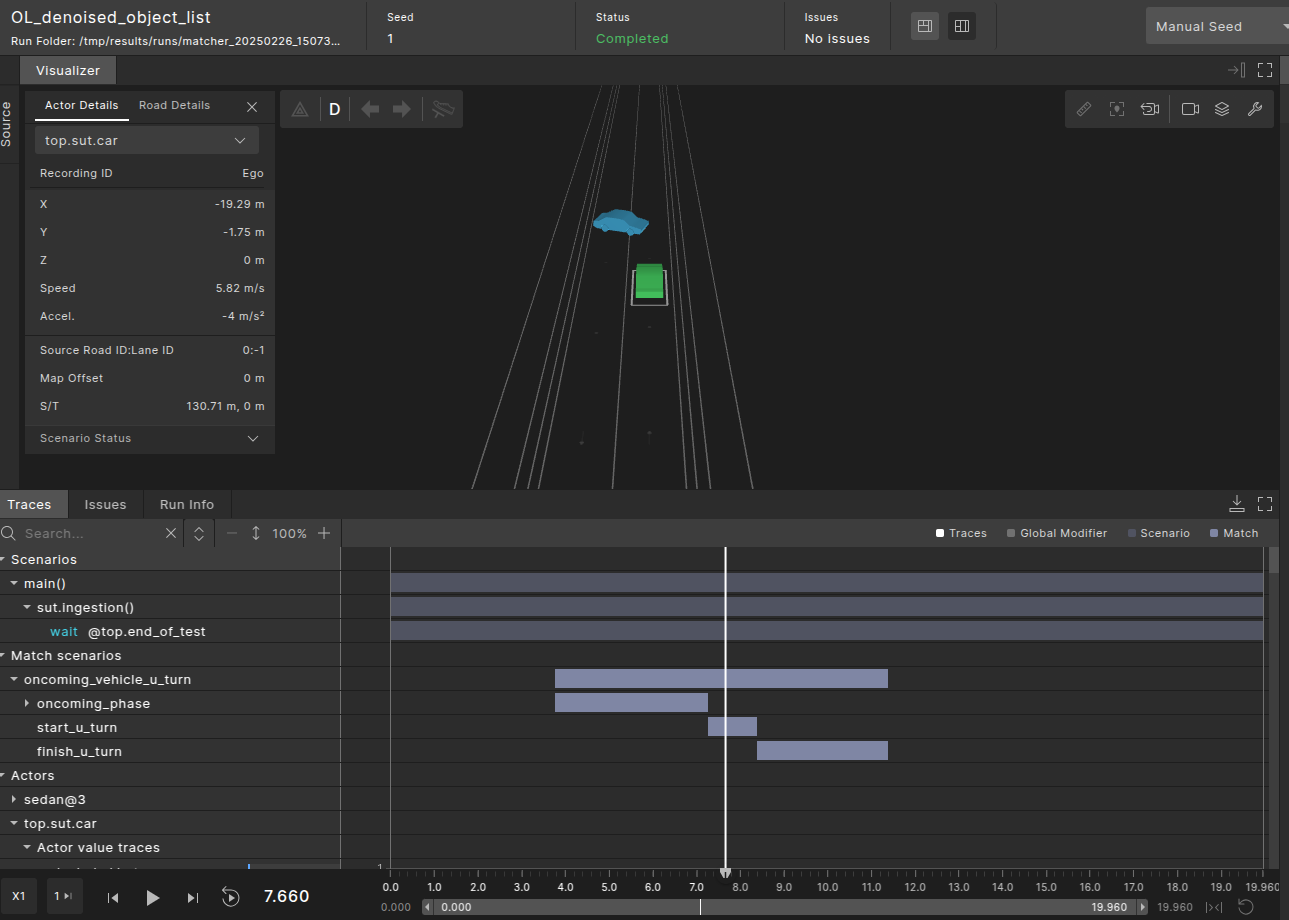
Use the single-run debugger to view the match intervals:
$FTX/bin/foretify --gui --load_run $MATCH_RESULTS
108.2 Generative test
In generative tests the process begins by launching Foretify with the --match flag, which triggers the compilation of both the active OSC and the monitoring OSC. Foretify then executes the scenario generation and runtime processes, after which the matcher performs scenario matching and collects coverage.
This combined flow simplifies the process by integrating matching within the Foretify execution.
108.2.1 Running the combined flow
To run the combined flow, copy and paste the following shell command, and replace the <generative_vehicle_cut_in_filename> and <scenarios_filename> with the actual filenames within the directories:
$FTX/bin/foretify \
--load $FTX/logiq/smoke/generative_test/<generative_scenario_filename>.osc \
--work_dir /tmp/results/ \
--match $FTX/logiq/smoke/generative_test/<scenario_filename>.osc \
--run \
--batch
$FTX/bin/foretify \
--load $FTX/logiq/smoke/generative_test/generative_vehicle_cut_in.osc \
--work_dir /tmp/results/ \
--match $FTX/logiq/smoke/generative_test/scenarios.osc \
--run \
--batch
108.2.2 Viewing results
The output of the combined flow is a run-results directory containing both the simulation and the matching results.
The run-results directory path is displayed on the screen. You can also capture it using the following shell command:
RUN_RESULTS=`ls -td /tmp/results/runs/* | head -1`
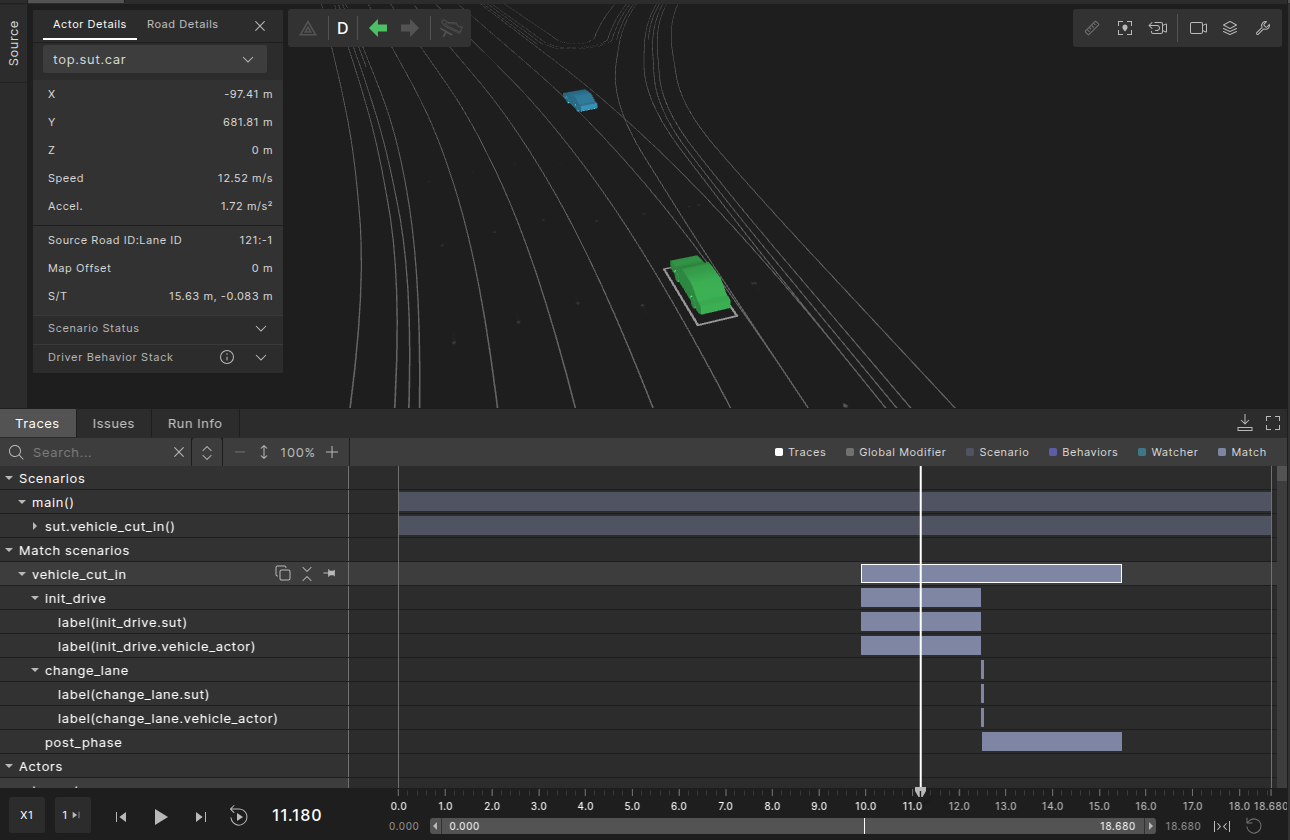
Use the single-run debugger to view the match intervals:
$FTX/bin/foretify --gui --load_run $RUN_RESULTS
The results include both the intervals created during generation (darker purple) and the match intervals (lighter purple).
108.3 Uploading results to Foretify Manager
Ensure that the Foretify Manager server can access the run directory path to invoke the single-run debugger. Coverage data will still be available even if the path is inaccessible.
To upload any run-results directory to Foretify Manager, run the following command:
$FTX/fmanager/platform/manager-python-sdk/demo/upload_runs \
--user <USER>  \
--host <FMANAGER SERVER ADDRESS> \
--port 443 \
--https \
--runs_top_dir <RUN DIRECTORY PATH>
--project <PROJECT_NAME>
In the above command:
- The
--httpsargument is optional. Include it for servers that use HTTPS, and omit it for those that use HTTP. - Use
httpfor port 8080 andhttpsfor port 443.