57. Compare test suite results in a Triage view
The Triage view offers several tools for comparing the triaged test suite result with other test suite results.
When test suite results are uploaded to Foretify Manager and captured by a workspace, the system attempts to match the test suite result with the existing triaged test suite result in the context of that workspace.
If Foretify Manager finds a reference triaged test suite result, it goes over all runs in the test suite result being uploaded, and attempts to find a match in the reference triaged test suite result. As a result, each run will be tagged as:
-
New: This run cannot be found in the reference triaged test suite result.
-
Same: This run exists in the reference triaged test suite result and has the same result.
-
Different: This run exists in the reference triaged test suite result and has a different result. (Either it failed previously and now succeeds, or it succeeded previously and now fails.)
The matching logic is controlled by the triageComparisonSettings API, discussed in the Python SDK documentation. See Triage comparison for details.
57.1 Compare test suite results
To enable compare mode:
-
Turn on the Compare to toggle.

If the toggle is turned off, the comparison features are not available.
To compare test suite results:
When the Triage view is selected and a reference test suite result is detected, it is shown in the Compare to area.
-
Click the Change button to the right of the Compare to toggle.

-
Select a reference test suite result and click Apply.
For the reference test suite result, you can only select test suite results that are older than the triaged test suite result.
Selecting a different test suite result causes recalculation of the run comparison information. This operation may take some time if the test suite has many runs. When Foretify Manager recalculates the run comparison information, a progress bar displays.
57.2 Summary comparisons
When the Compare to toggle is on, you can compare summary information between the triaged test suite result and the reference test suite result. This, for example, helps in comparing pass and failure rates between test suite executions.
All Summary table columns available for the triaged test suite results are also available for the reference test suite results. These can be accessed using the column chooser, provided you have editor or owner permissions in the workspace.
The compared column names are marked with (R). For example, the Runs No. summary of the reference test suite results appears as "Runs No. (R). The compared columns are highlighted with different colors to make them easy to identify.
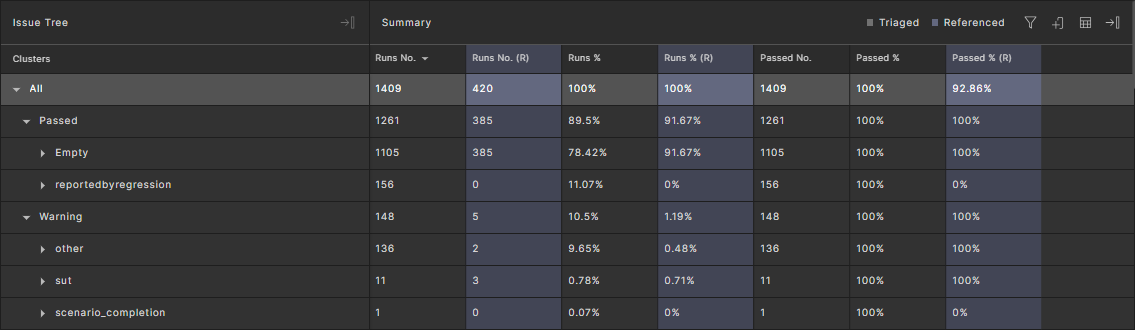
By default, comparison columns are positioned next to the corresponding attributes in the triaged test suite result. For example, the Runs (R) column appears next to the Runs column. If you reposition the columns using the column chooser, your configuration persists.
57.3 View the matching status
You can view the matching status of a run, which can be New, Same or Different. The Matching Status column displays to the right of the Run Debugger column:
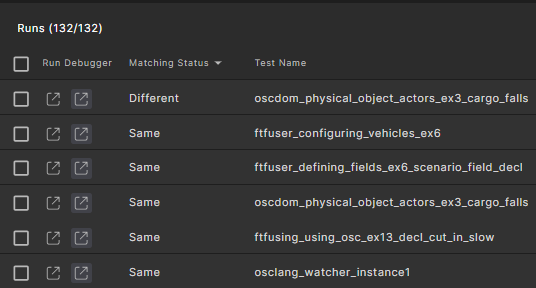
See Compare test suite results in a Triage view for definitions of these values.
You can move the Matching Status column. See how to modify the table display.
57.4 Use the comparison debugger
When compare mode is turned on, the Run Debugger column, the first column in the Runs table, displays two links to launch the single run debugger.
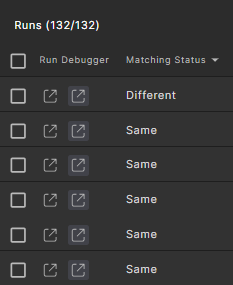
The left link launches the single run debugger for the run. The right link launches the single run debugger (as a separate tab) for the matching run, if one exists ('Same' or 'Different' status).
The Run Debugger column cannot be moved or removed.
57.5 Filter using matching status
You can use the "Matching Status" attribute in filters to filter runs. You can do this in a local filter or as part of a view filter. This lets you, for example, create a view that displays only new runs added to the test suite, or to display only runs that are different from the previous runs.