96. Sensor Sim Plans
A Sensor Sim Plan takes selected runs through a simulation environment to generate sensor data. This is where object-level scenarios become realistic sensor output — camera images, lidar point clouds, and radar returns.
96.1 Creating Sensor Sim Plans
-
In Foretify Manager, click the Project dropdown in the top navigation bar and select the project that contains the runs you want to use.
-
Select Results in the top navigation bar, then select Runs in the left sidebar.
-
Select the checkboxes of the runs you want to generate sensor data for, and click the Create Sensor Sim Plan
 icon.
icon. 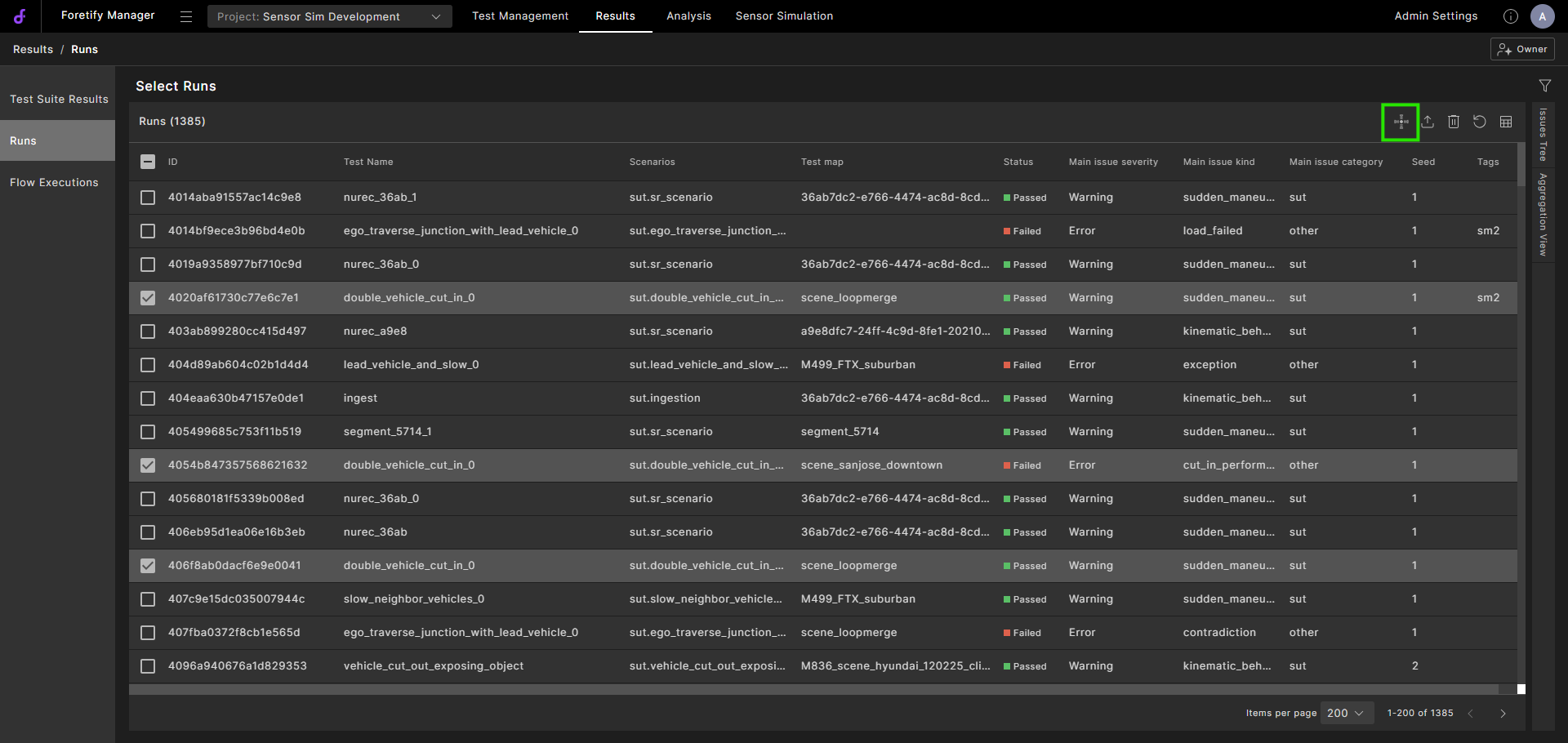
-
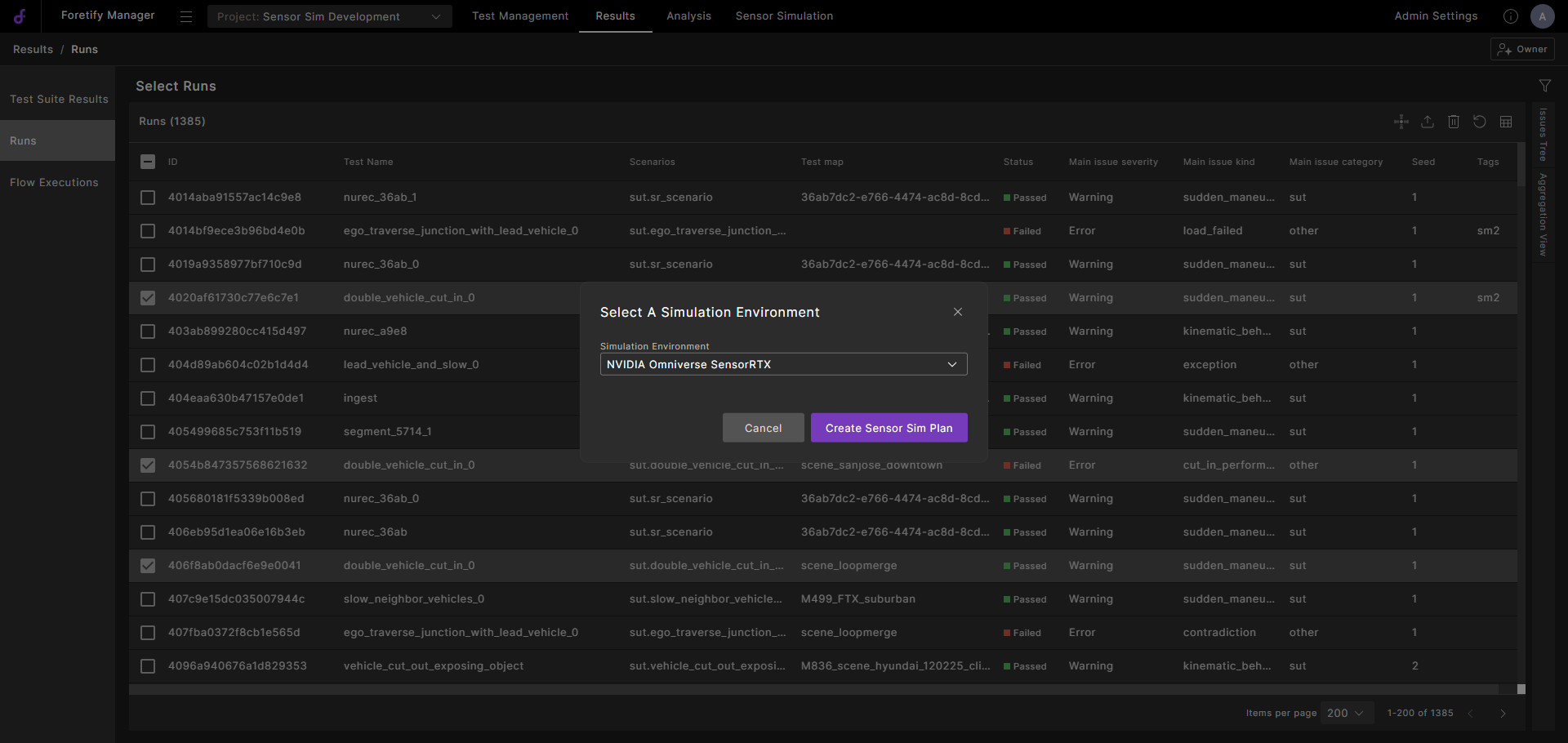
Select a simulation environment.
-
Click Create Sensor Sim Plan.
-
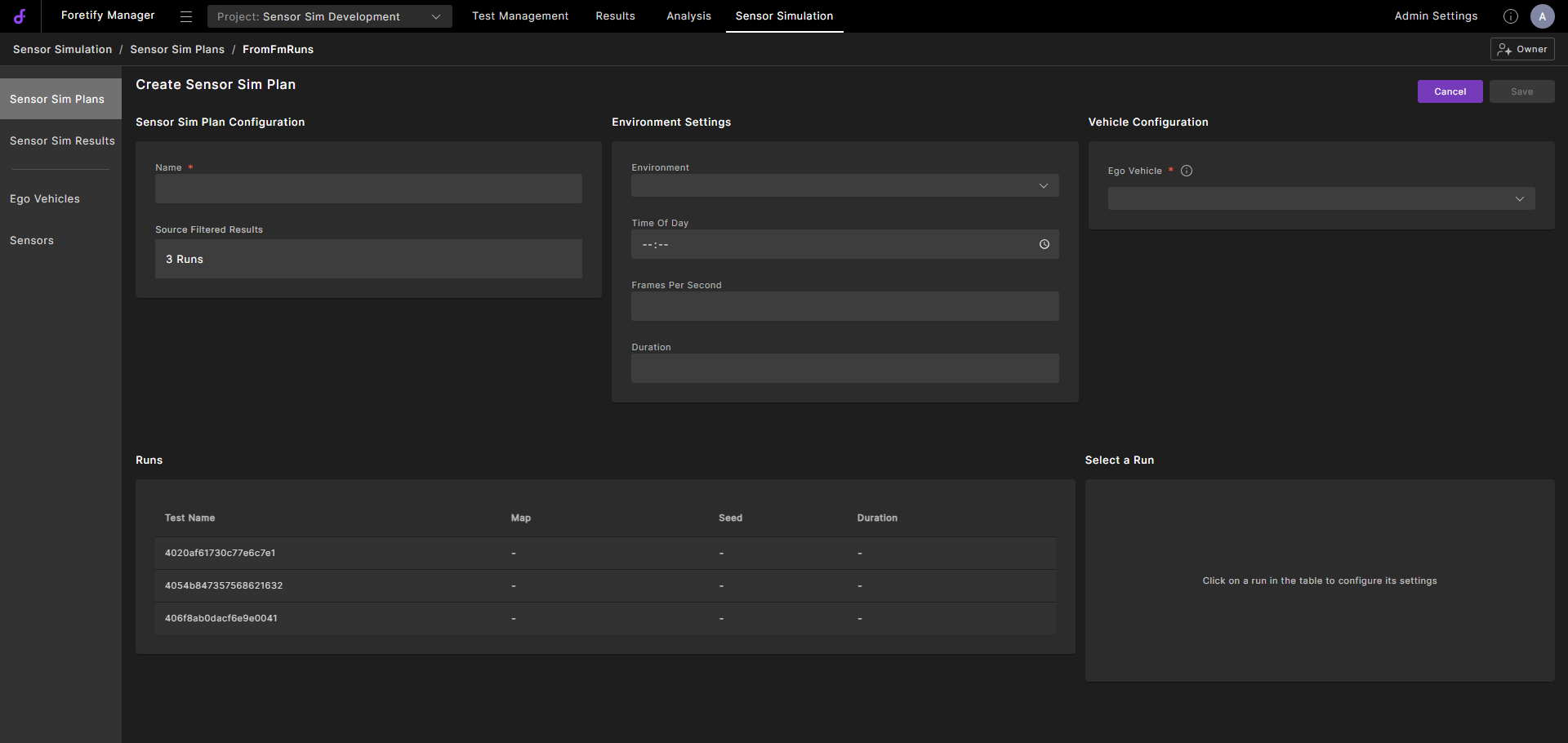
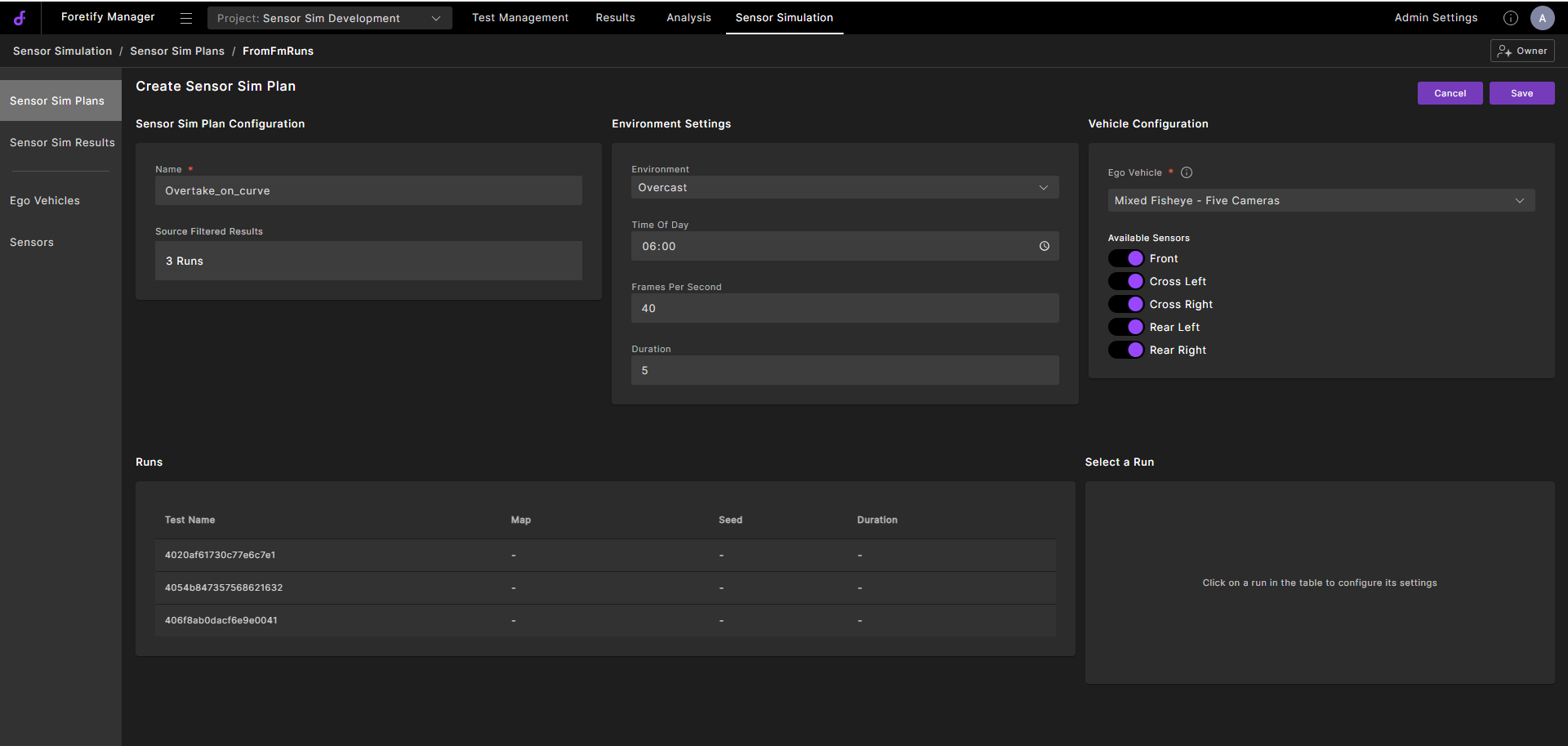
In the Create Sensor Sim Plan view, define the plan.
-
In Sensor Sim Plan Configuration, enter a name for the plan.
-
In Environment Settings, select from the available options.
These settings are specific to the simulation environment you choose. For details on each platform's options, see Supported simulation environments.
-
In Vehicle Configuration, select an Ego Vehicle.
Only Ego Vehicles that match the selected simulation environment are available.
Toggle the Sensors options to enable them.
-
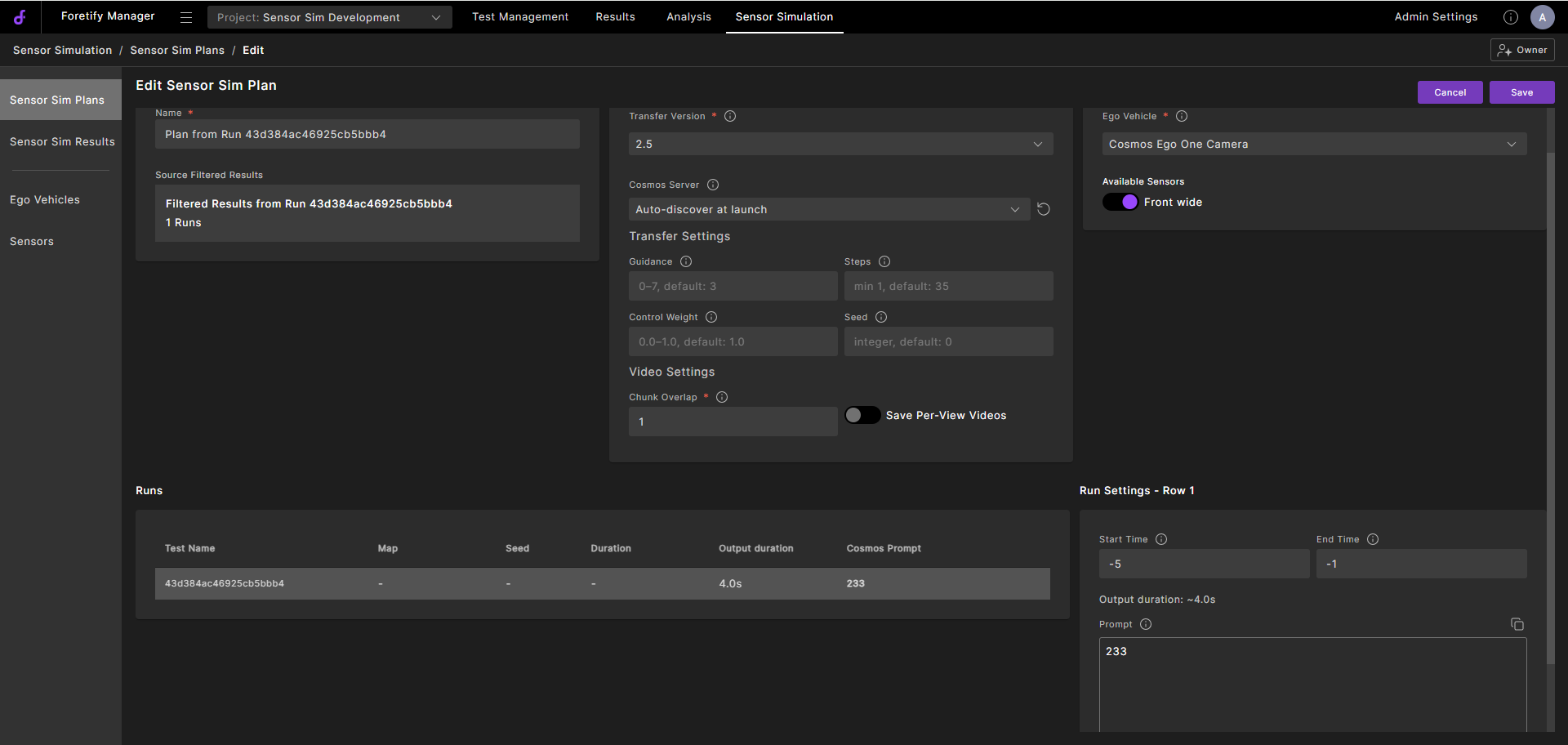
In the Runs table, click a run to configure its settings.
-
Click Save.
The Sensor Sim Plan appears in the list of available plans.
-
96.2 Running a sensor simulation
-
In the Sensor Sim Plans view, click the Execute
 icon to launch the sensor simulation.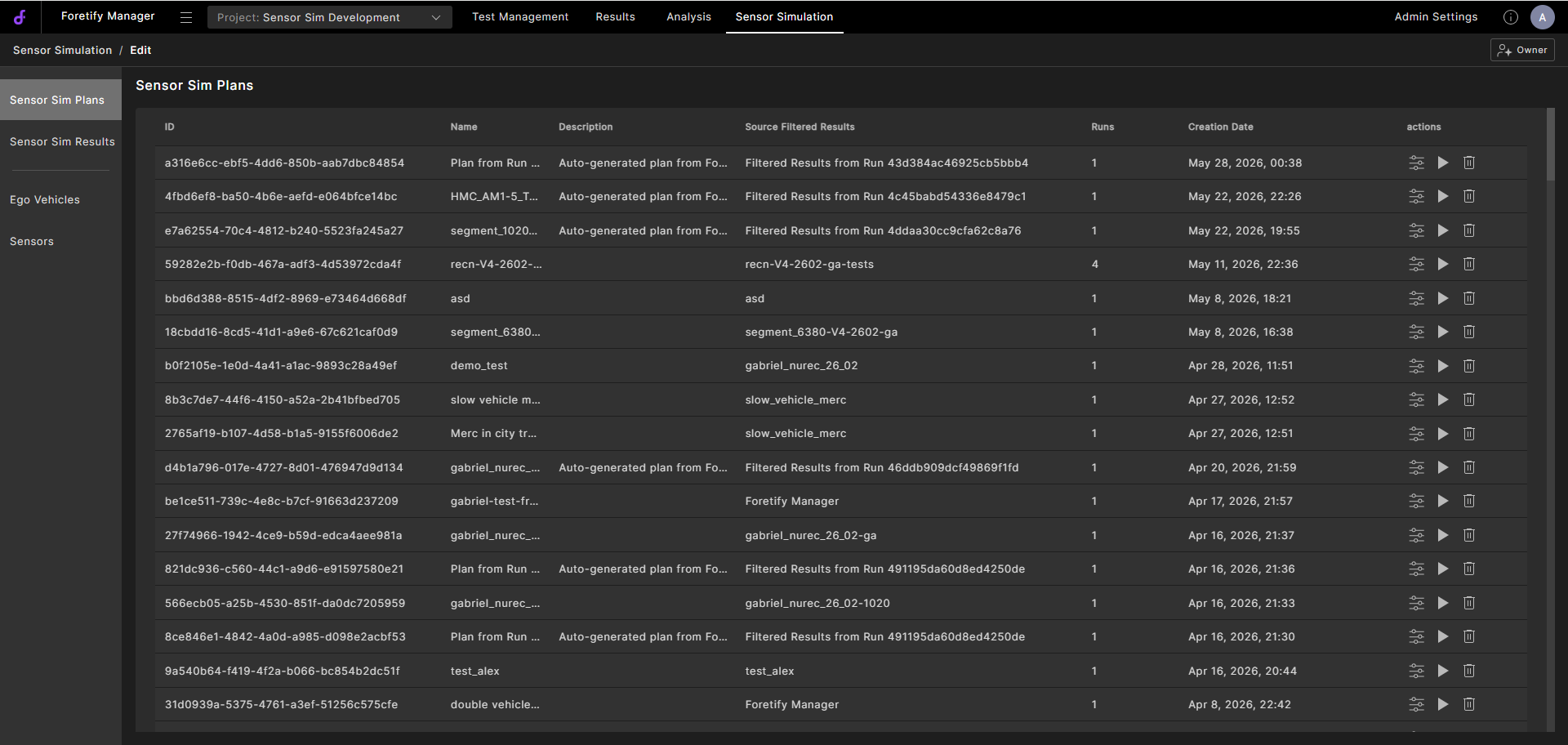
-
When prompted, click OK.
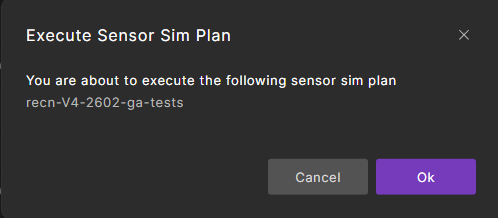
The simulation begins running. Track its progress and view the results in the Sensor Sim Results view.
96.3 Editing Sensor Sim Plans
-
In the Sensor Sim Plans view, click the Edit
 icon in the row of the simulation you want to edit.
 -
In the Edit Sensor Sim Plan view, configure the settings.
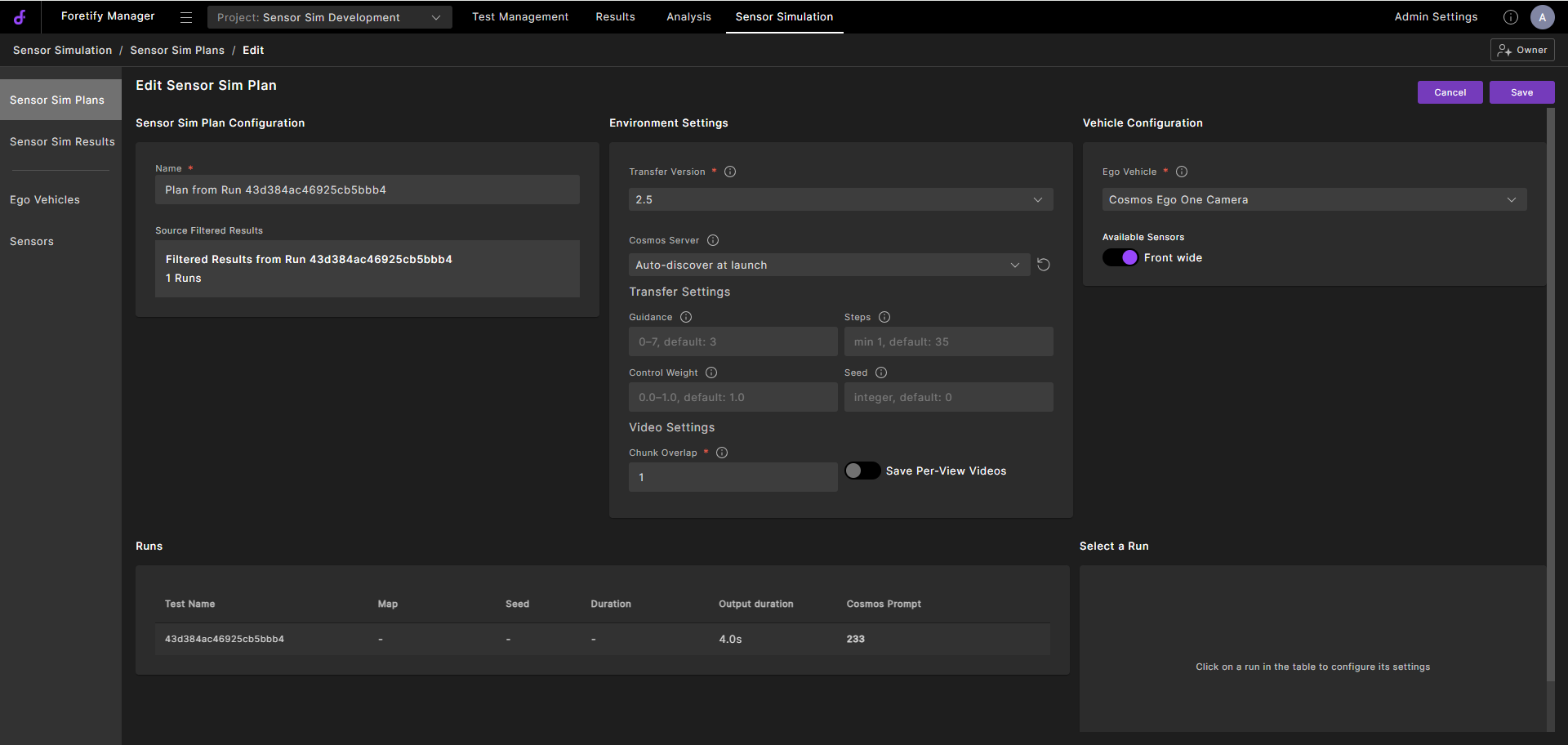
-
In the Runs table, click a run and configure the settings.
-
Click Save to update the configuration.
96.4 Deleting Sensor Sim Plans
-
In the Sensor Sim Plans view, click the Delete
 icon in the row of the simulation you want to delete.
 -
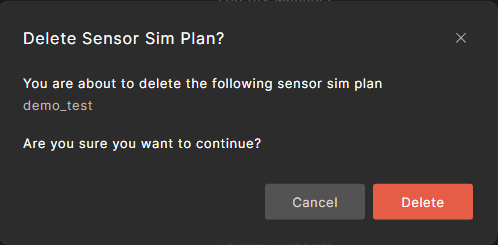
When prompted, click Delete.