112. Exporting a scenario
Exporting a Smart Replay scenario occurs in two main phases:
112.1 Extracting the scenario
Smart Replay and its extraction (export) functions are integrated into Foretify Manager. Foretify Manager serves as a core engine within the V&V environment, providing essential capabilities during both test suite execution and results analysis in the automated flow.
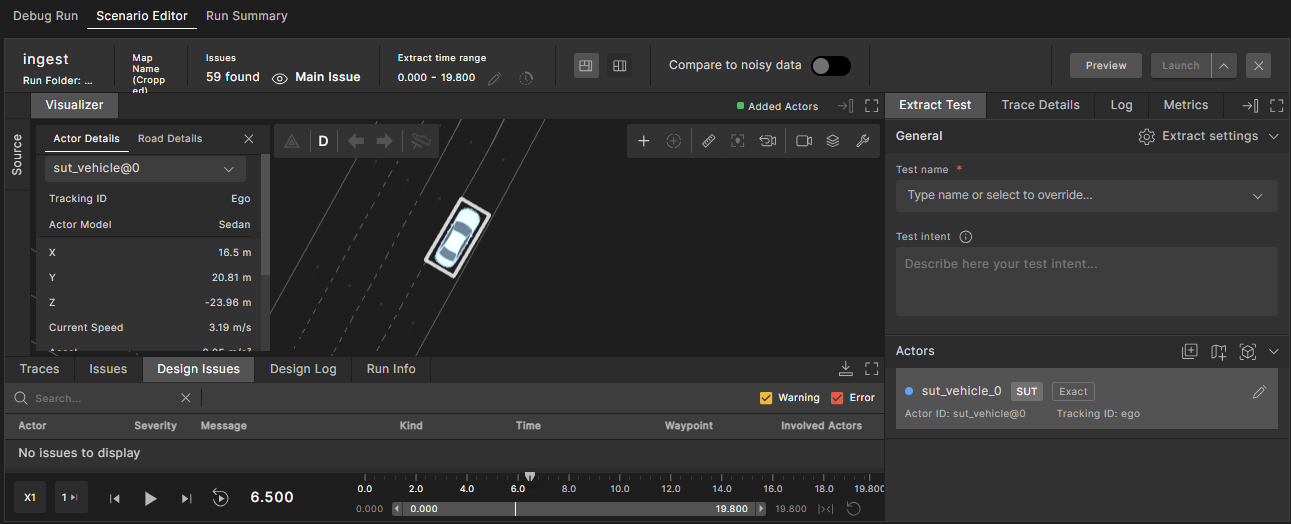
Scenario extraction (export) is performed on a selected Foretify run. Users can select significant time frames and specific actors from existing simulations or logs to extract as a new scenario. This selection can be performed through a graphical user interface (GUI) or programmatically via an SDK.
112.2 Exporting a Smart Replay scenario
Follow these steps to export a scenario from Foretify Manager:
-
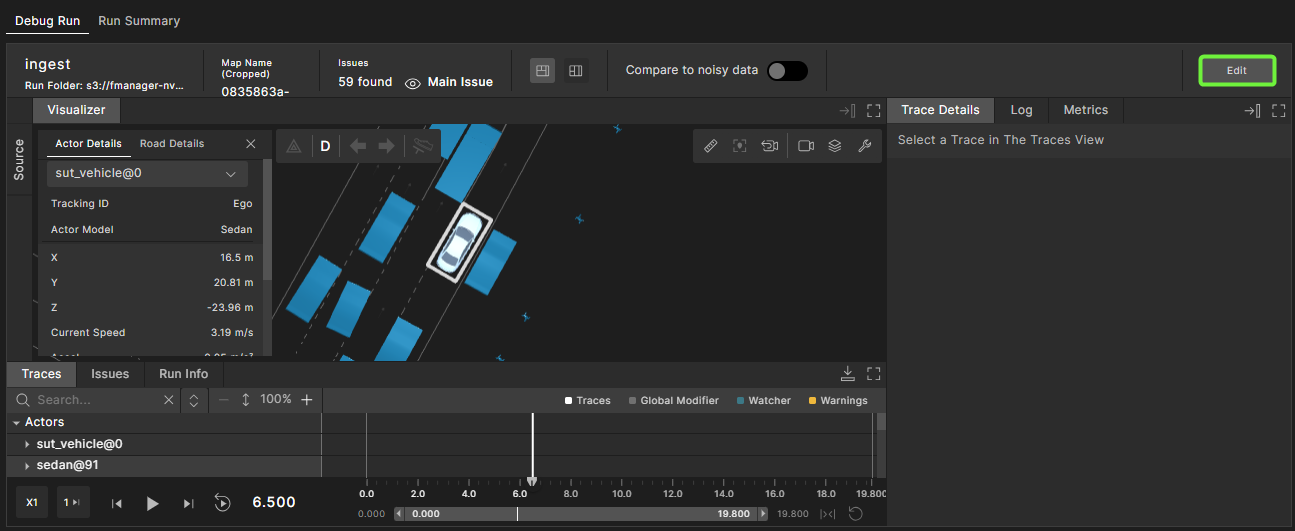
In the Foretify Manager GUI, select a run.
The Debug Run tab is displayed.
-
Click Edit in the top-right corner of the Debug Run tab.
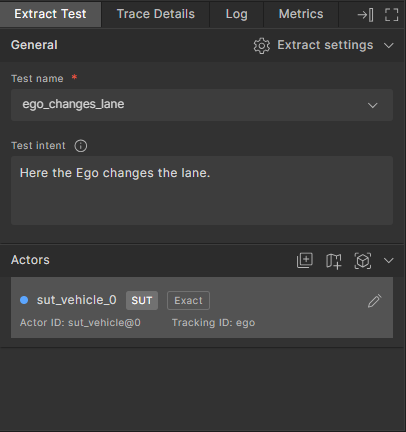
The General panel is displayed with various export options.
-
(Required) Specify a name for the scenario for export.
-
(Required) Specify the test intent.
-
Add actors to the scenario.
The Ego is added by default. You can add actors in one of two ways:
-
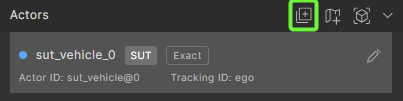
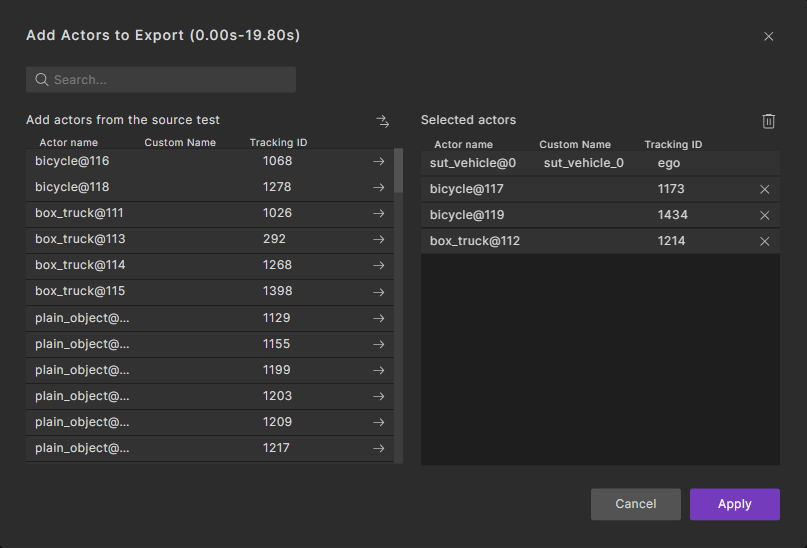
In the Actors section, click the Select Actors icon, select the required actors and then click Apply.
-
Select the required actors from the visualizer section, and click Add From Visualizer.
The actors are added to the Extract Test tab. The names of the actors from the active scenario are displayed under the actor fields.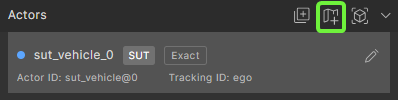
For better visualization of selected actors in the Visualizer, select Show only edited actors from View Tools
 to display only the actors currently selected in the scenario editor.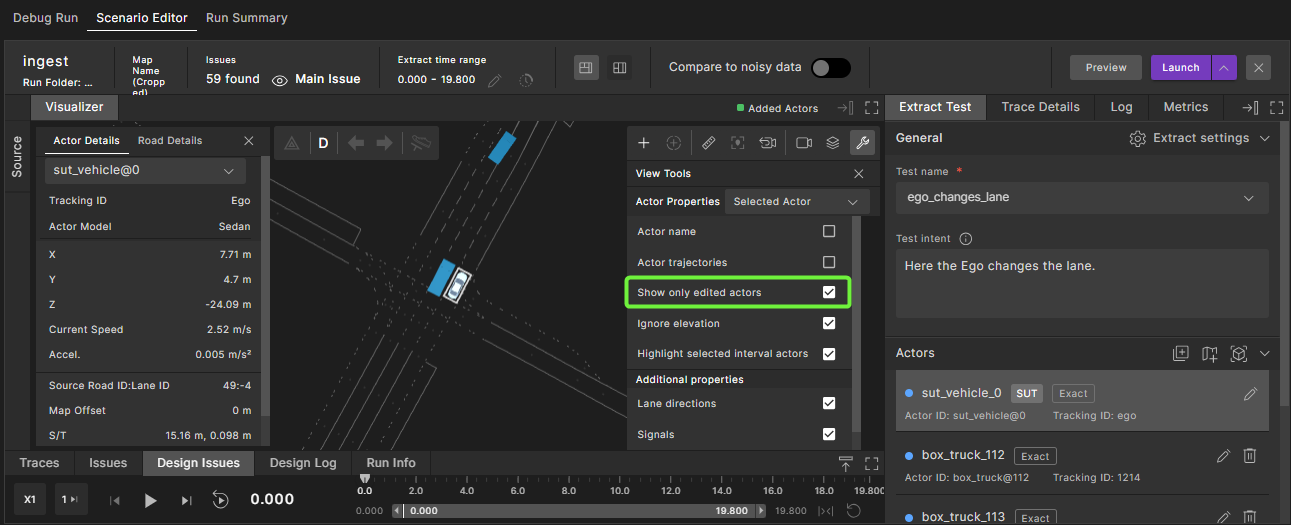
To modify actors, see Modifying actors.
-
-
Click the Extract settings in the top-right corner of the Extract Test panel.
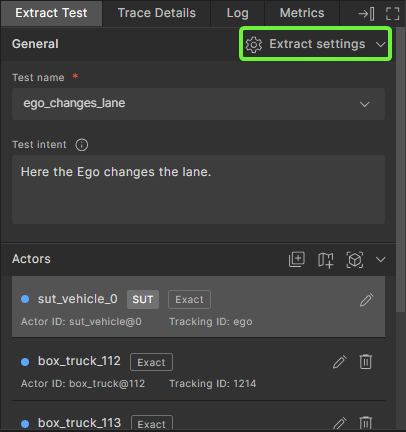
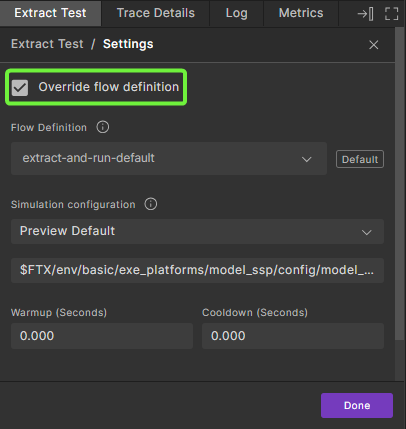
In the Extraction Settings window:
-
Click the Override flow definition checkbox to configure the extraction settings.
-
Select the required flow definition. If the default options are not suitable, you can create a flow definition.
-
Select the required simulation configuration.
-
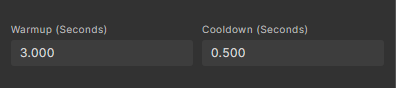
Set the Warmup and Cooldown duration.
-
The Warmup duration is the number of seconds added before the main event begins. During this time all actors are in exact mode. This buffer allows the client stack to initialize before taking control of the ego vehicle.
-
The Cooldown (drain-time) duration is the number of seconds added after the main event ends, to ensure post-event processes complete successfully.
-
The warmup and cooldown (drain-time) are periods of time during which the SUT stack is not operational and, as such, will not react to the environment. This is useful when a scenario is simulated and the SUT stack needs to be started some time before the scenario starts (and allowed to end before the stack stops reacting).
-
-
-
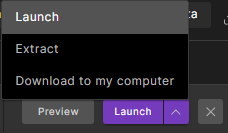
Export the scenario using the following options.
-
Click the Launch button.
Launch is a seamless, integrated operation. The Smart Replay test is saved in the Foretify Manager database and executed by the Execution Manager. The results are then displayed as a new run in a new Test Suite Result.
-
Click the arrow next to the Launch button, and select Extract.
Extract creates a new test without running it immediately. A common use case is reviewing extensive real-world drive data, identifying interesting situations of interest (e.g., using Foretellix Evaluate to match scenarios), and extracting those segments as independent tests.
-
Click the arrow next to the Launch button, and select Download to my computer.
Foretify Manager exports the Smart Replay scenario as a ZIP file and saves it to your local Downloads folder. This ZIP contains all the scenario files needed to re-run the scenario directly in Foretify. See Running the scenarios in Foretify.
-
Note
Without Dispatcher integration, replication types will not appear in the GUI. Instead, a set of OSC files is provided (as described in Running the scenarios in Foretify), from which users can select and execute a specific scenario.