115. Modifying actors
You can modify actors and their behavior in a Smart Replay scenario in the Foretify Manager GUI. You can also modify actor behavior using the Smart Replay scenario modifiers.
115.1 Modifying actors behavior in Foretify Manager
In Foretify Manager, when you add the actors they are added to the Extract Test tab.
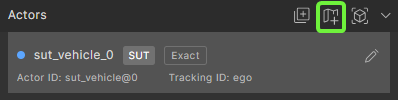
115.1.1 Changing actor names
-
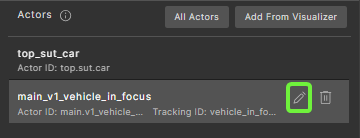
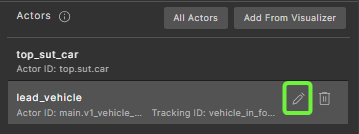
Click the Edit icon to open the actor's information.
-
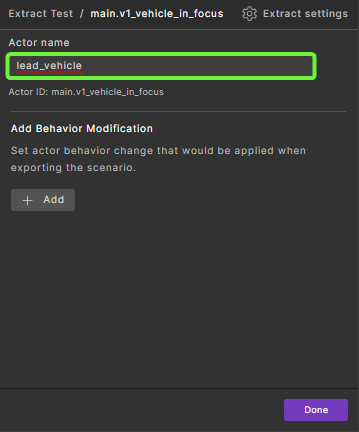
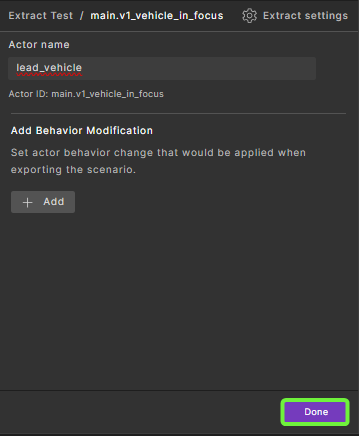
Enter the changes to the Actor name.
-
Click Done
115.1.2 Modifying actor behaviors
The following actor behaviors can be modified:
115.1.2.1 Modifying speed behavior
-
Click the Edit icon next to an actor.
-
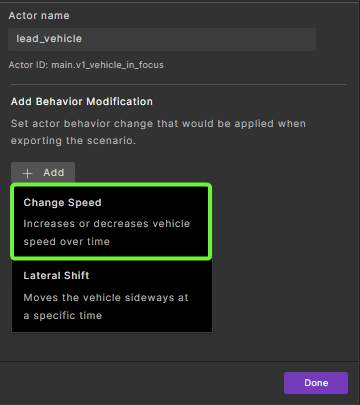
Click Add and then select Change Speed.
-
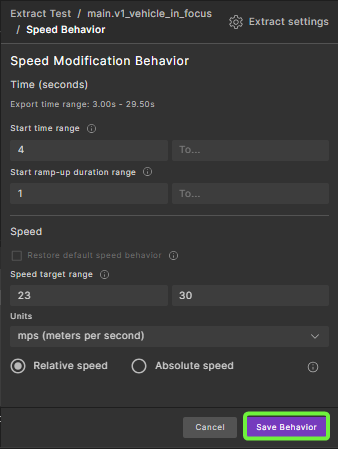
In the Speed Modification Behavior window, enter the required changes:
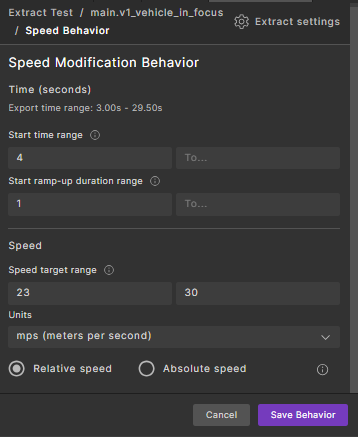
Parameter Description Start time range Defines when the modification begins. Specify a single value in the Fromfield to start at an exact time. To allow flexibility, use bothFromandToto define a time range.Start ramp-up duration range Indicates the preferred duration over which the speed change should occur. A shorter duration results in a quicker transition, while a longer duration leads to a smoother, more gradual change. Speed target range Defines the target speed for the actor. Use the Fromfield alone for a fixed speed, or use bothFromandToto define a range.Units Specifies the units used for speed (e.g., m/s, km/h). Relative or Absolute Determines whether the speed modification is relative to the current speed or an absolute value. When set to Relative, negative values can be used to reduce speed. -
Click Save Behavior.
115.1.2.2 Restoring default speed behavior
Note
The Restore default speed behavior section appears only if a speed behavior exists for the specified actor.
To restore the default speed behavior:
-
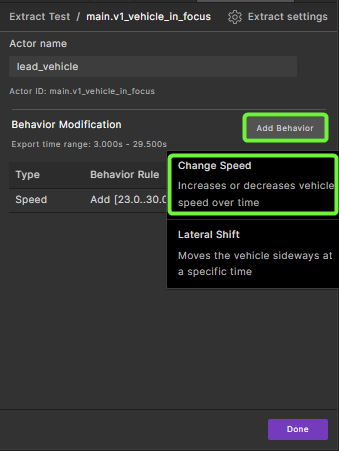
Click Add Behavior, and then select Change Speed.
-
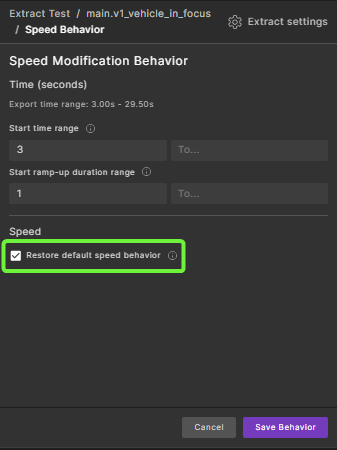
In the Speed Modification Behavior window, select the checkbox Restore default speed behavior.
-
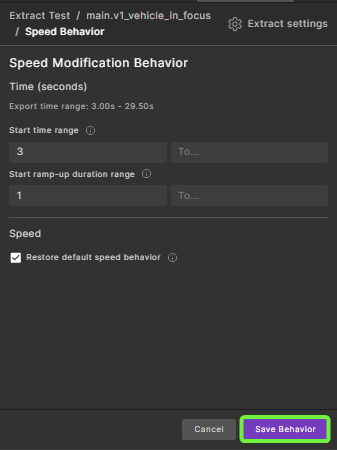
Configure the Start time range and Start ramp-up duration range.
Parameter Description Start time range Specifies when the actor's speed modification should begin transitioning back to its original value. This time is relative to the original scenario run. Start ramp-up duration range Defines the duration (in seconds) for the actor to return to its original values. Shorter durations result in a faster reset, while longer durations allow for a smoother transition. -
Click Save Behavior
115.1.2.3 Modifying position behavior
After adding actors, you can set their lateral shift.
-
Click the Edit icon next to an actor.
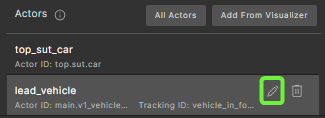
-
To change lateral shift, click Add and then select Lateral Shift.
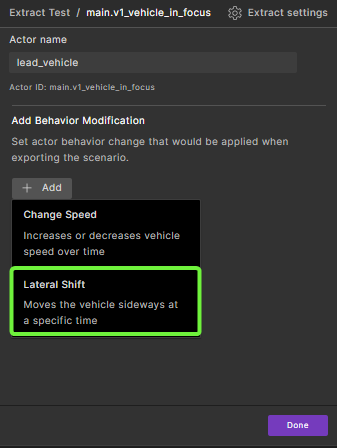
-
In the Lateral Modification Behavior window, enter the required changes:
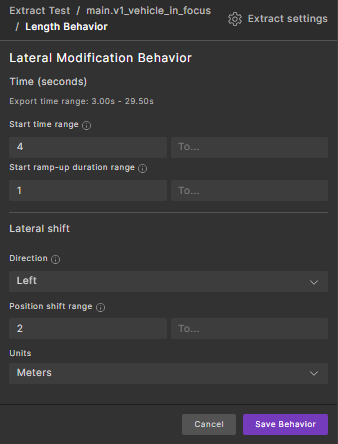
Parameter Description Start time range Defines when the lateral shift should begin. Use the Fromfield for a specific start time. To introduce variability, specify bothFromandToto create a time window.Start ramp-up duration range Indicates the desired duration for the lateral shift transition. A smaller value results in a quicker shift, while a larger value produces a more gradual movement. Direction Specifies the direction of the lateral shift, typically either Left or Right. Position shift range Determines how far the actor should shift laterally. Use the Fromfield for a fixed shift amount, or provide bothFromandToto define a range of possible shifts.Units Specifies the measurement units for the shift distance (e.g., meters, feet). For example, suppose a speed modifier is predefined with a speed target range of [4..6] that starts at 3 seconds. To terminate this modifier at 7 seconds, you can define another speed modifier by selecting Restore default speed and specifying the Start time range to stop the previously defined modifier.
-
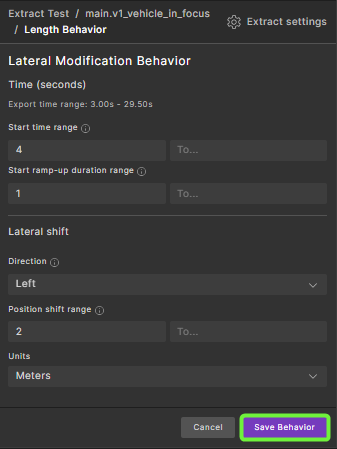
Click Save Behavior.
115.1.2.4 Restoring lateral shift behavior
Note
The Restore default position behavior section appears only if a position behavior exists for the specified actor.
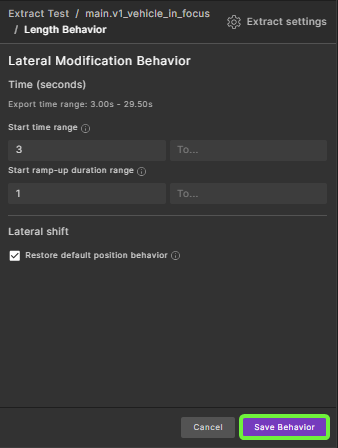
To restore the lateral shift behavior:
-
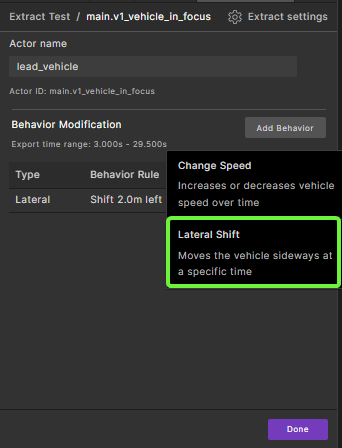
Click Add Behavior, and then select Lateral Shift.
-
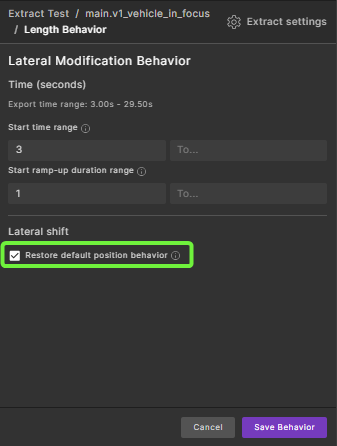
In the Speed Modification Behavior window, select the checkbox Restore default position behavior.
-
Configure the Start time range and Start ramp-up duration range.
Parameter Description Start time range Specifies when the actor lateral shift modification must begin transitioning back to its original values. This time is relative to the original scenario run. Start ramp-up duration range Defines how long (in seconds) the actor should take to return to its original values. Shorter durations result in a faster reset, while longer durations allow for a smoother transition. -
Click Save Behavior.