9. Edit the scenario
The Scenario Designer allows users to select and modify existing actors from the ingested run as well as add new synthetic actors to the scenario.
Note
If you leave the Scenario Designer without saving, a confirmation dialog warns that unsaved changes will be lost. See Unsaved changes for details.
Click Edit in the top right of the screen.
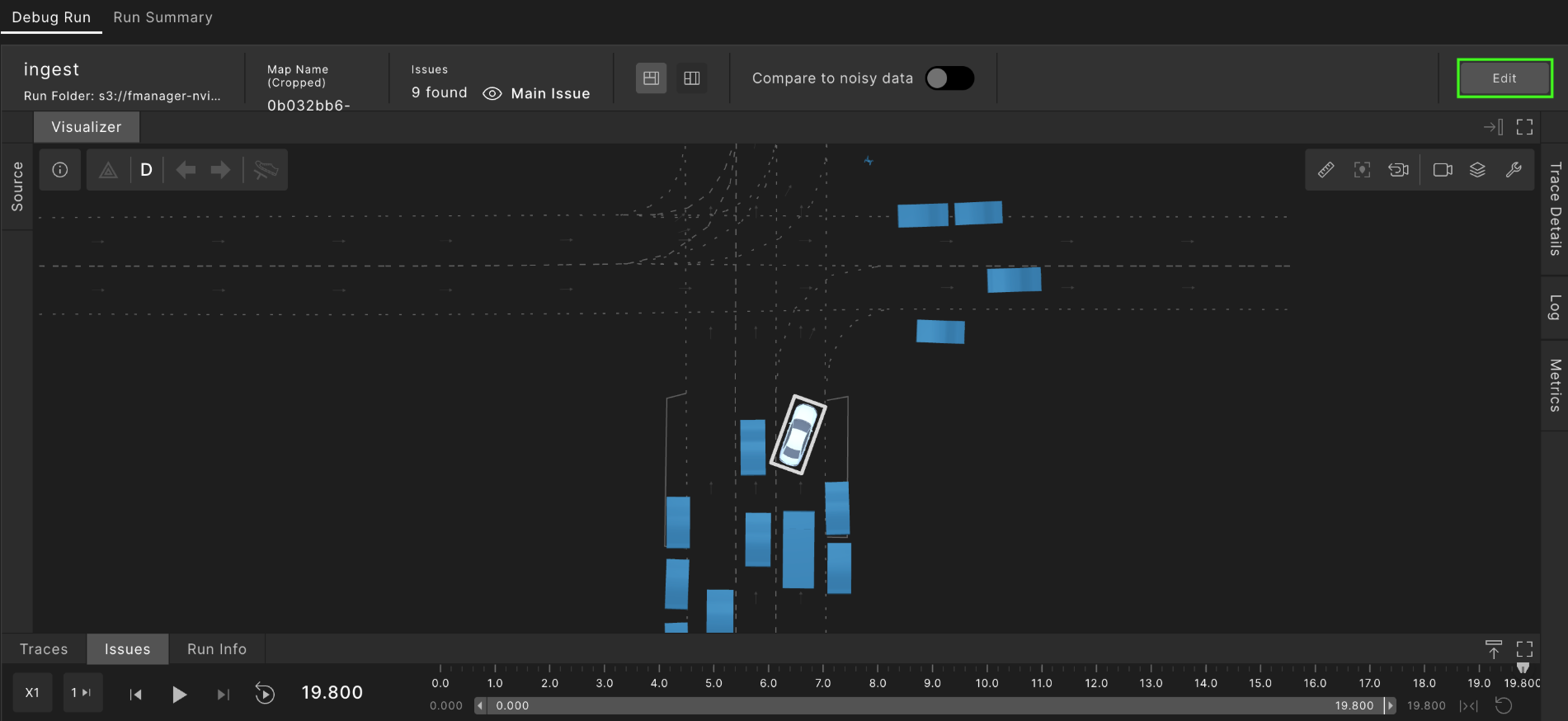
9.1 Edit real-world actors
-
Select which actors from the Ingested Run to include in the new scenario. There are two ways to do this:
- Visualizer selection: Hold Ctrl and left-click the desired actors directly in the Visualizer pane.
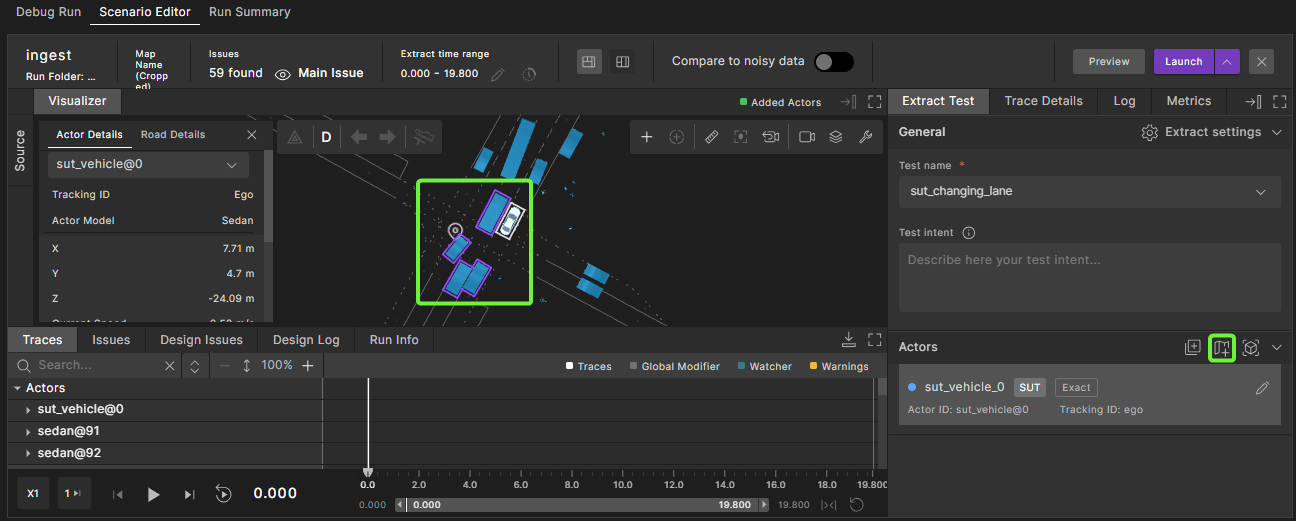
- List selection: In the Extract Test panel, click the Select Actors icon.
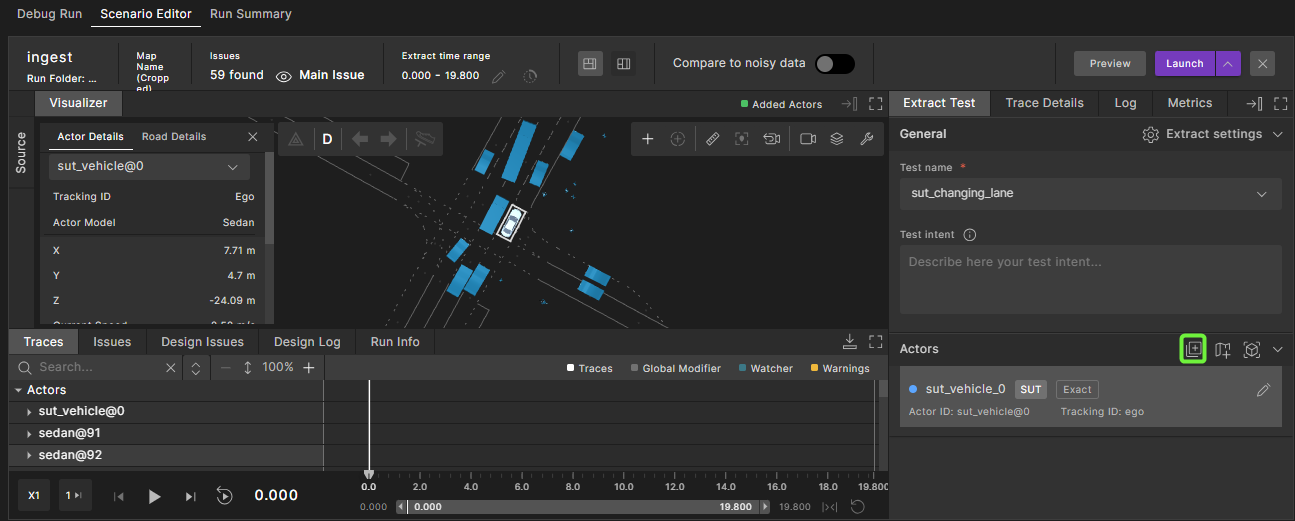
Select the actors to include from the list of all relevant actors.
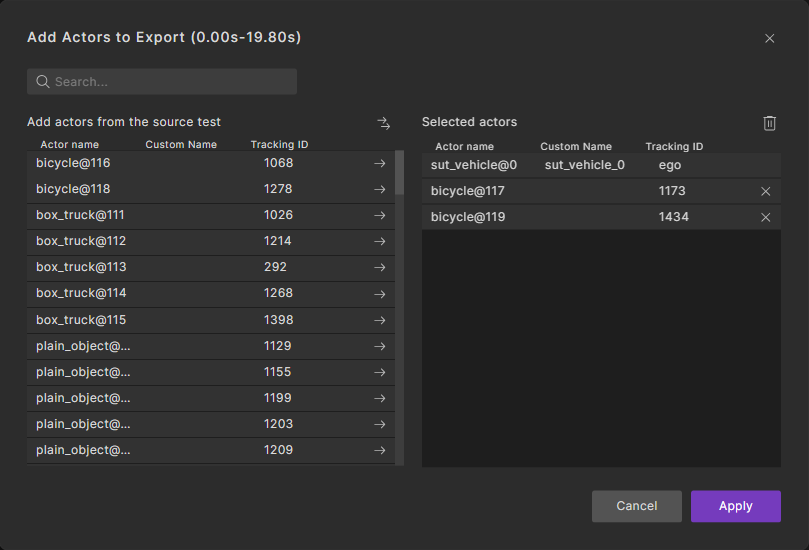
-
Click the Actors icon.
-
Click the Set Replay Type icon to open the configuration menu.
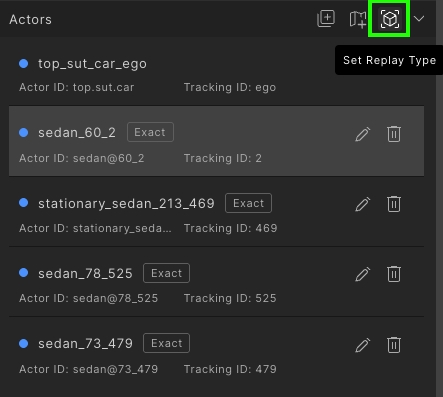
From the menu, you can apply changes in two ways:
-
To set the replay type for selected actors, first select the actors you want to modify, and then select to set the mode to exact or behavior.
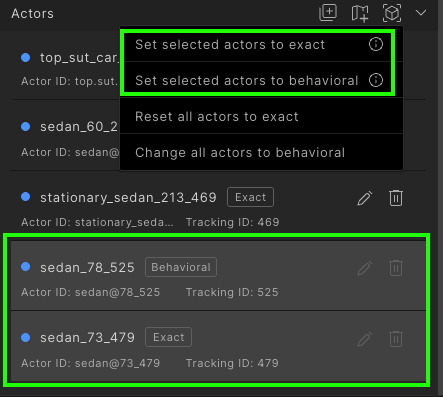
-
To set the replay type for all actors, select from the options to reset or change all actors replay type.
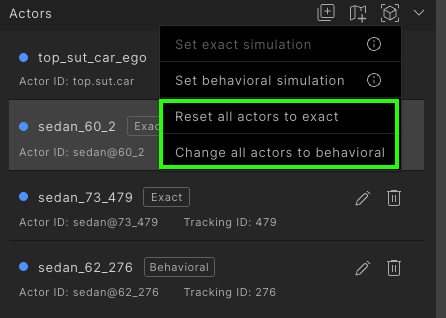
-
-
Define the actor speed ranges for randomization. Specify a min/max speed range, so multiple scenario instances can use randomized speeds within these constraints at run time. See Modifying actors.
Note
Modifying an actor's speed automatically switches its replay type to Behavioral.
-
Set a specific lateral shift value to change the actor's lateral position/offset for targeting what-if evaluations. See Modifying actors.
Note
Modifying an actor's lateral shift automatically switches its replay type to Behavioral.
-
Define lateral shift ranges for randomization when running multiple instances of the scenario.
Note
Actors that behave in non-standard ways cannot be modified.
For example:
The vehicle drives against the designated direction of travel.
The vehicle performs a maneuver and transitions between two roads that are not connected on the map.
9.2 Add and edit synthetic actors
You can add the following synthetic actor types:
- Vehicle
- Person
- Cyclist
There are two ways to add a new synthetic actor to the map.
- Using the Add Actor icon in the toolbar
- Using the mouse Right-click menu on the map
9.2.1 Add an actor using the Add Actor icon
To add an actor using the Add Actor icon:
-
Click the Add Actor icon in the toolbar.
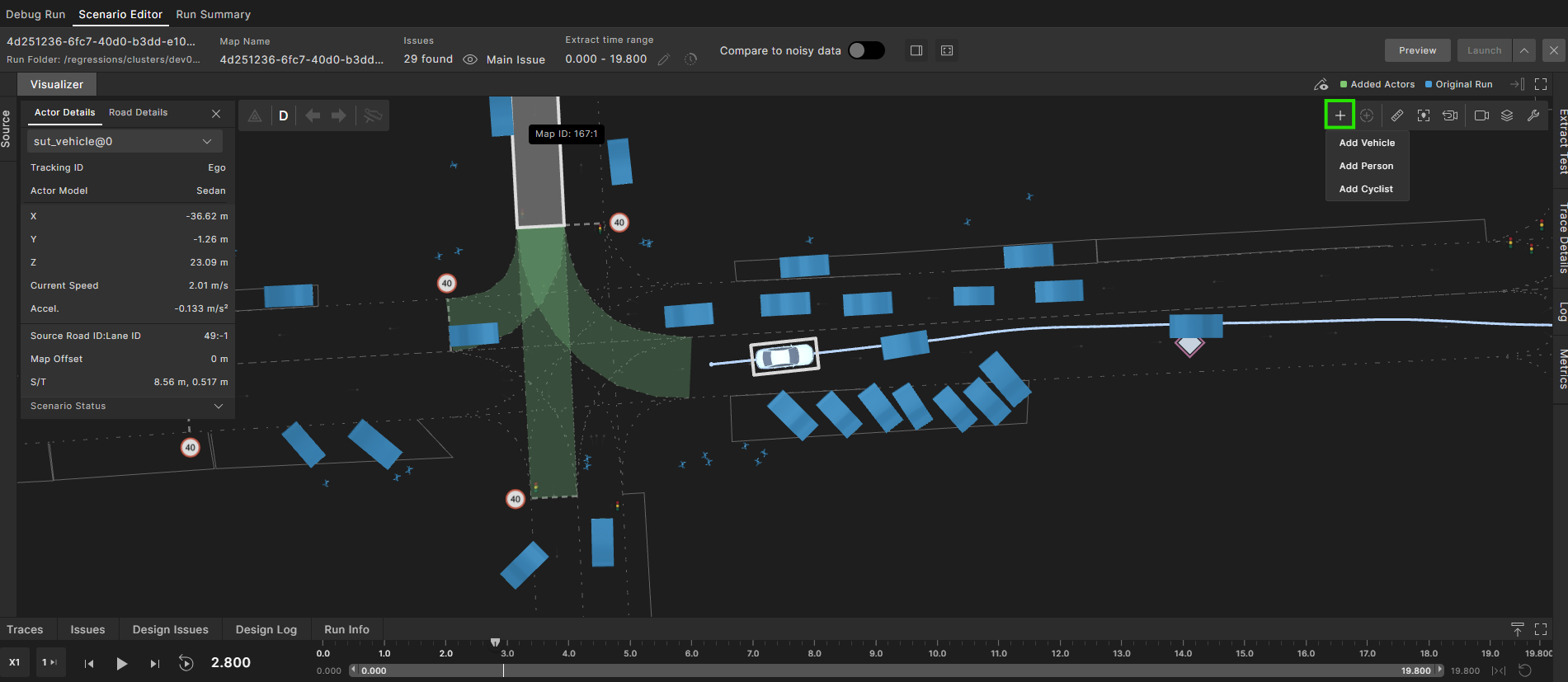
-
Select the type of actor to add.
-
In the location on the map, click the cursor to add the actor.
-
An icon is added to the map, a name is automatically assigned to the actor, with the Actor Type details displayed in the Editor pane.
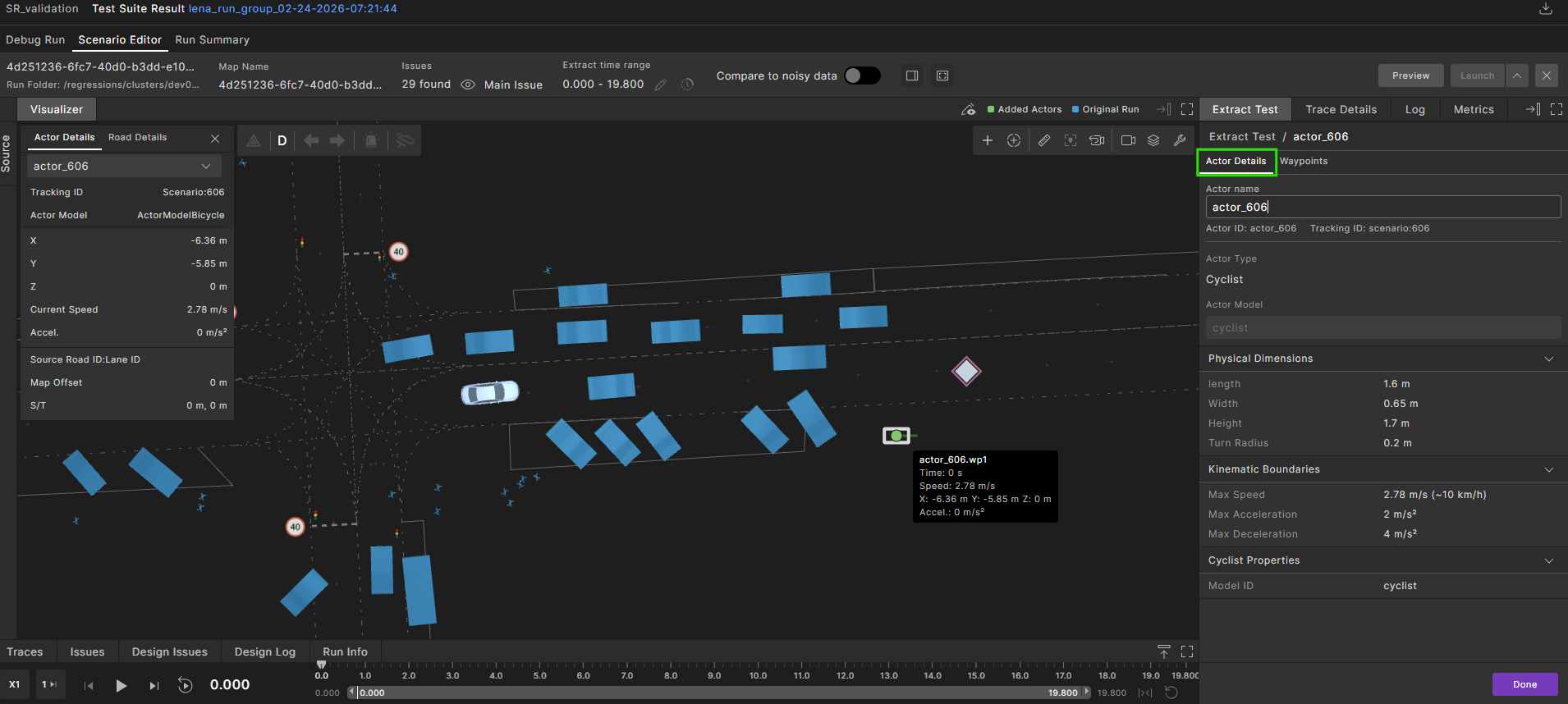
-
Create a trajectory for the actor by adding waypoints. Their trajectory can be composed of multiple line segments travelled at a constant speed.
-
Click the Add waypoints icon to add waypoints.
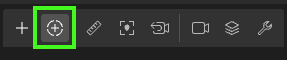
-
Place your cursor ahead of the new actor on the map, and click on the location to add a waypoint.
The trajectory line appears on the map.

Continue to add waypoints as required.
-
Click Done to complete the trajectory.
-
-
In the Editor panel:
-
Change the actor name, if required. Note that the tracking ID remains the same.
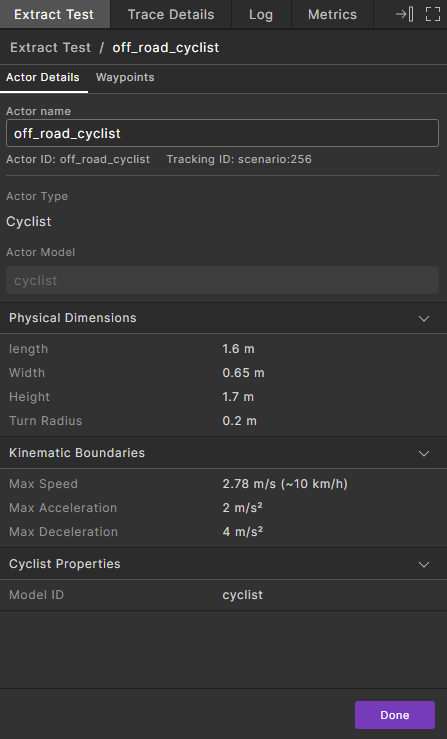
-
To review or edit the waypoints, click the Waypoints tab, and click the Edit icon.

-
Edit the Global Coordinates, Lane Coordinates, and Speed as required.
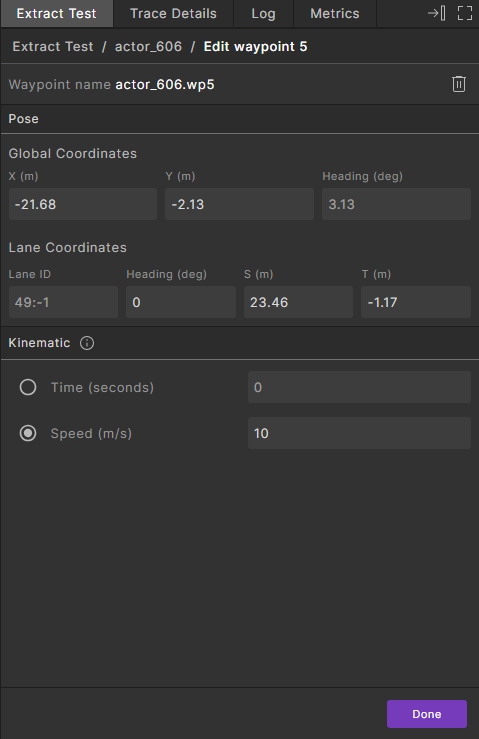
-
Click Done to save the new actor.
-
-
Click Done to complete editing the scenario.
9.2.2 Add an actor using the right-click menu
To add an actor using the mouse Right-click menu:
-
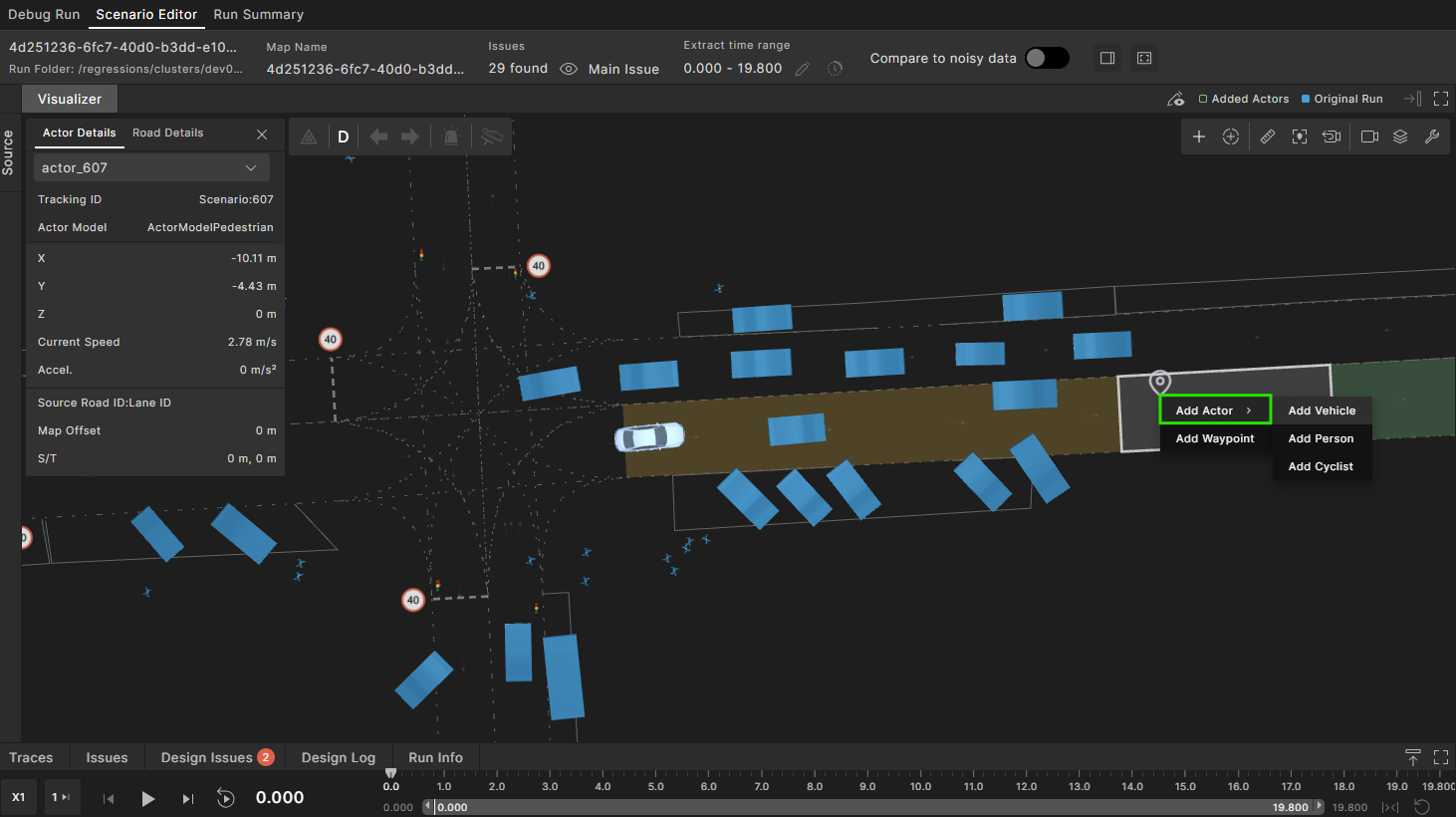
Right-click in the required location on the map, within the road boundaries, and select Add Actor.
-
Select the type of actor to add.
-
Create a trajectory for the actor by adding waypoints. Move your mouse to a location ahead of the actor, right-click and select Add Waypoint.
The trajectory line appears on the map.
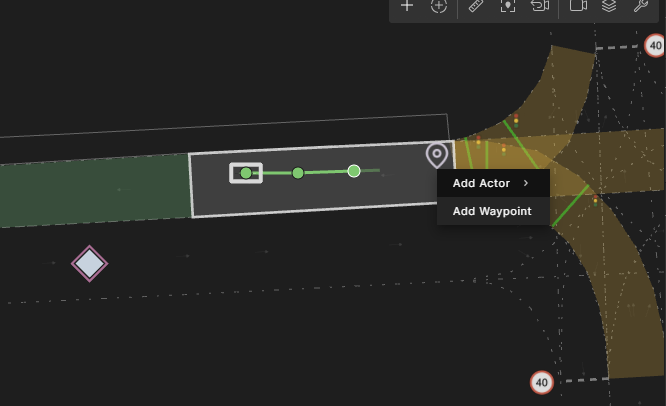
Continue adding waypoints, as required.
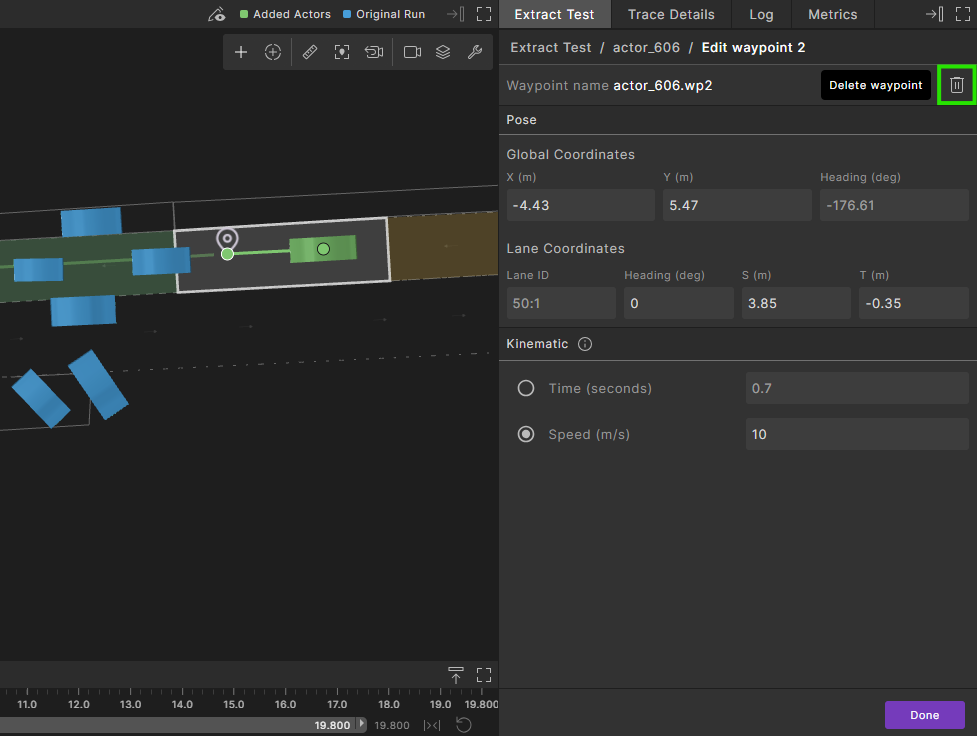
To delete a waypoint, while the waypoint is selected, click the delete icon in the Editor panel.
-
Click Done to save the new actor.
-
Click Done to complete editing the scenario.