54. Triaging test suite results
Foretify Manager's Triage lets you cluster your Foretify runs into manageable sets to further analyze and debug them at a granular level. Foretellix's technology and methodology are built around massively scaling scenario testing to the tens and hundreds of thousands of runs in a typical weekly test suite. With such scaling, teams need a way to analyze and effectively triage and debug the test suite holistically as a first step.
These are the key concepts introduced in Triage:
-
Clustering and user-defined attributes: It is possible to cluster issues based on their current status and other attributes as defined by the currently assigned verdict and other standard and user-defined attributes. This allows you to easily cluster similar runs without having to examine each and every individual run.
-
Rules: Triage rules let you reuse insights from previous triages by run or cluster to accelerate evaluations of new test suites.
-
Comparison: You can use Triage to compare two test suites and get a picture of what has changed since you last looked at the result.
-
Triage views: You can create custom views inside Foretify Manager workspaces for configuring Triage, and viewing and sharing the triaged results.
-
Debug runs: From Triage, you can launch a run in Visualizer and use the single-run debugger to investigate issues.
54.1 Access Triage
To access Triage:
-
From a project, click the Analysis tab and select a workspace.
-
Click the Triage icon in the left sidebar.
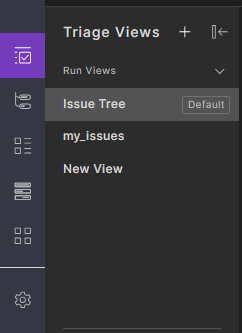
Triage displays.
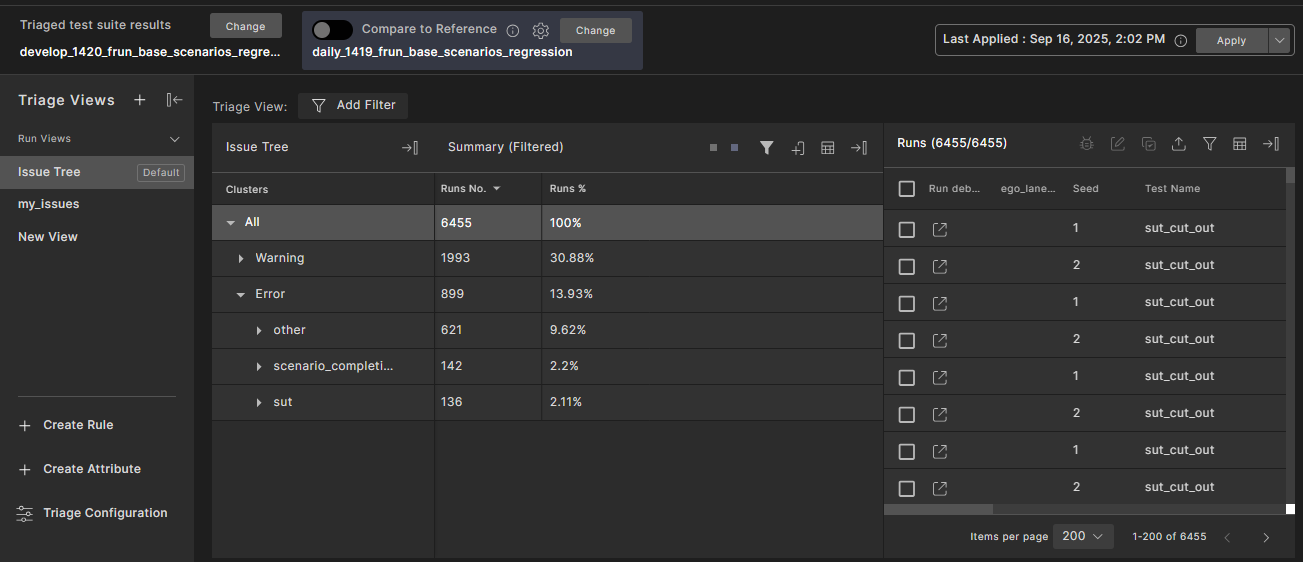
This example shows a comparison between the triaged test suite result and a reference test suite result. By default, the reference test suite result is the previous test suite result. You can also view just the triaged test suite result by turning off the Compare to toggle.
To collapse and expand views:
You can collapse: Triage Views pane; Tree pane and Summary table; and Runs table to gain more screen space.
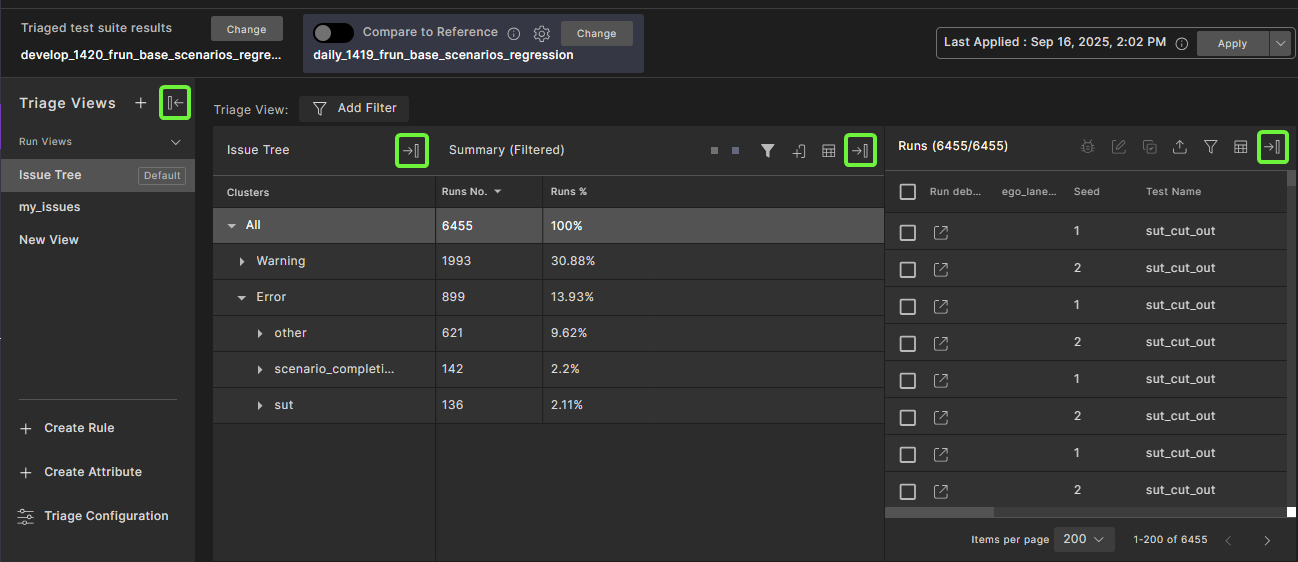
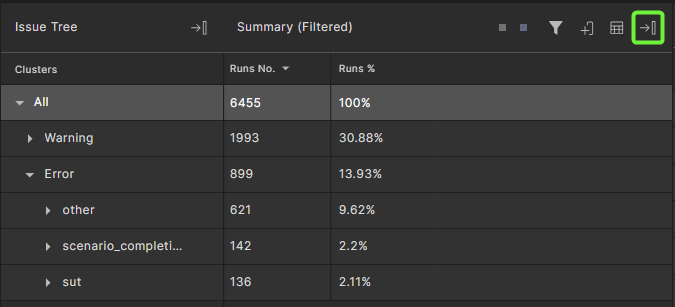
To collapse the summary table, click the collapse icon:
To expand a collapsed view, click the expand icon: