94. Sensors
Sensors are the building blocks of the Synthetic Data Generation pipeline. You must create and configure individual sensors, then attach them to the Ego to form sensor rigs. Each sensor belongs to a specific simulation environment and can only be used with an Ego in the same environment.
Sensor setup is a prerequisite for the pipeline and is typically a one-time task — once configured, you can reuse sensors across multiple Ego vehicles and Sensor Sim Plans.
Important
Environment-specific restrictions
Sensors are tied to a single simulation environment.
Sensors created in one environment cannot be used in another. If you need the same sensor type across multiple environments, you must create a separate sensor in each one.
94.1 Creating sensors
-
Click the Sensor Simulation tab in the top navigation bar, then click Sensors in the left sidebar.
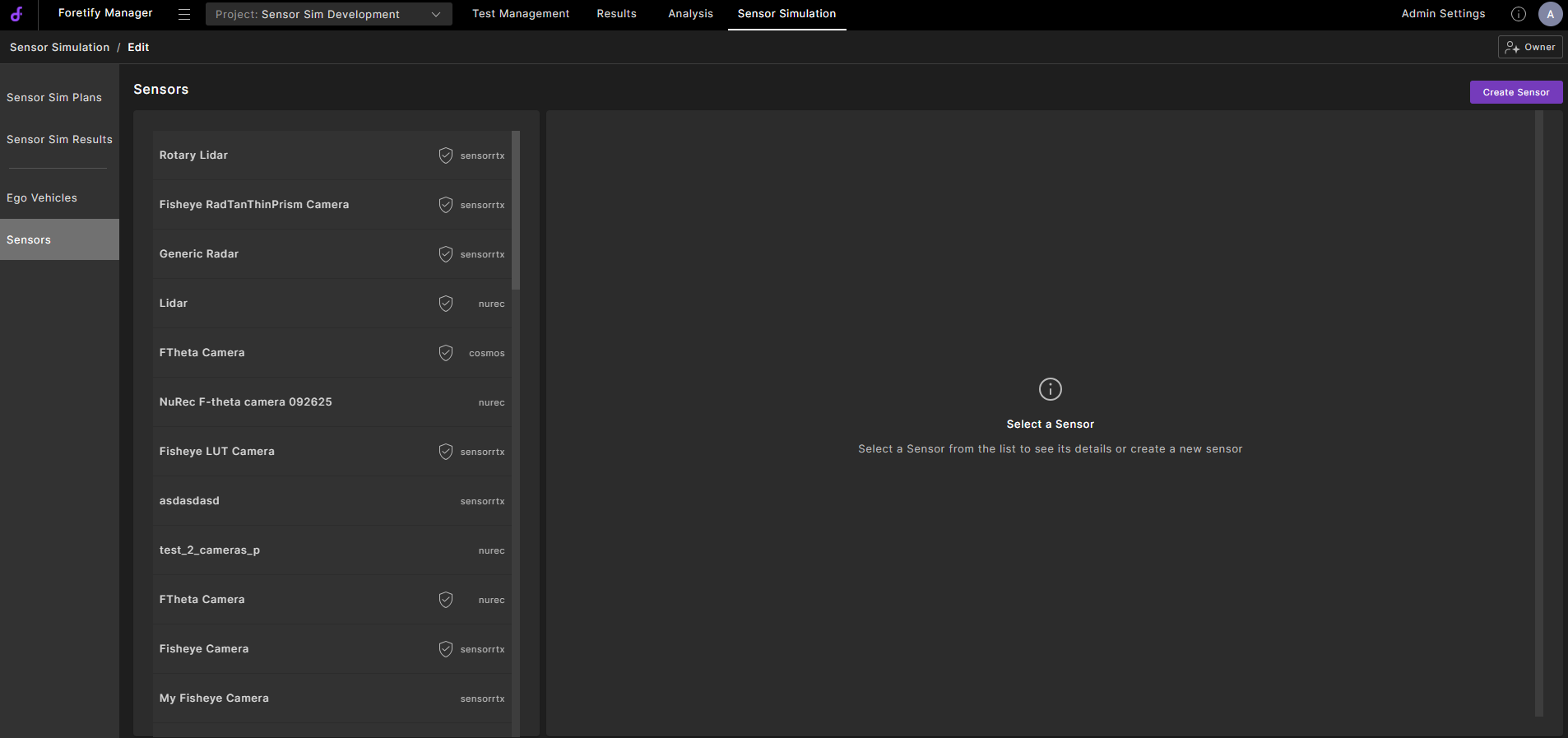
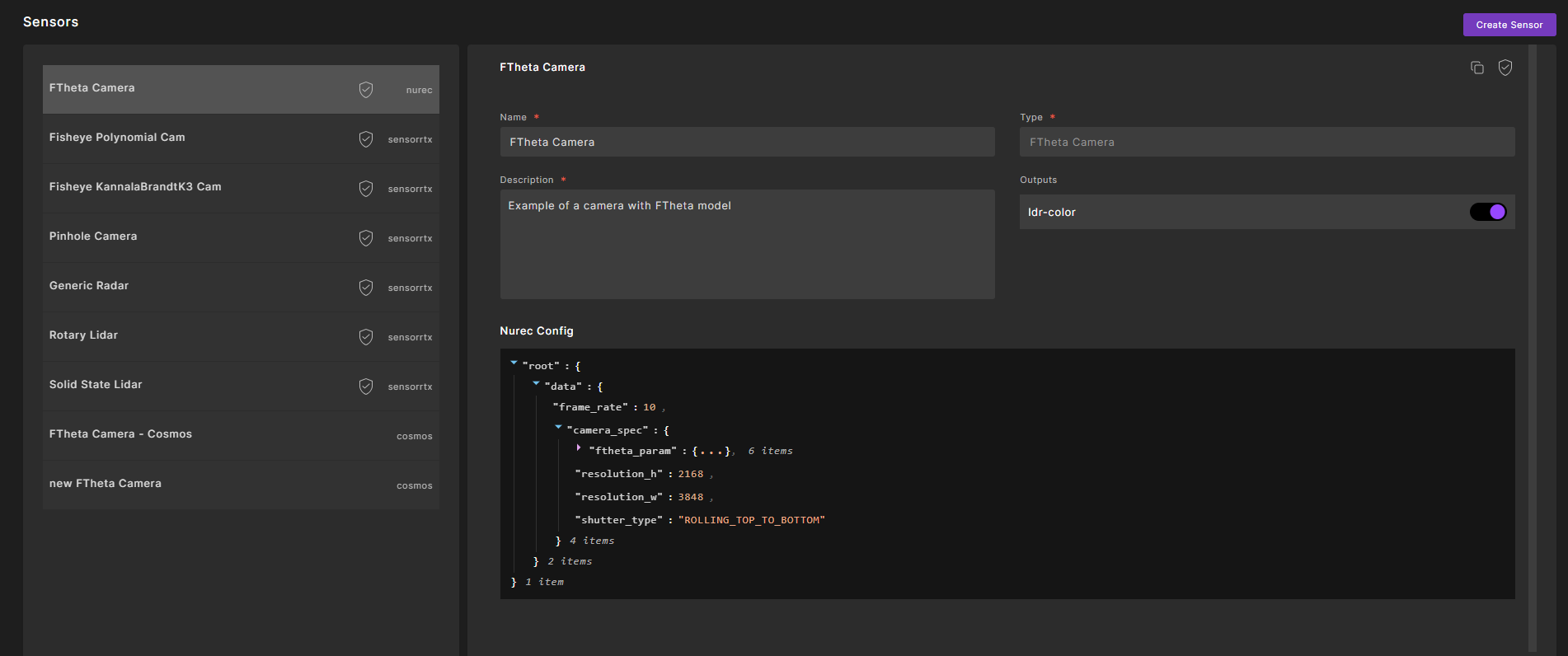
The left panel displays all sensors in your project, each labeled with its simulation environment.
Select a sensor to view its details and configuration in the right panel.
-
Click Create Sensor.
-
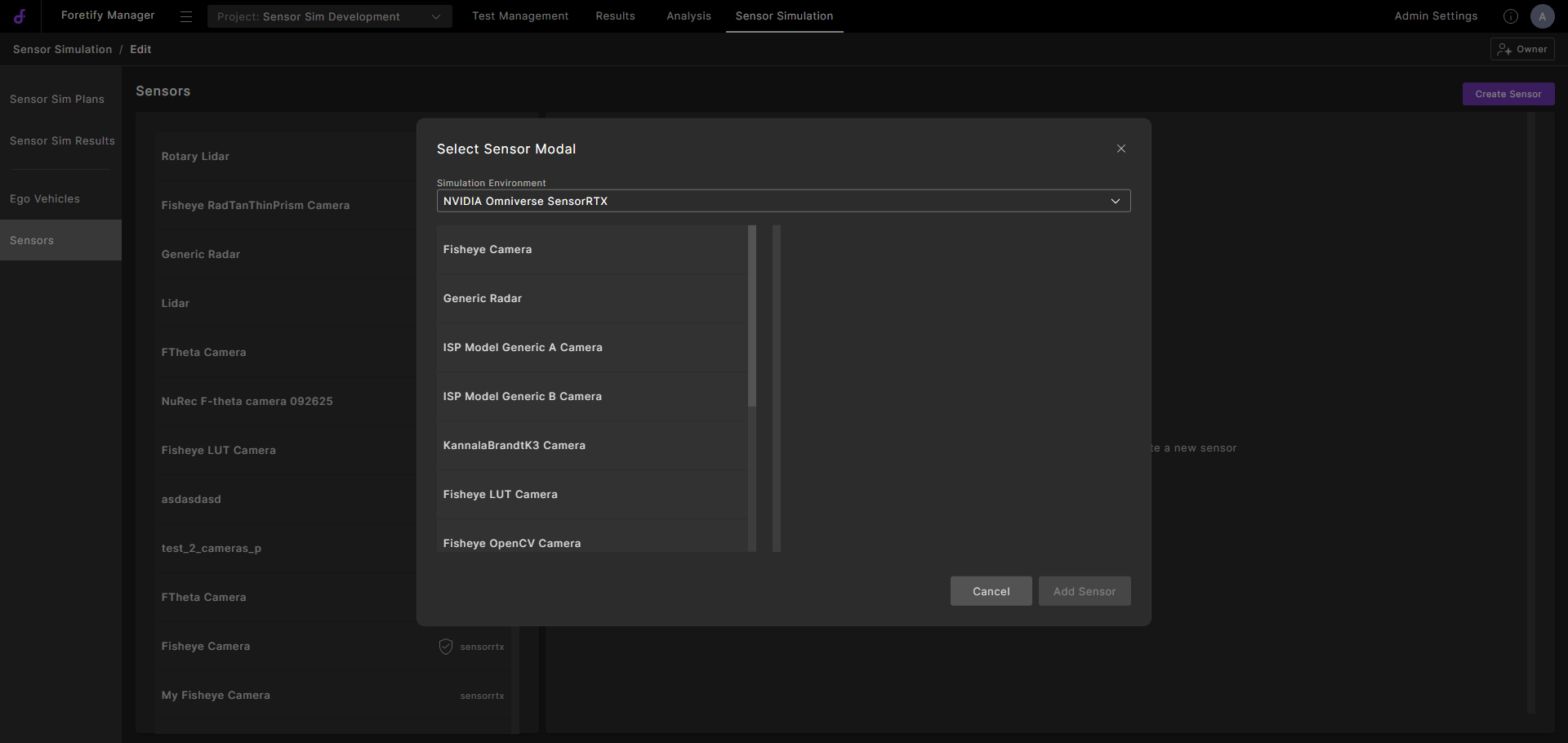
In the Select Sensor Model dialog, select a simulation environment from the Simulation Environment dropdown. The available environments are:
- NVIDIA Omniverse SensorRTX
- NVIDIA NuRec Neural Reconstruction
- NVIDIA Cosmos
-
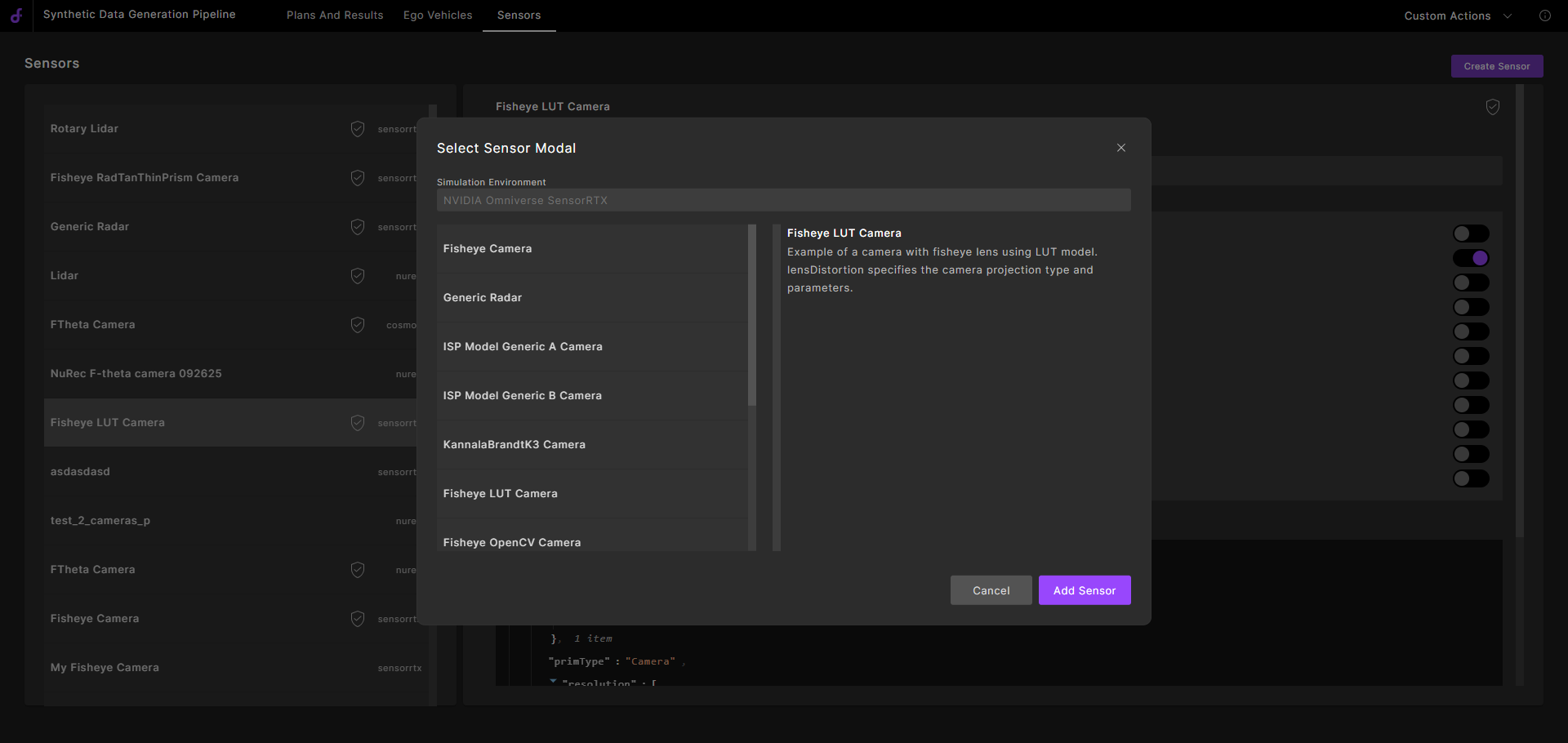
Select a sensor from the pre-configured list. The type and number of available sensors depend on the environment.
-
Click Add Sensor.
-
Create the new sensor:
- Edit the name and description to suit your requirements.
- Modify the sensor's JSON configuration as required.
- Where available, toggle the output options.
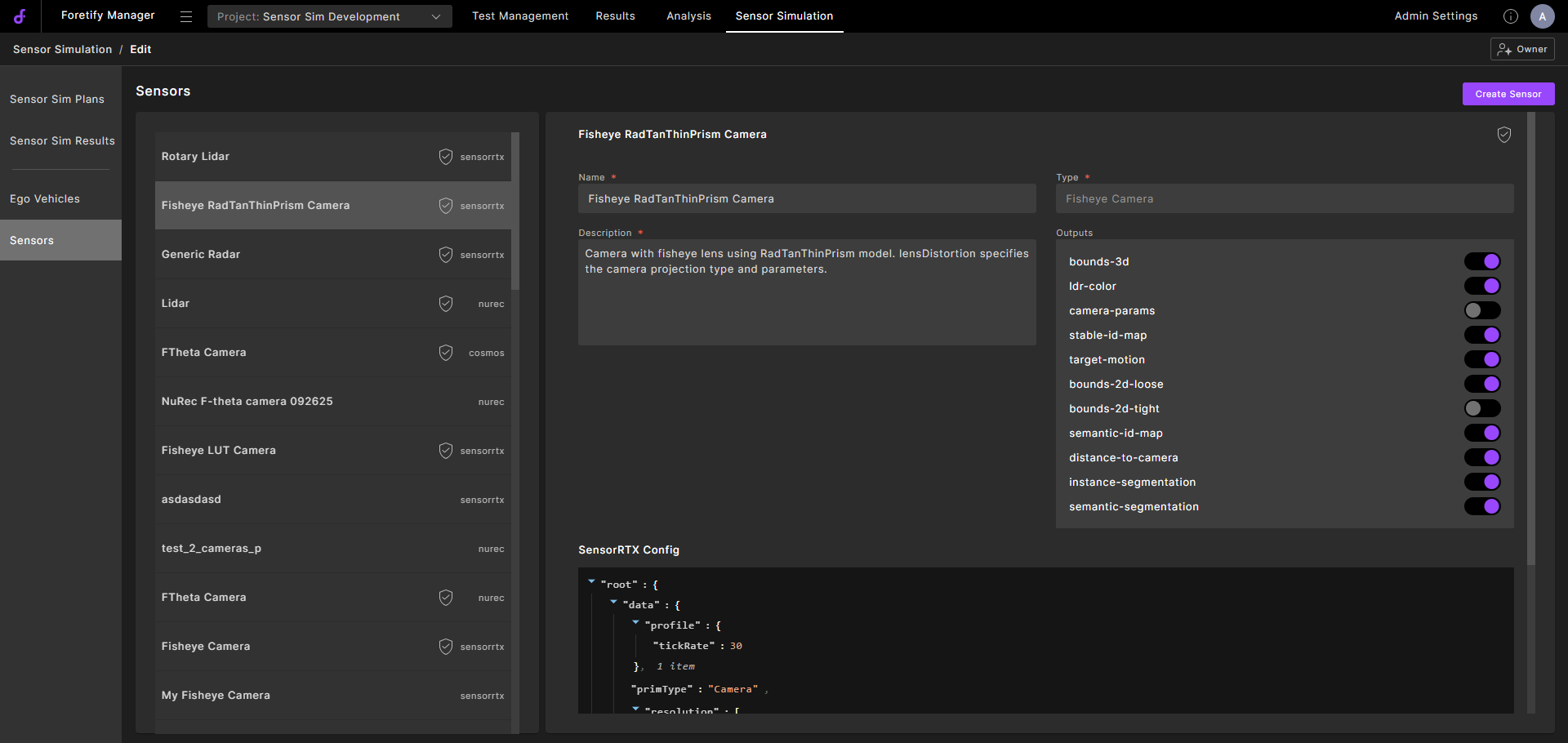
-
Click Save to create the sensor.
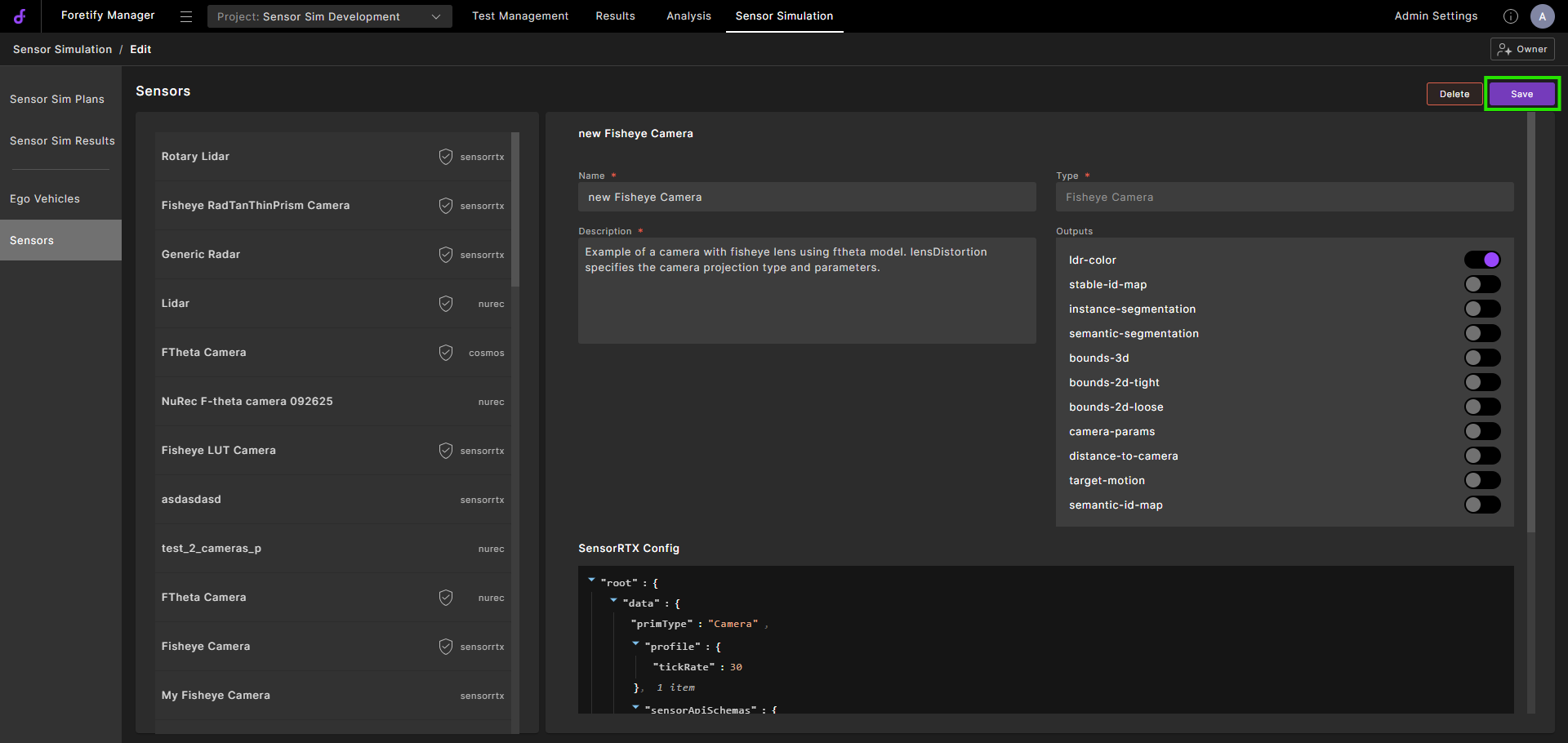
A message appears confirming that the sensor has been created.
94.2 Editing sensors
-
Select the sensor you created.
-
Edit the name, description, and outputs, if relevant.
-
To edit a configuration parameter:
-
Click an editable JSON configuration parameter.
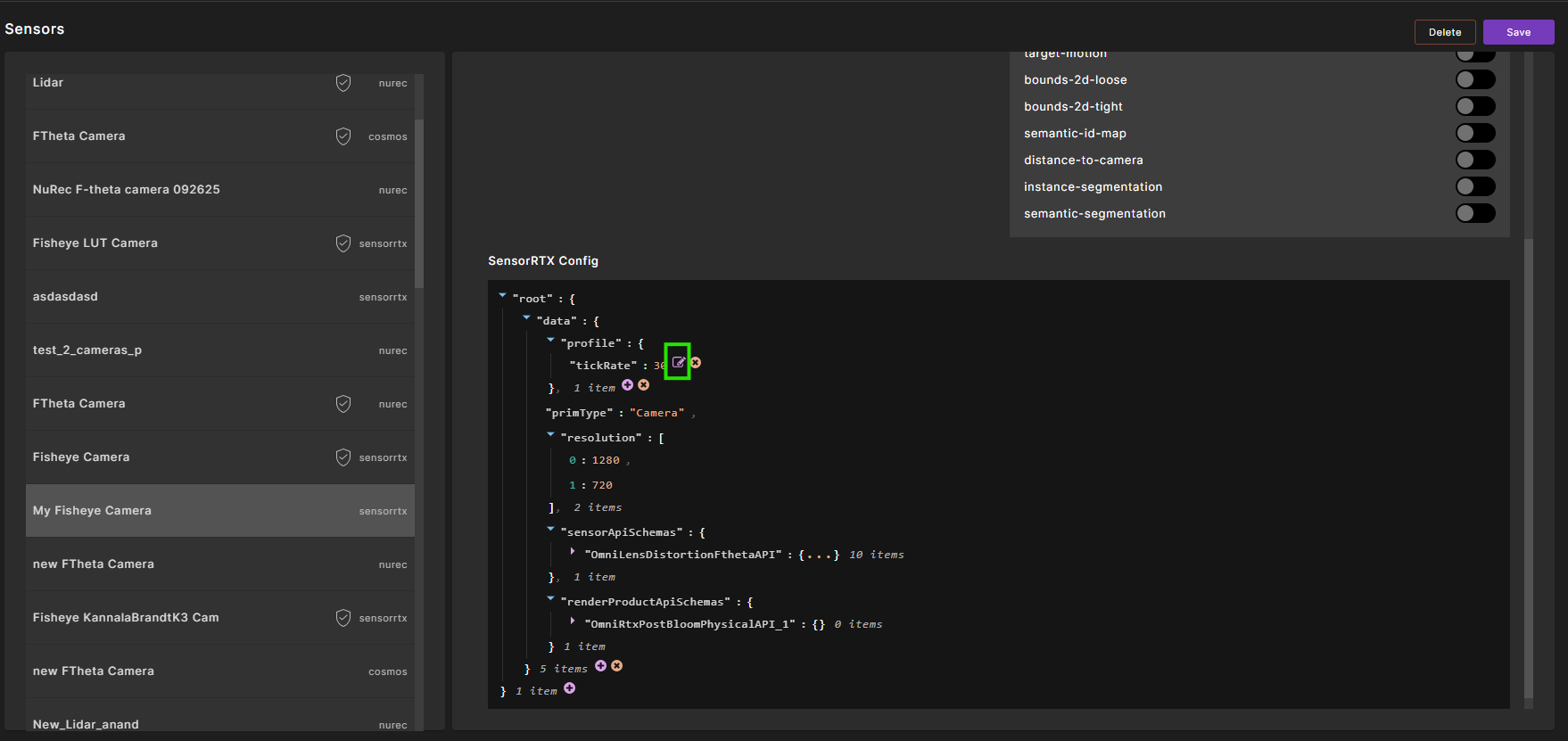
-
Update the value, then click ✓ to confirm or ✗ to cancel.
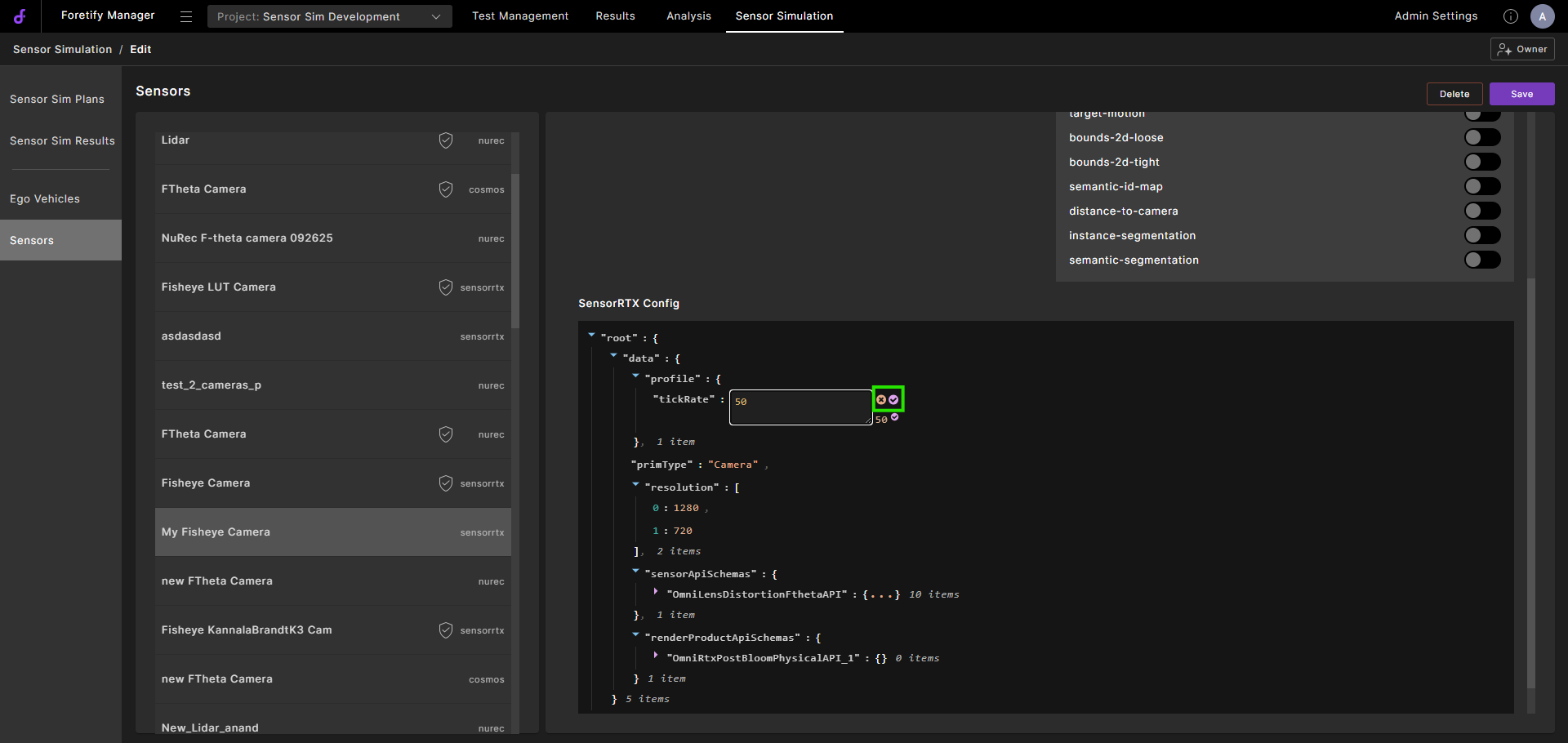
-
-
Click Save to update the sensor configuration.
A message appears confirming that the sensor has been updated.
94.3 Deleting sensors
-
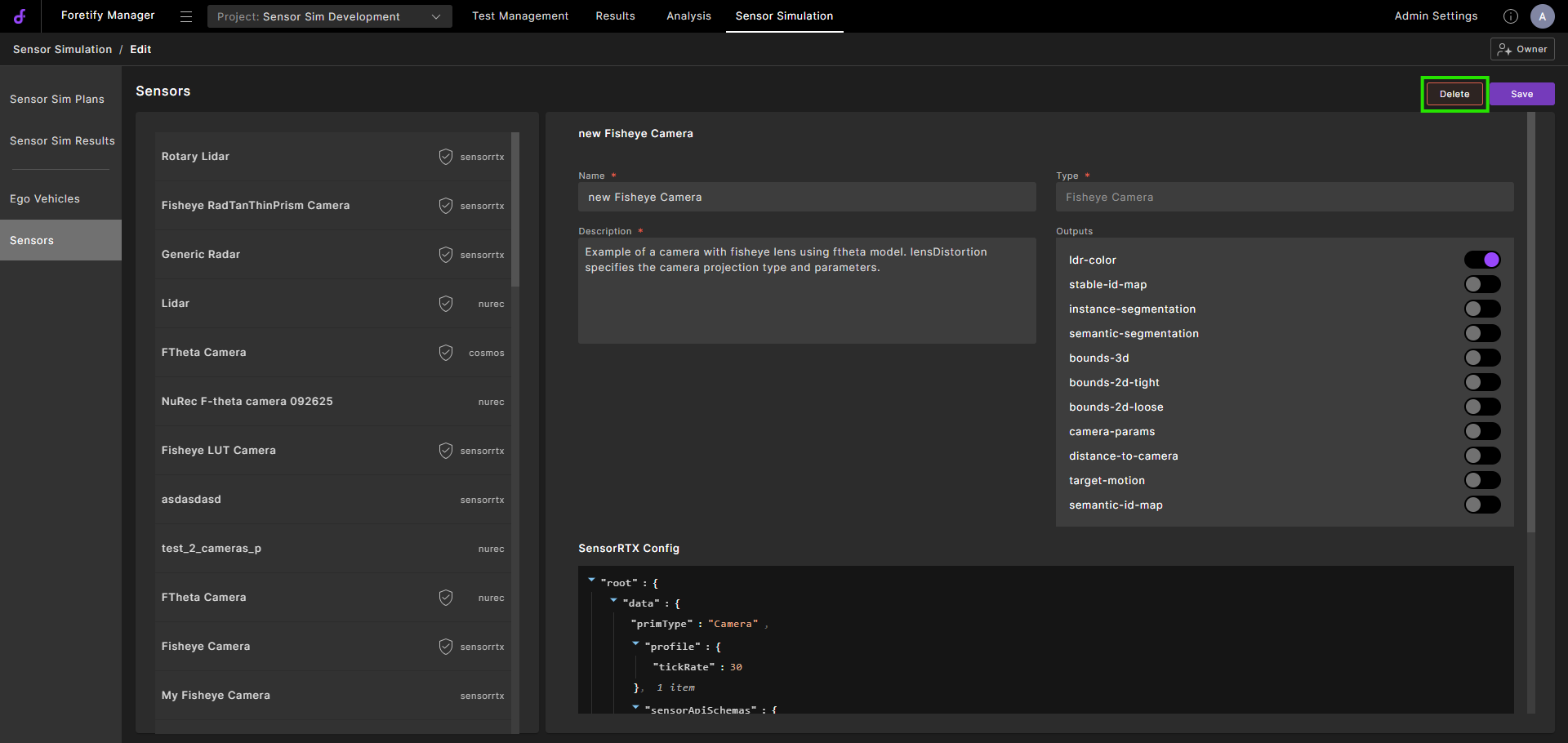
Select the sensor you created and click Delete.
-
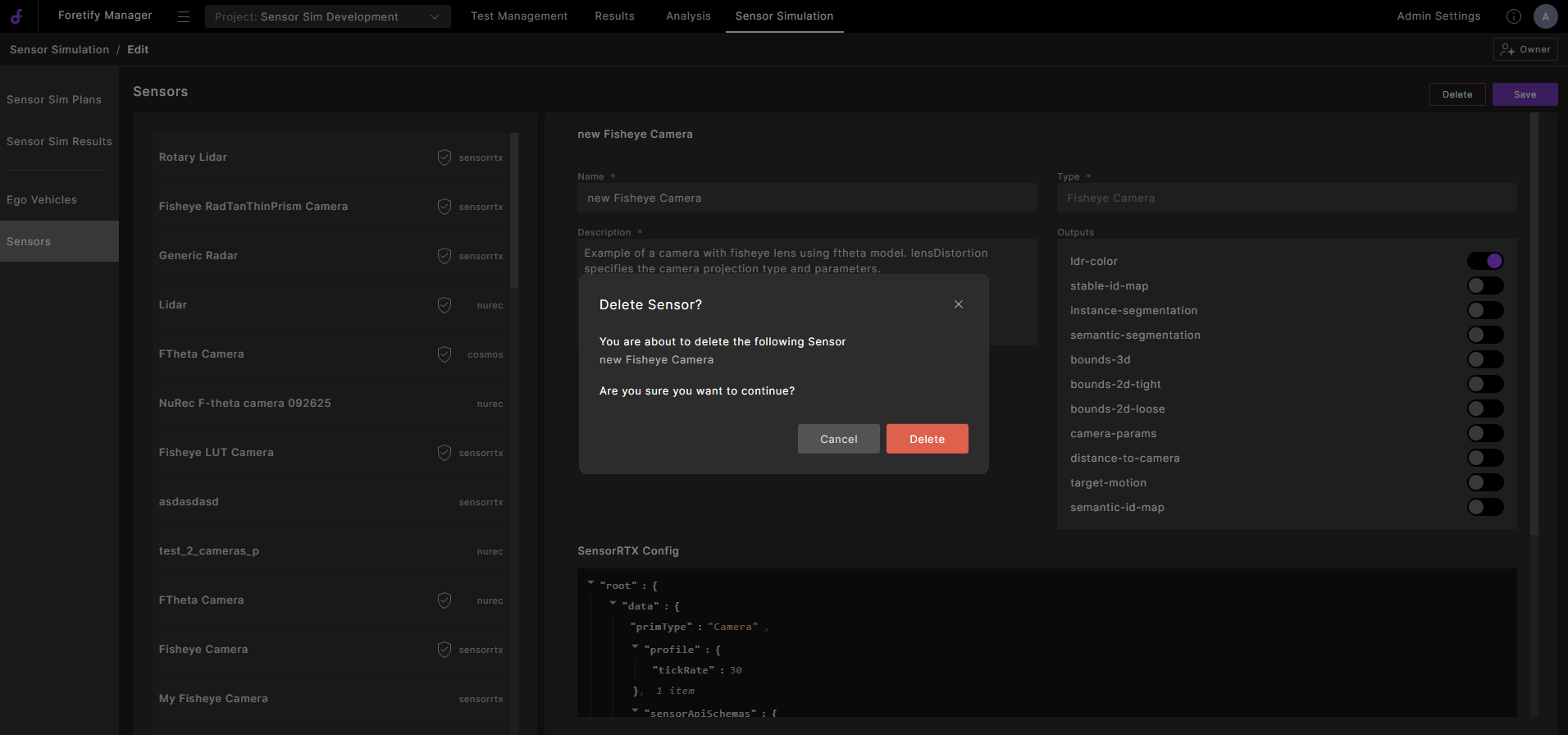
A message displays prompting you to confirm the deletion.
-
Click Delete.
A message appears confirming that the sensor has been deleted.
Note
You cannot delete a sensor that is attached to the Ego.