14. Launch a simulation
When you launch a simulation, the scenario is saved as a test and then run.
-
From the editor, click Launch.
You can select an existing test from the list to replace it with the current configuration. You can create a new test, configure its settings and run it directly from a launched simulation in the Visualizer.
-
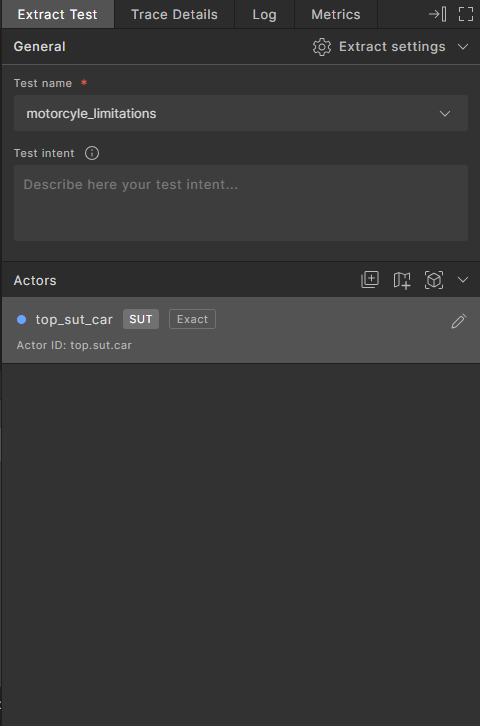
Enter a new test name, and confirm to add the test.
-
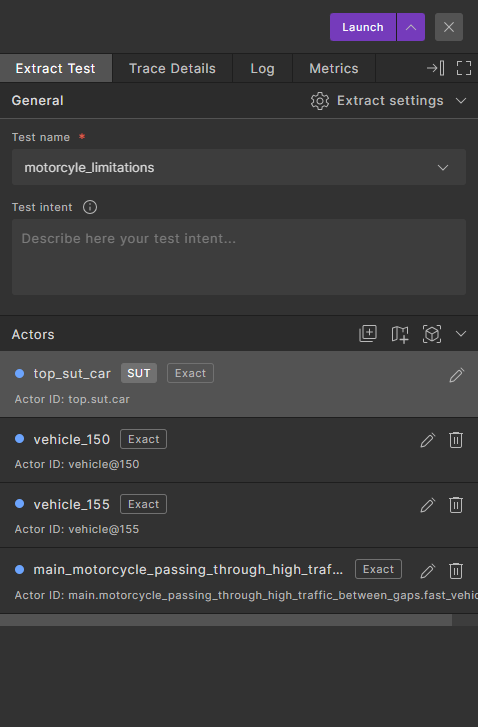
Update the actors, if required.
-
Click Launch.
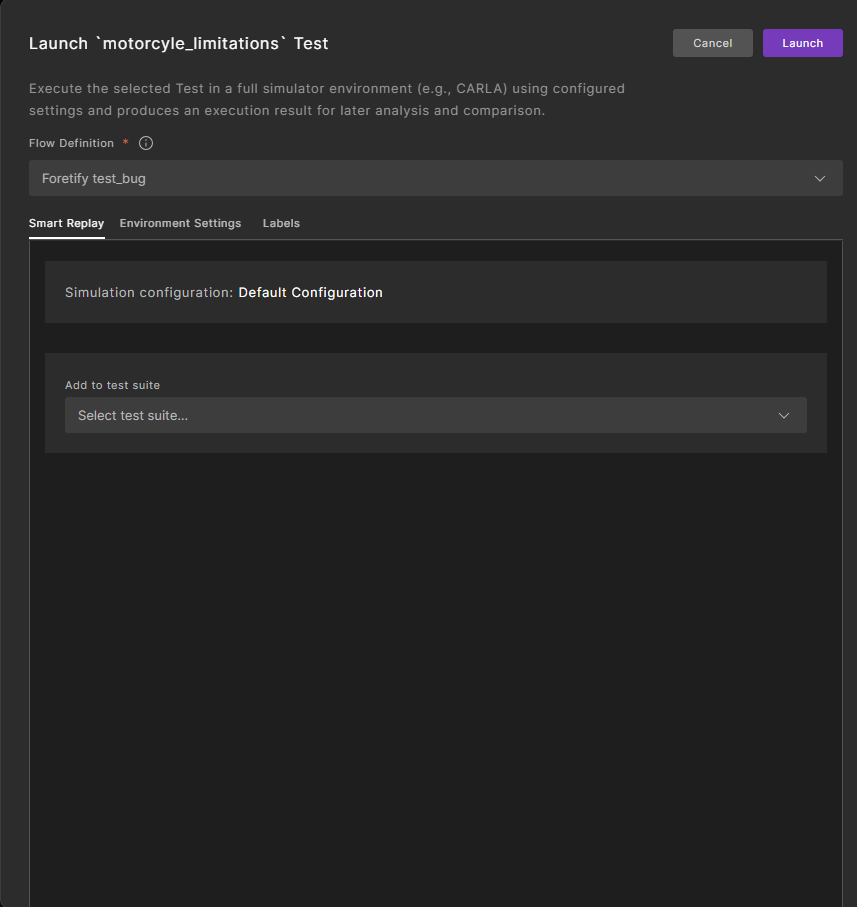
The Launch test screen displays.
-
In the Flow Definition field, select a different flow definition to use a different set of launch parameters. Changing the flow definition also changes the simulator configuration (see below).
-
Under the Smart Replay tab, the Simulation configuration is displayed. Click Add to test suite and select a test suite to add the new test to.
-
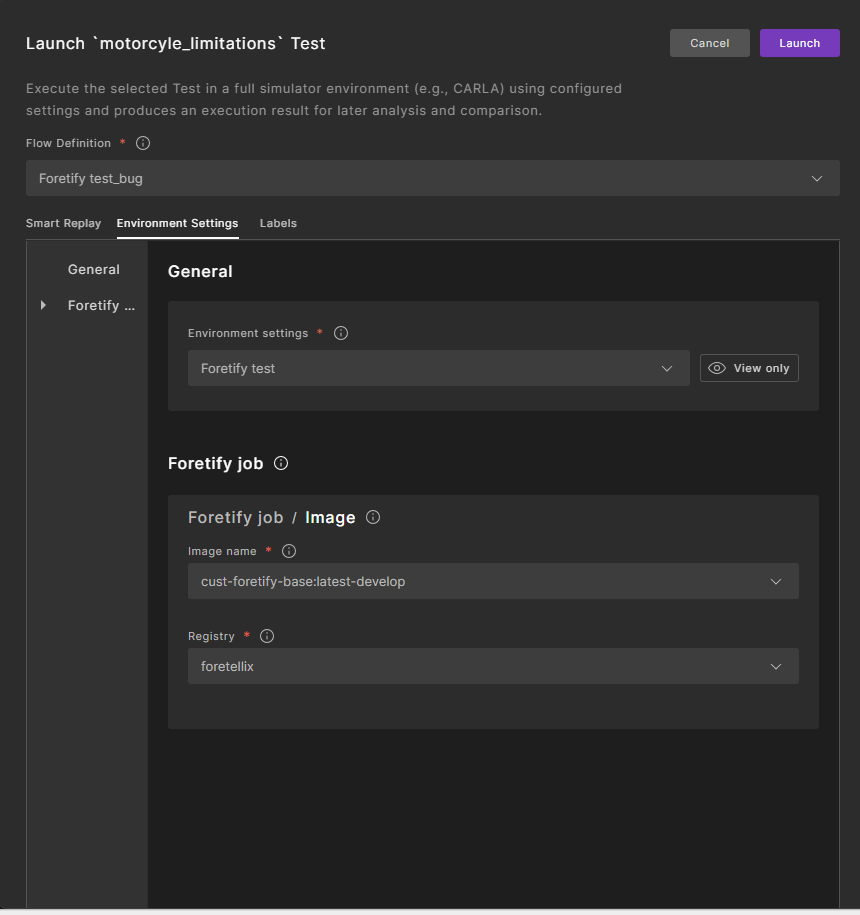
Select the Environment Settings tab.
-
General
-
Select the Environment settings, such as docker image, cloud repository, clones, for running the test environment.
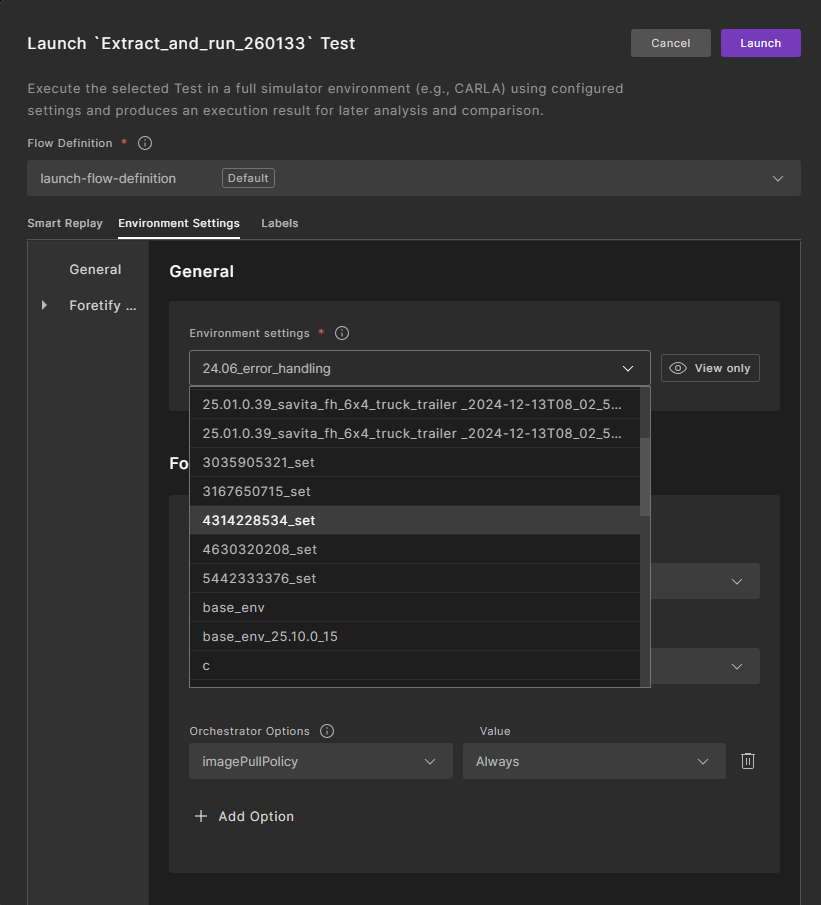
-
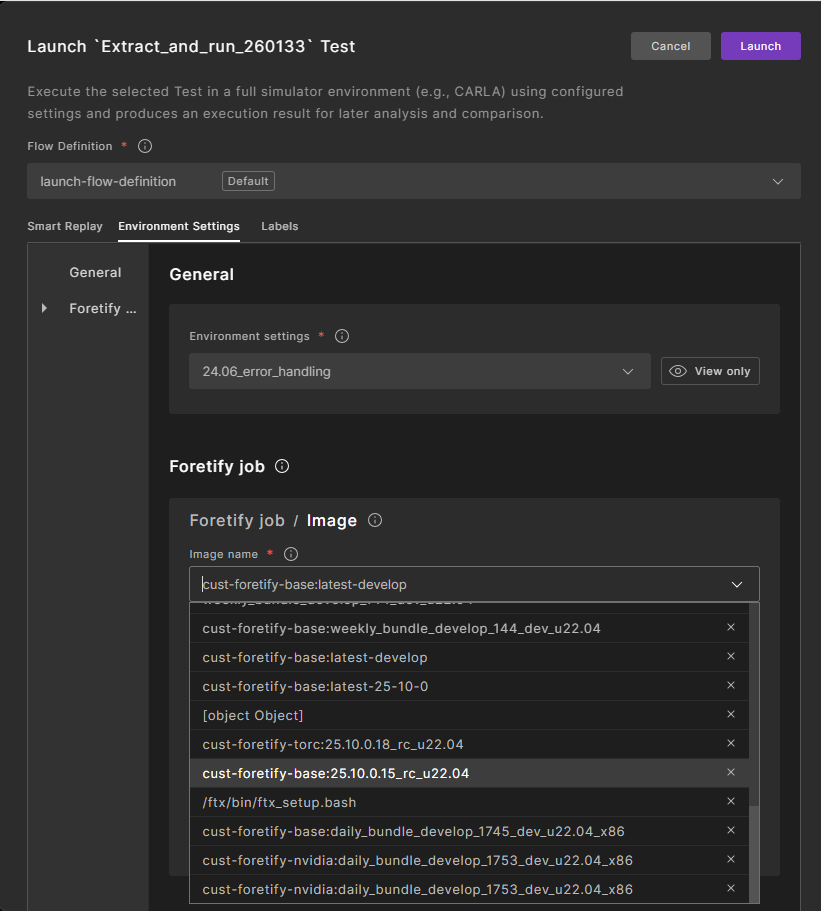
Foretify job specifies the Docker image to use to create the Foretify container.
-
Select the Image name.
-
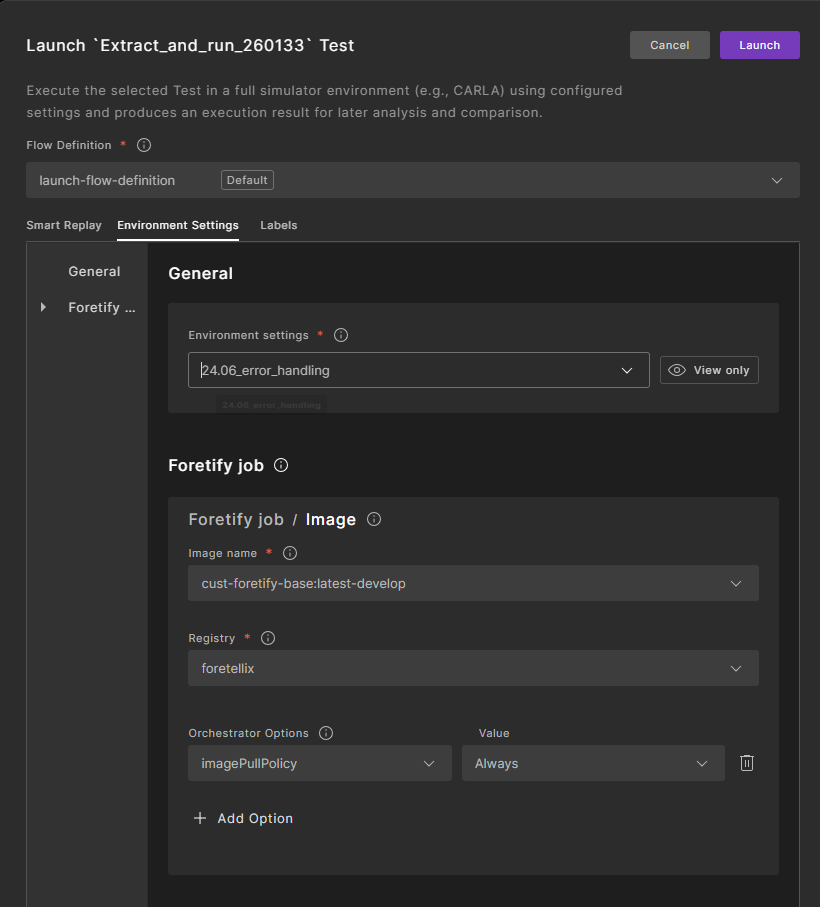
Select the Registry that holds the image.
-
Select the Orchestrator Options that will be used when running the container, and select a value.
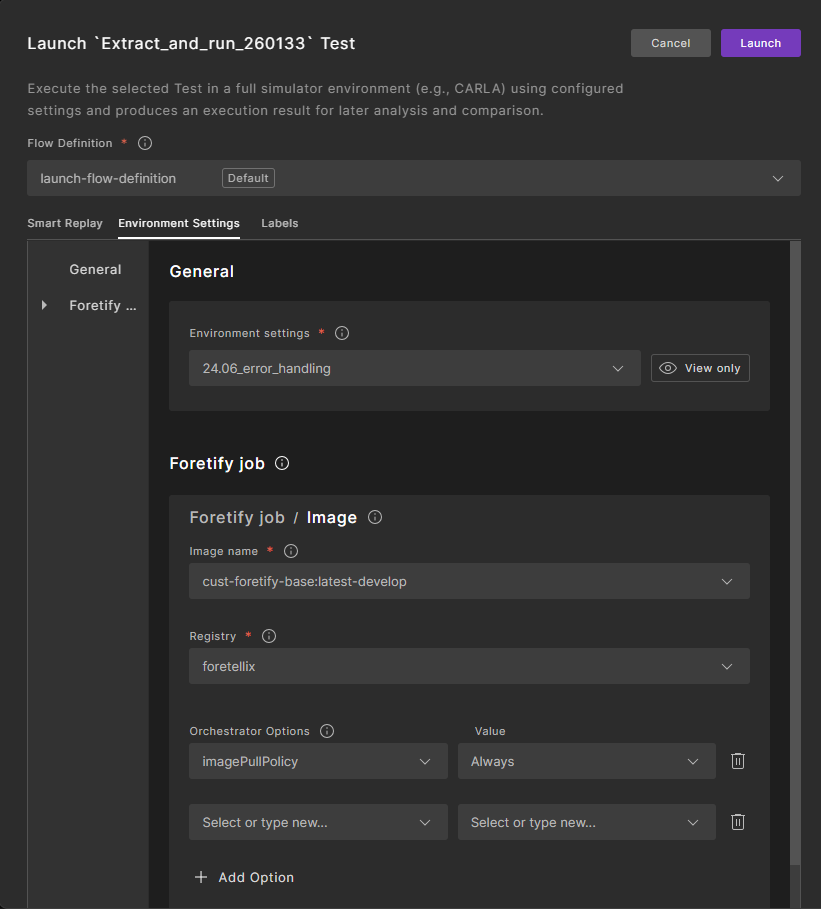
To add more Orchestrator Options, click Add Option.
-
-
-
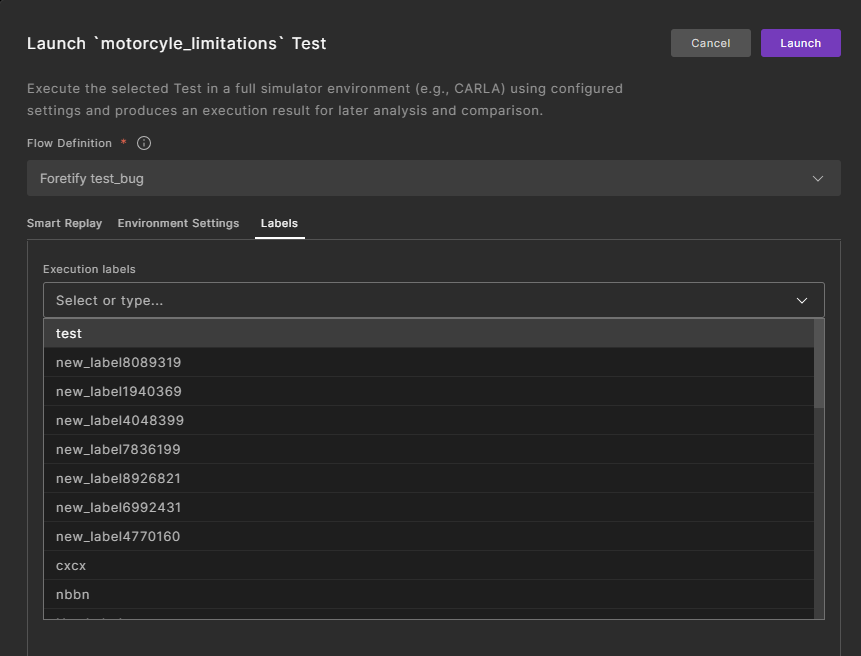
Select the Labels tab, and enter new labels or select from the list to add to the test execution. Labels can be used to filter and group test suite results.
For more information about simulation configuration, see Smart Replay Configuration Management.