50. Creating and publishing filters in workspaces
You can create a local filter for a Workspace. You can keep it local for your own use or you can publish it for use by all users of the Workspace. To publish a filter, you must have Editor or Owner access to the Workspace. See the workspace permissions documentation.
50.1 Enabling AI capabilities
Foretify Manager leverages advanced AI capabilities to enhance user productivity and efficiency.
-
The Foretify Manager Assistant uses AI to deliver context-sensitive help, code explanations, log analysis, and intelligent suggestions, all aimed at making complex verification workflows more accessible and efficient for users.
-
The Foretify Manager AI Utils Service enhances the functionality of Foretellix's Advanced Interval Filter by delivering AI-powered suggestions to users as they interact with the filter.
To enable Foretellix advanced AI capabilities, you must install the AI-Utils service and configure the Foretify Manager Assistant to support AI-driven queries and suggestions.
50.2 Creating a Run filter
-
In your Workspace, click the Add Filter button.

-
Select Run Filter.

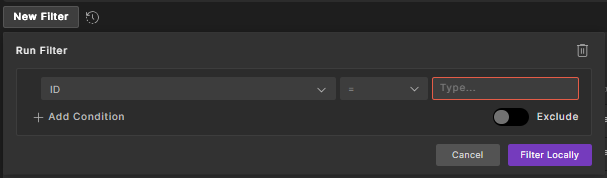
Result: The Run Filter box is displayed.
-
(Optional) Toggle the Exclude button to include or exclude the matched runs as needed.

-
Select an attribute from the first list.
You can filter by labels by selecting Labels as the attribute to filter by. To learn more, see Add labels.
-
Select an operator from the second drop-down menu.
-
Enter a value to filter.
-
To add another condition, click the + Add Condition button.
-
Click Filter Locally.
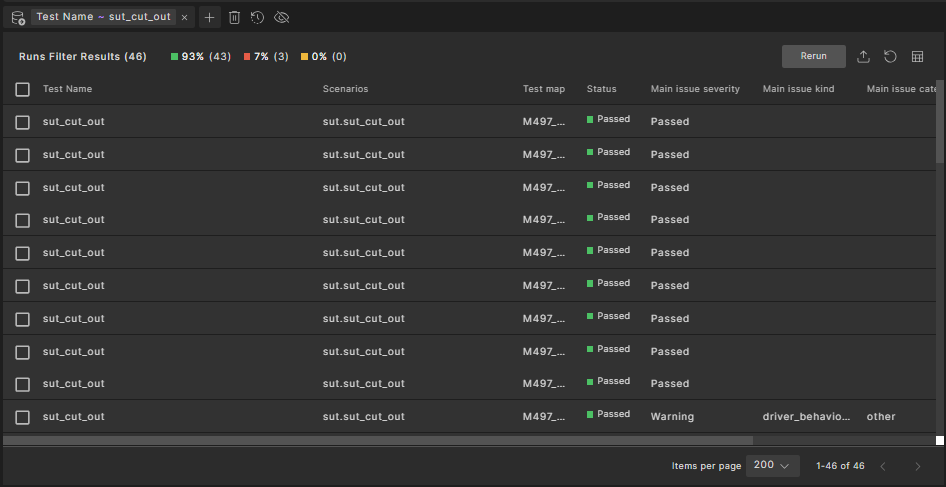
Result: Filtered runs are displayed.
50.3 Creating a Metric filter
-
Click Add Filter and then select Metric Filter.
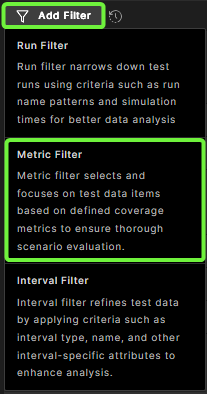
Result: The Metric Filter box is displayed.
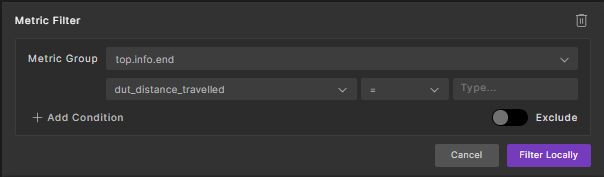
Optionally, toggle the Exclude button to include or exclude the matched items as needed.
-
Select a metric group from the Metric Group dropdown list.
-
Select an operator from the second drop-down menu.
-
Select or enter the value to be compared in the third drop-down menu.
To add another condition, click Add Condition.
-
Click Filter Locally.
Result: Filtered items are displayed.
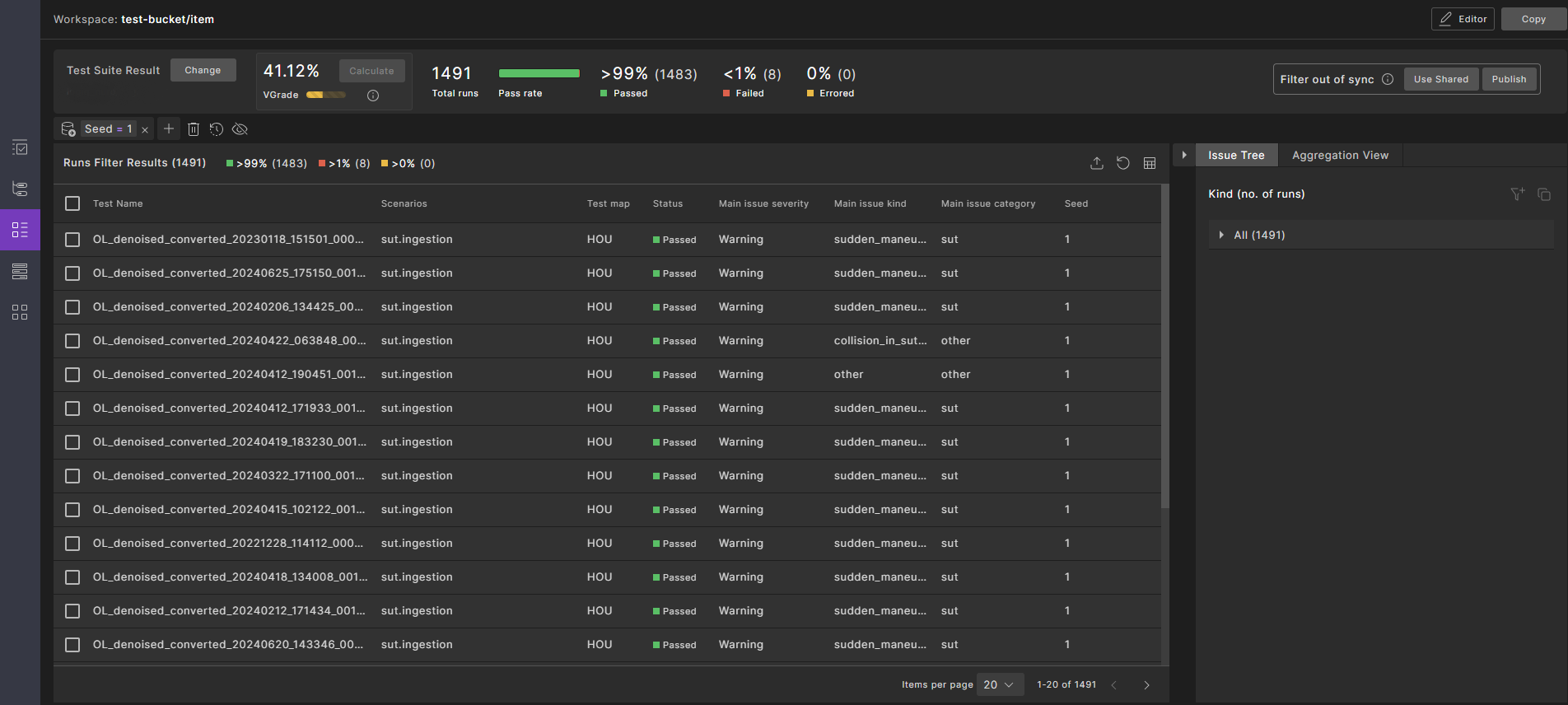
Note
- The system will return
NaN%only when the number of Runs Filter Results is (0). - When counter data is not yet available, placeholder counters are shown so you can still view runs and continue reviewing. These placeholders appear only in the Runs tab.
- The system will return
50.4 Creating an Interval filter
-
Click Add Filter and then select Interval Filter.

Result: The Interval Filter box is displayed.

Optionally, toggle the Exclude button to include or exclude the matched intervals as needed.
-
Select an attribute from the first drop-down menu.
-
Select an operator from the second drop-down menu.
-
Enter or select the value to be compared the third drop-down menu.
-
To add another condition, click Add Condition.
-
Click Filter Locally.
Result: Filtered intervals are displayed.
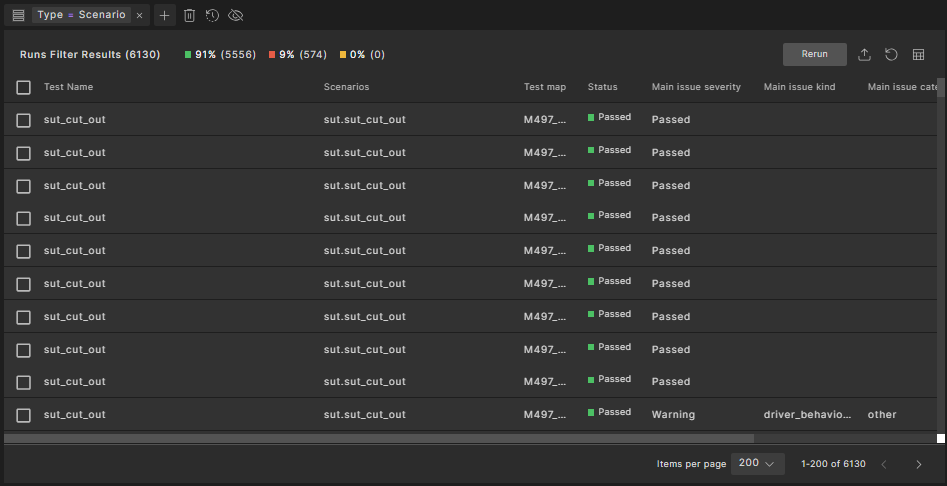
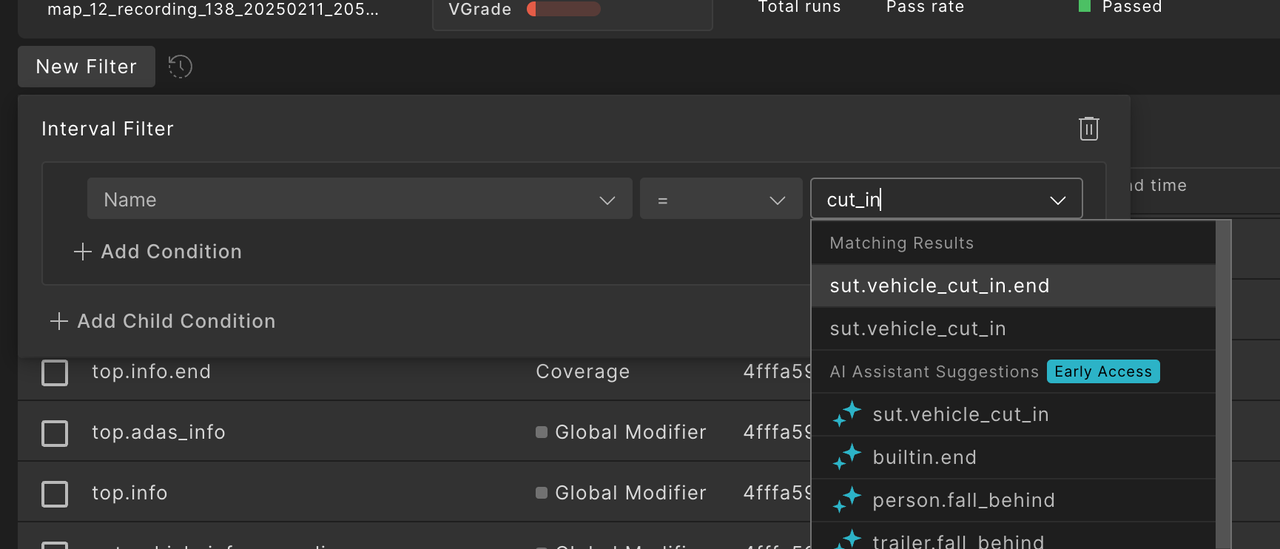
For Early Access customers only: When Fortify Manager’s advanced AI capabilities are enabled, exact matches appear at the top as you type, followed by assistant-suggested results marked with the assistant icon.
See also Performing advanced interval filtering
50.5 Viewing history of filters
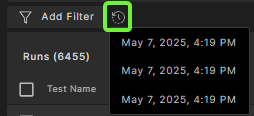
To view the history of applied filters, click the History icon.
50.6 Syncing filters for all workspaces
Click Publish to update the current Workspace view and share the filters applied with other Workspace users.
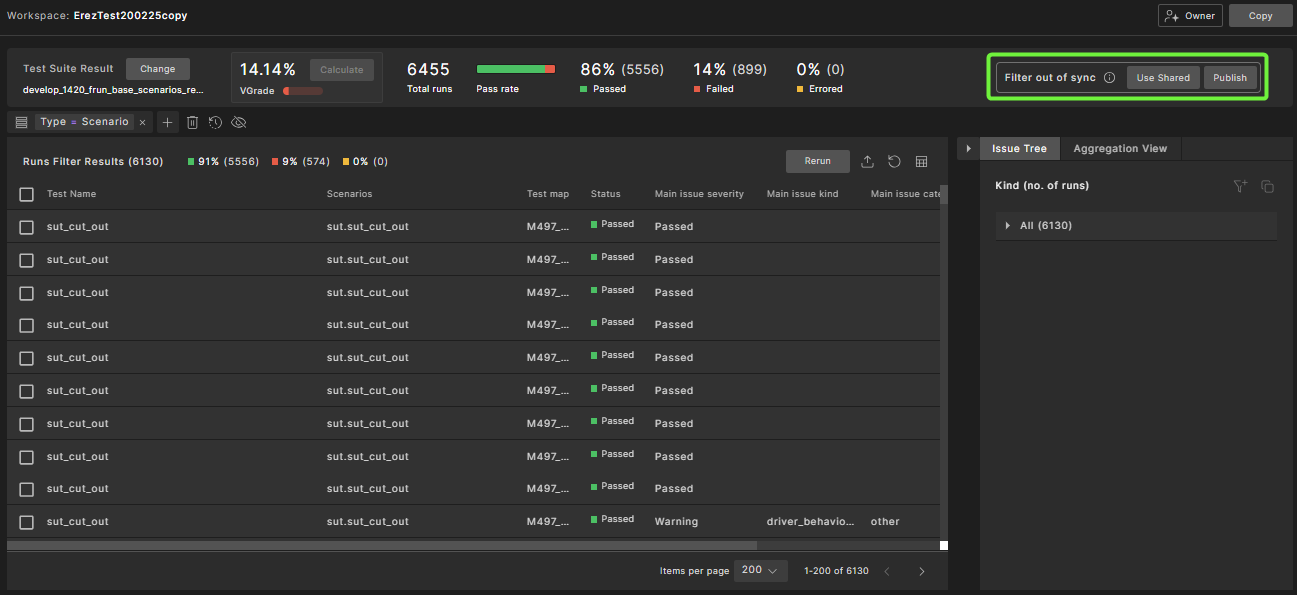
An "Out of sync" notification displays after you perform a local filter.
Note
Publishing a new filter triggers a recalculation of the VGrade. If other users are logged in and viewing the Workspace VPlan or Runs list at the same time, they will see an 'Out of sync' notification. To sync with the published filter, they can click Use Shared. This action aligns their view with the published filter.
50.7 Resyncing filters for a shared view
When a filter is published in a shared Workspace, all users see the shared filter results, not their local changes. If local changes exist and another user publishes a new filter, the Filter out of sync notification appears.
To resync filters for a shared view, click Use Shared. This will discard your local filter and apply the latest published filter.