10. Save and load tests
The Scenario Designer supports saving your edited scenario as a test and loading previously saved tests for further editing. This allows you to iterate on your scenarios over time, building on previous work without starting from scratch.
10.1 Save a test
After editing a scenario, save it as a test to preserve your modifications.
-
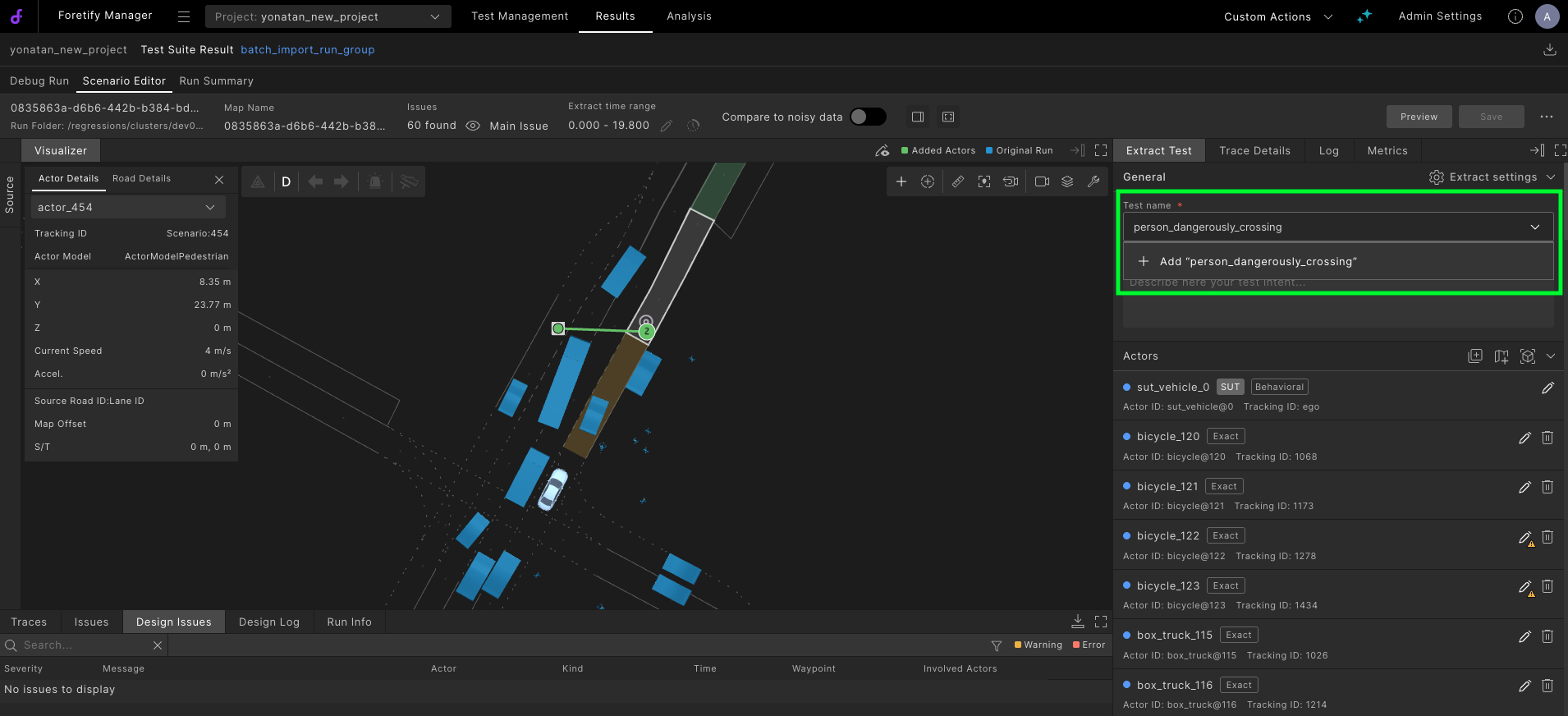
In the General section of the Extract Test panel, enter a name for the test.
-
Click Save in the top-right toolbar.
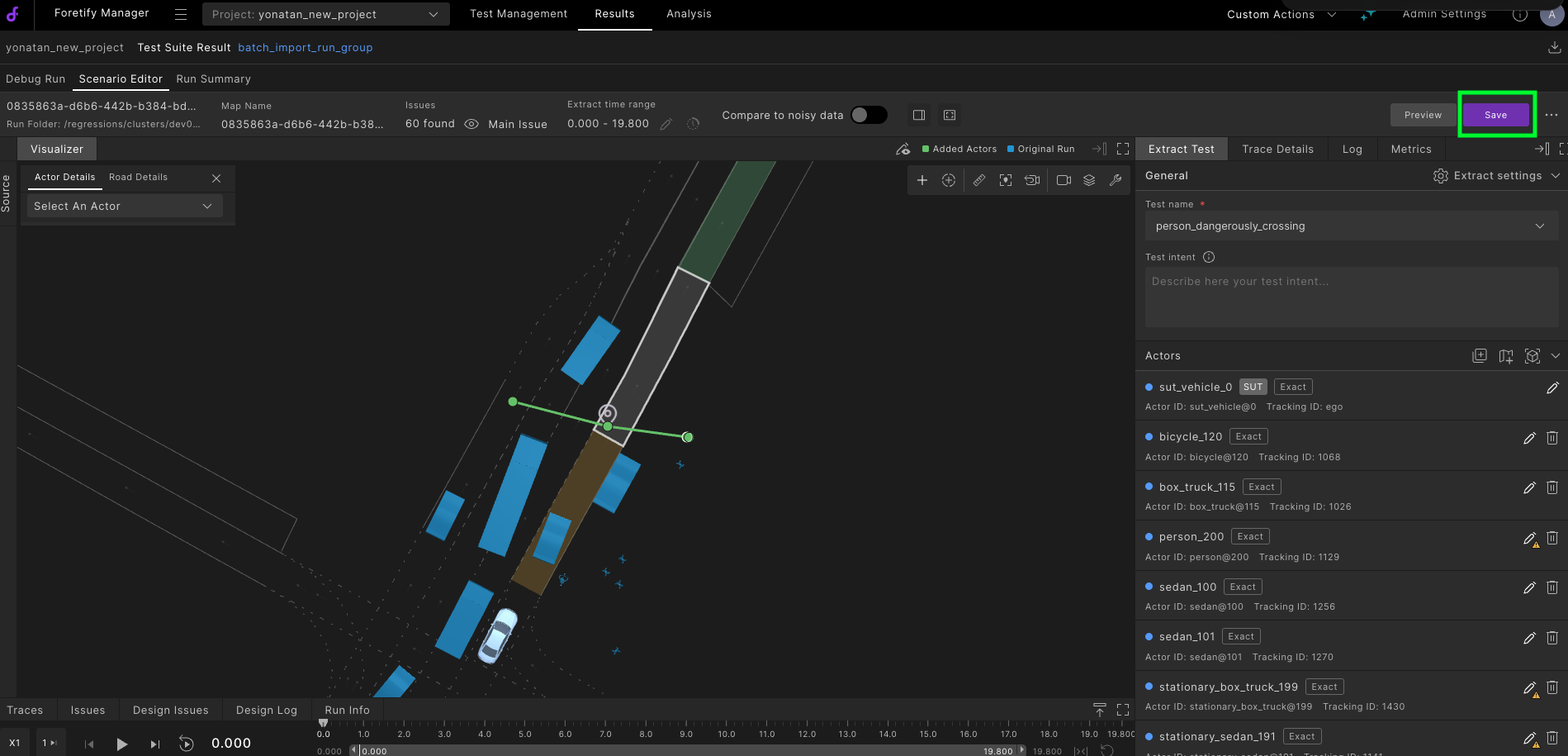
A success message confirms the test was saved.

Note
After the first save, any additional save updates the same test. To save to a different test, change the name in the General section before clicking Save. You can update the current test, override an existing test by entering its name, or create a new test by entering a new name.
10.2 Additional actions
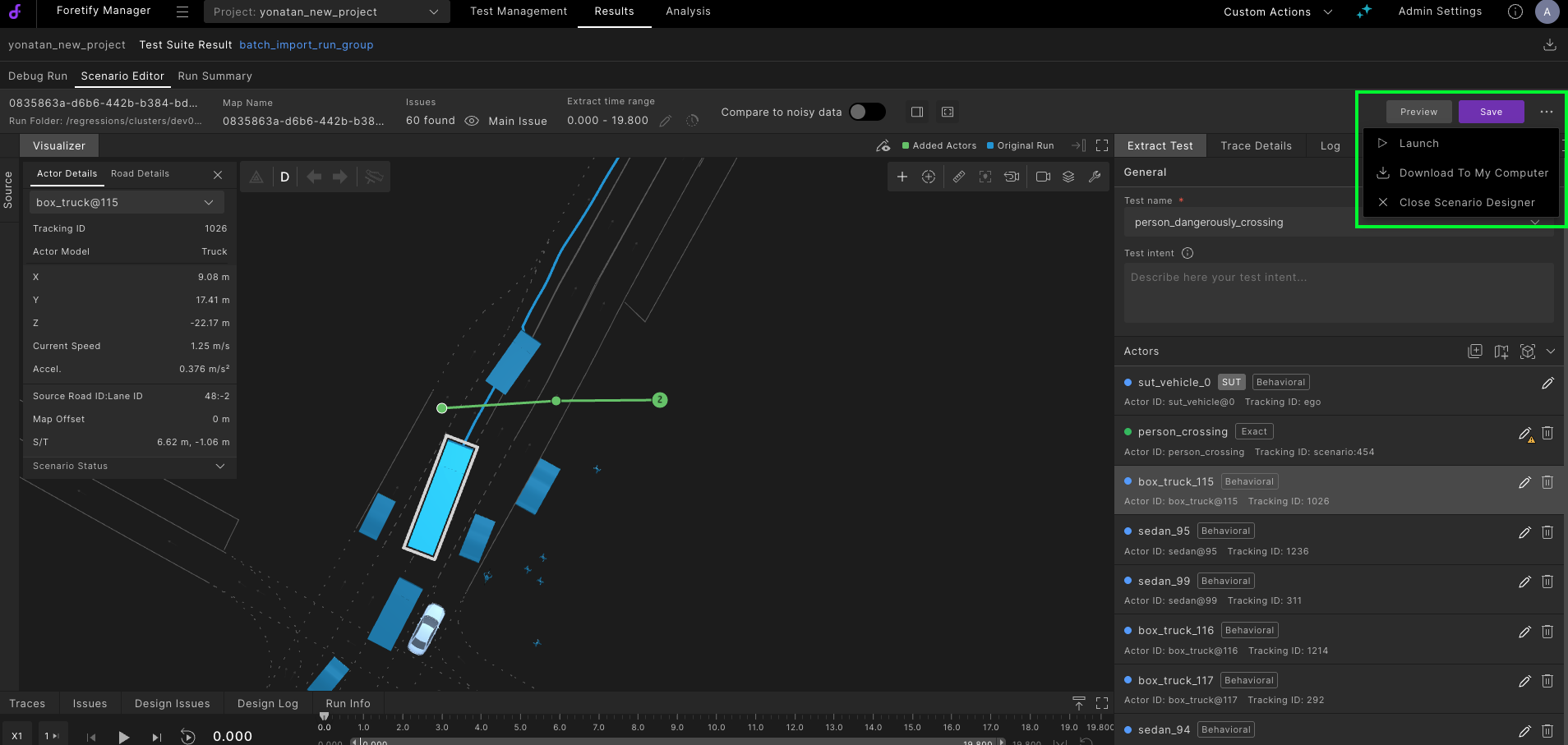
The More actions dropdown in the top-right toolbar provides the following options.
| Action | Description |
|---|---|
| Launch | Save the test and run it as a simulation. See Launch a simulation. |
| Download to computer | Export the scenario as a ZIP file to your local machine. |
| Close scenario designer | Exit the Scenario Designer and return to the Debug Run tab. |
Note
All actions are disabled while saving is in progress.
10.3 Load a saved test
Load a previously saved test from the Test Management tab to continue editing.
-
Click the Test Management tab.

-
Click Tests in the left sidebar.
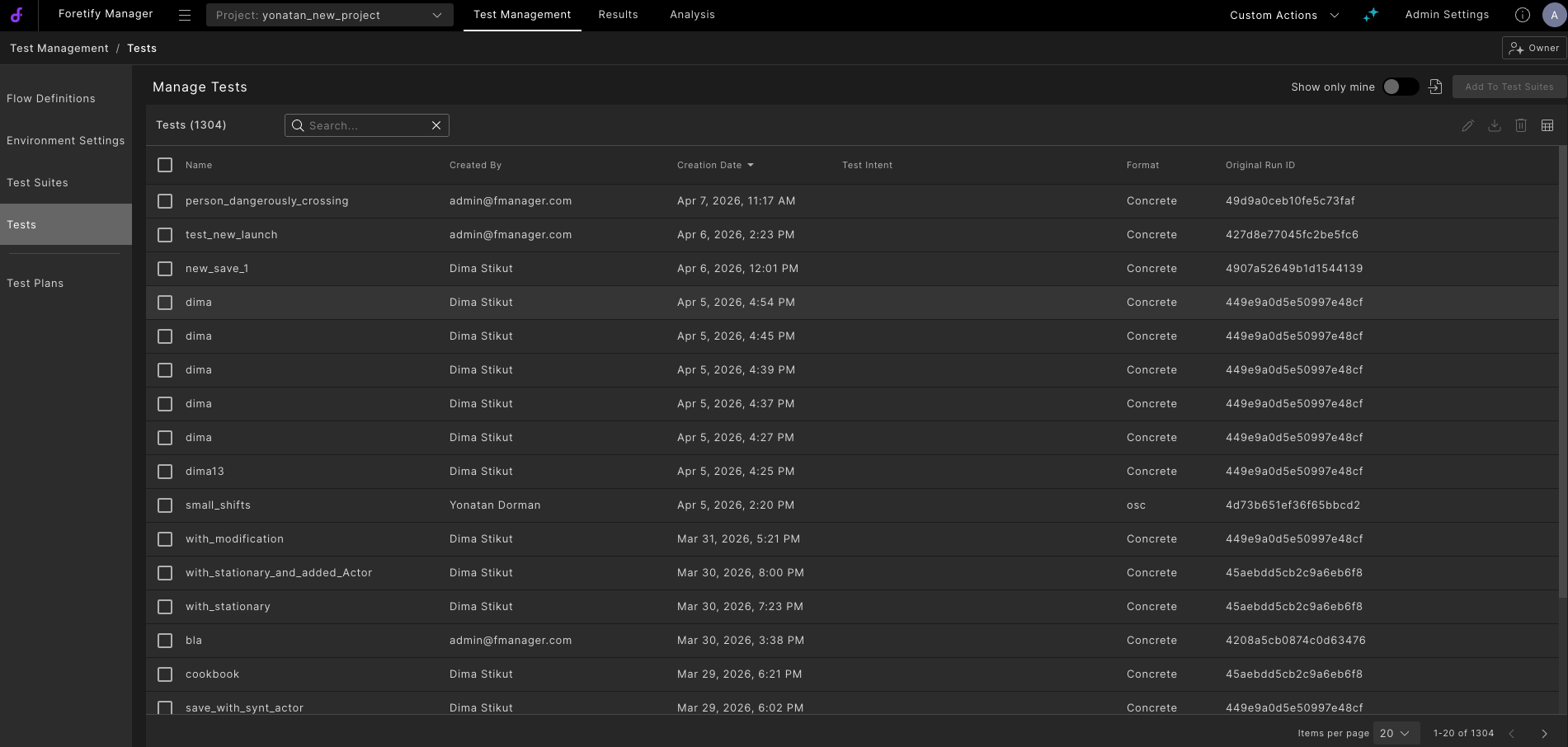
The Manage Tests table displays all saved tests, including test name, creator, creation date, format, and original run ID.
-
Select a single test with Concrete format, and click Edit test in the top-right corner.

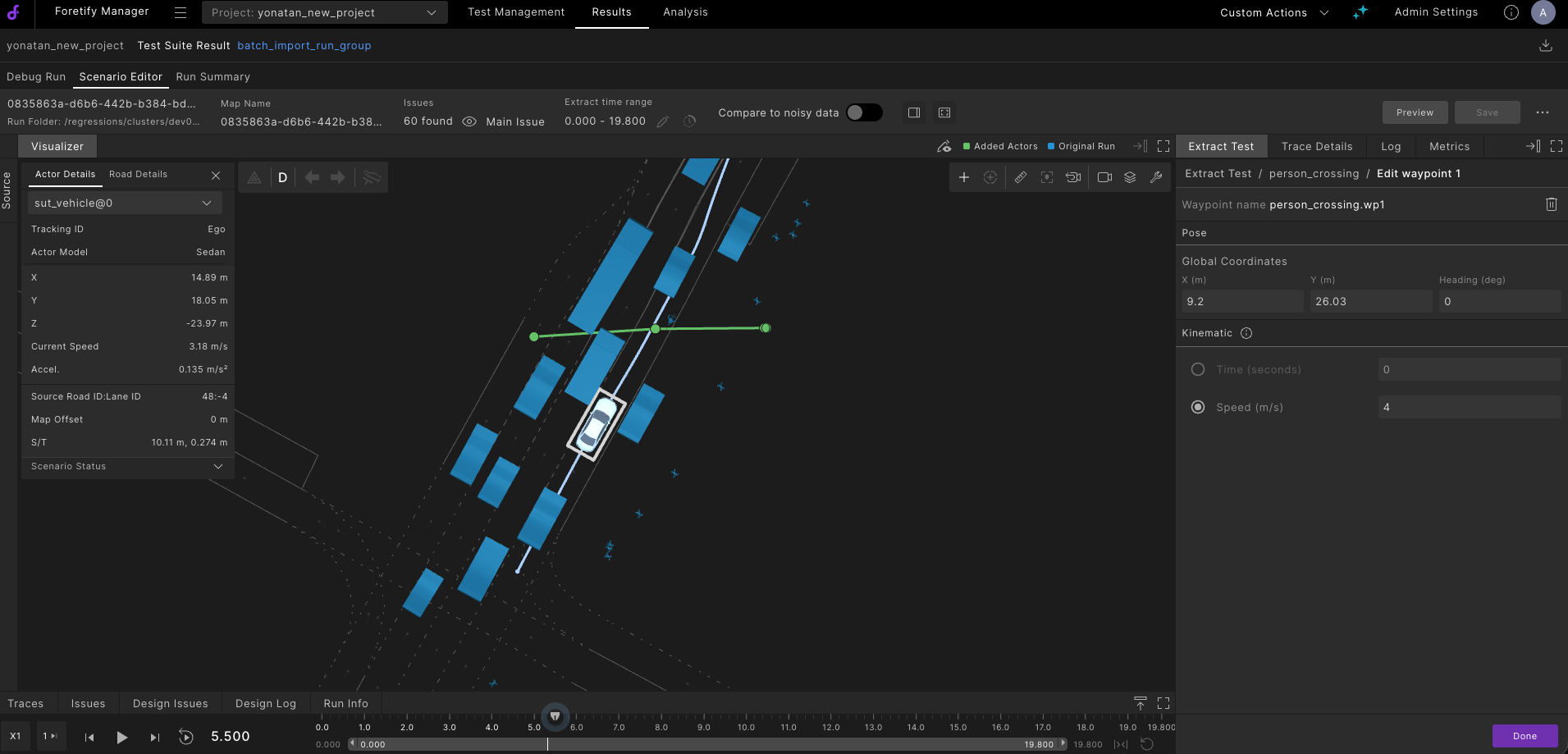
The Scenario Designer opens with the saved scenario loaded on top of the original source run.
Note
The Edit test button is enabled only when a single test with Concrete format is selected. It is disabled when no test is selected, when multiple tests are selected, or when the selected test has osc format.
-
Edit the scenario as needed. See Edit the scenario for details on modifying actors and trajectories.
-
Save the test when done.
10.4 Unsaved changes
If you attempt to leave the Scenario Designer with unsaved modifications, a confirmation dialog appears.
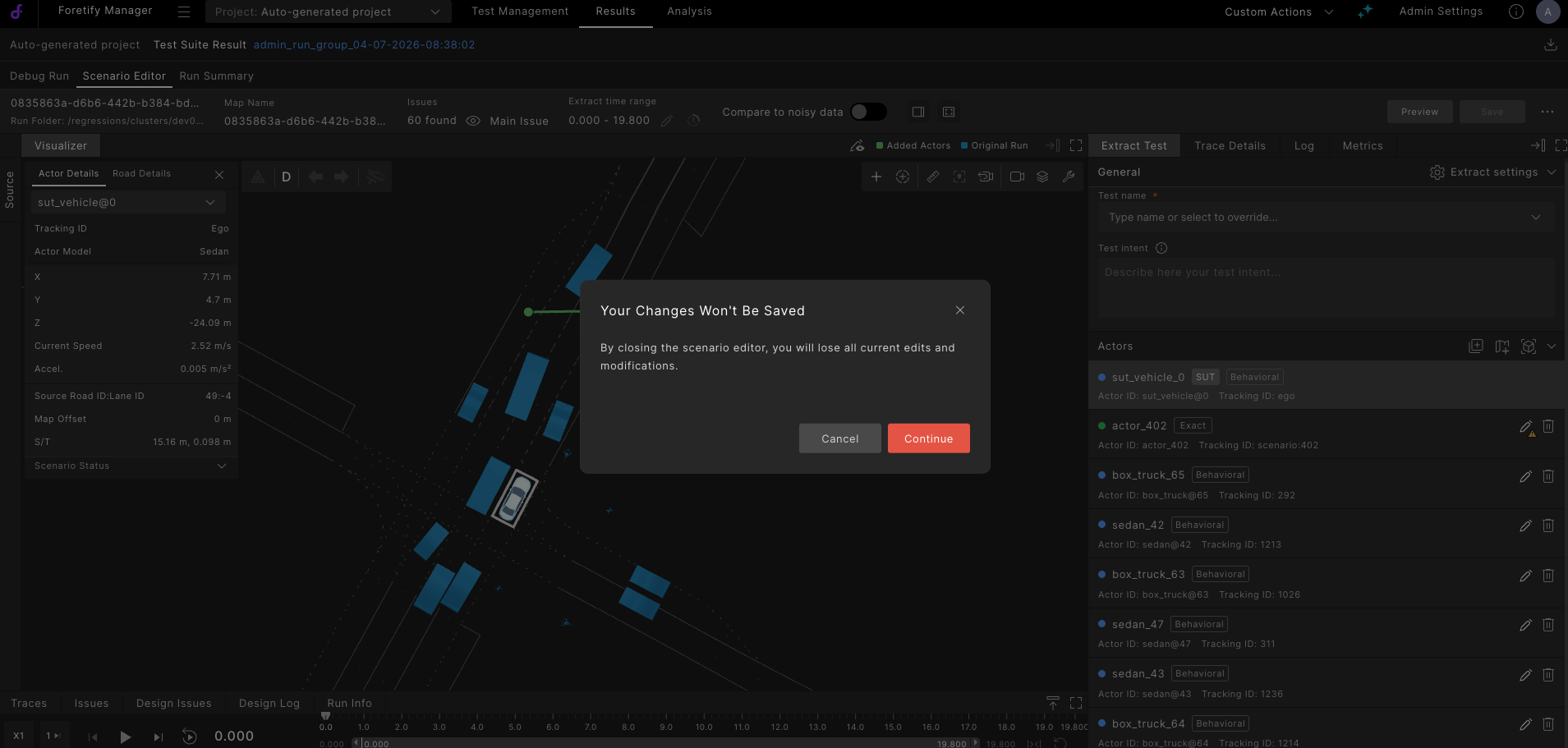
- Click Cancel to return to the Scenario Designer and continue editing.
- Click Continue to discard your changes and leave.
Warning
If you click Continue, all unsaved changes are permanently lost.