58. Work with triage rules
Rules are a key feature in triaging. Following are some use cases for triage rules.
With triage rules, you can:
-
Always assign issues that match a condition to a specific user.
-
Associate issues that match a condition to a link from your bug tracking system.
-
Set custom attributes based on other attributes (for example, 'issue sub-kind'), and create views for further analysis based on those custom attributes.
When a rule is defined in the context of a workspace, it is applied to any new test suite result added to that workspace. This means that the results of previous triage efforts are saved over time. This simplifies triaging as time goes by—data becomes organized in an efficient way, so V&V engineers performing triage need to analyze less data.
Some advanced rules can't be created and applied within the Foretify Manager UI, such as rules that assign an attribute's value based on other attributes or compare a run with a corresponding run. To specify more complex rules, you can use Python Rules.
58.1 Create a triage rule
Note
You need editor or owner permission of the workspace you're in to create a rule. Rules are created at the workspace level.
To create a rule:
-
Create a rule using one of the following methods:
-
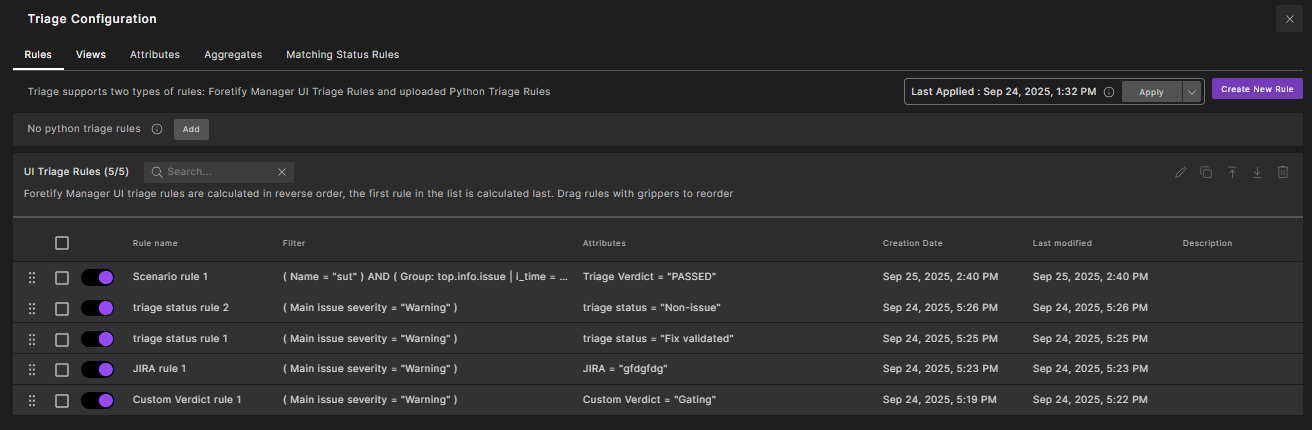
In the Triage view, click Triage Configuration, go to the Rules tab, and click Create New Rule.

-
From the main triage view, click Create Rule on the top right.
Note
The Create New Rule and Create Rule buttons are available only to users with editor or owner permissions for the workspace.
-
-
Enter a rule name.
The rule name must be unique within the workspace.
-
Under Filter Rule, click Add condition and define one or more conditions based on the Run and Item filters.
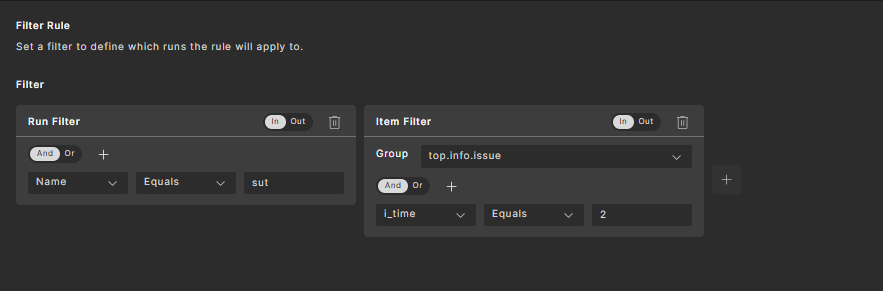
See Create a triage filter (steps 2 and 3) to specify Run Filter and Item Filter conditions.
-
Under Assign Attributes, set one or more attributes for runs that match the above conditions.

Note
In the initial release of Triage, you can only set attributes to string values.
-
Click Create on the top right.

You can click Apply Rules to apply the new rule.
58.2 Manage triage rules
To manage triage rules:
-
Click Triage Configuration on the bottom left of the main Triage view.
The Rules tab displays.
-
On the Rules tab, you can do the following:
-
To create a new rule, click Create Rule on the top right. See Create a triage rule for steps.
-
To edit a rule, select the rule and click the Edit Rule icon on the top right. Make edits and click Save.
-
To copy a rule, select the rule and click the Copy Rule icon on the top right. Make edits and click Create Rule.
-
To delete a rule, select the rule and click the Delete (trash can) icon on the top right. Click Delete Rule to confirm. (You can also delete a rule by editing the rule and clicking the Delete this Rule button on the bottom left.)
-
Click the toggle button next to a rule to disable it. Click again to enable it.
-
Click Apply Rules on the top right to apply the rules. See Order of rules execution for details. The last calculation time displays on the top right.
-
Reorder how rules are calculated by selecting one or more rules and clicking the Calculate Last or Calculate First icon on the top right. You can move multiple rules by selecting them with the check boxes and clicking Calculate Last or Calculate First. You can also use the move handles to the left of a rule to reorder it. Note that making changes to the list updates the calculation order immediately on the Foretify Manager server.
-
Close the Triage Attribute Rules page without updating the rules by clicking the X button on the top right.
-
58.3 Applying rules
Applying triage rules initiates a pipeline that modifies the content of the active test suite results based on user-defined rules.
To apply the triage rules you can use either of the following methods:
-
Click the Apply button.

Result:
- Launches the full pipeline by default.
- A progress bar and text notification are displayed to indicate the progress of the application process.
-
Click the Apply button's dropdown selector and then select the required rule application steps. Note: You must select at-least one rule.

Result: A progress bar and text notification are displayed to indicate the progress of the application process.
Note
Certain attributes, when designated as system attributes, cannot be updated using the Python rule. Examples include test_package, regression_name, and others.
58.4 Automatic apply
When uploading test suite results using the --workspace_id flag (see upload_runs), the workspace rules are applied automatically. Manual selection or clicking Apply is not required.
58.5 Triage rules
The triage rules execution pipeline consists of:
- Resetting the runs attribute state to their original state
- Applying preliminary triage python rules
- Finding a match in compared TSR
- Applying UI-based triage rules
- Applying other triage python rules
See more details on each step below.
This step resets all run attributes to their original state, as they were when the run was uploaded to Foretify Manager. Use this step if you want to reset the entire triage state of the active test suite results.
Availability: This step is always available in the pipeline.
Note
This step also resets the comparison calculation and sets the matching status to 'Not Compared'.
The preliminary Python triage rules are located in the rules.py file under the function def preliminary_defs(r):. These rules run before comparison (and before UI rules), thereby potentially affecting the input for those steps. If there is no def preliminary_defs(r): section in the uploaded rules.py file, nothing will happen during this step.
For more information, see Python rules.
This step reviews each run, and attempts to find a matching run in the reference TSR defined in 'Compare To.' If a matching run is found, the following changes are made:
- The compared run ID attribute of the active run is set to point to the matched run.
- The matching status is set to:
- 'Same' if both runs have the same result.
- 'Different' if the runs have different results.
- 'New' if no matching run is found.
Availability: This step is available in the pipeline only in 'compare mode', when 'Compare To' is toggled on.
This step is executed automatically when modifying the referenced TSR using the 'Compare To' button.
UI-based triage rules are the triage rules that can be created from the UI.
Availability: This step is included in the pipeline only when UI-based rules are present.
Rule calculation is performed bottom-up, executing from the bottom to the top of the rules list. This means the last rule in the list is executed first, followed by the one above it, and so on. The first rule in the list is executed last.
Each rule executed may override values set by a previous rule in the list. Rules may also depend on values set by preceding rules. Therefore, the order of execution is significant and can yield different results.
See Manage Triage Rules to learn how to reorder and apply rules.
When experimenting with UI rules, it can be useful to check only the 'Apply UI-based triage rules' option. This can significantly reduce the time required to apply the rules.
The basic, extra, and final Python triage rules are located in the rules.py file under the functions def basic_defs(r):, def extra_defs(r):, and def final_defs(r):. These rules run after comparison and UI rules, allowing them to rely on the inputs from those steps. In particular, these rules can use the tman.cr(r) function to access the matching run from the compared TSR. If the uploaded rules.py file does not contain def basic_defs(r):, def extra_defs(r):, or def final_defs(r): sections, nothing will happen in this step.
For more information, see Python rules.
58.6 Python rules
Some triage tasks require complex string operations, mathematical functions, and other programmatic features. To achieve this, a Python script can be provided. Details on how to write Python rules can be found at: Python Rules Documentation.
Note
Python rules are available only if they are configured on the Foretify Manager server. Please consult your administrator if this functionality is required.
Availability: This step is available in the pipeline only if a Python rules folder has been uploaded.
When experimenting with Python rules, it can be useful to check only the 'Apply preliminary Python triage rules' and/or 'Apply other Python triage rules (basic, extra, final),' depending on which part is being used. This can significantly shorten the time required to apply the rules.
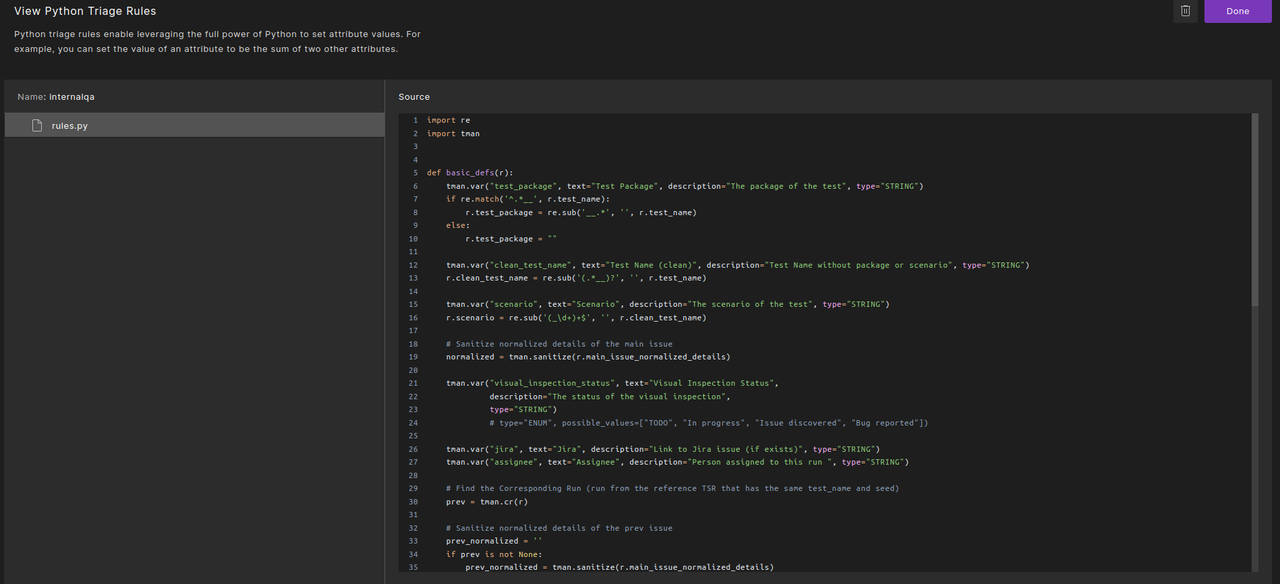
To upload a Python rules folder:
- Go to the Triage Configuration page, under the Rules tab.
-
Click Add in the Python rules area.
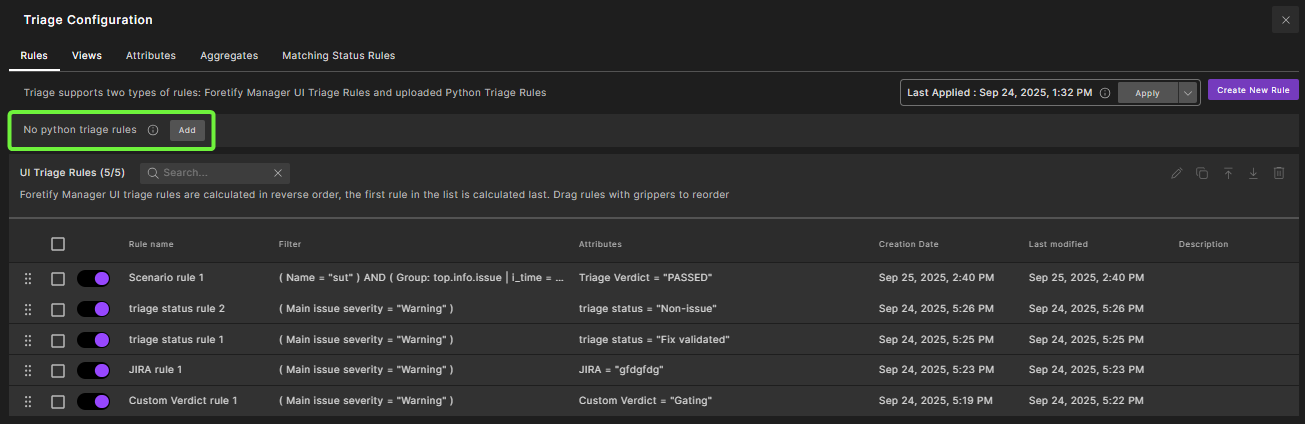
Result: A new page is opened where you can either drag your python rules folder to the draggable area, or select from the folder selector.
-
Add the python rules.
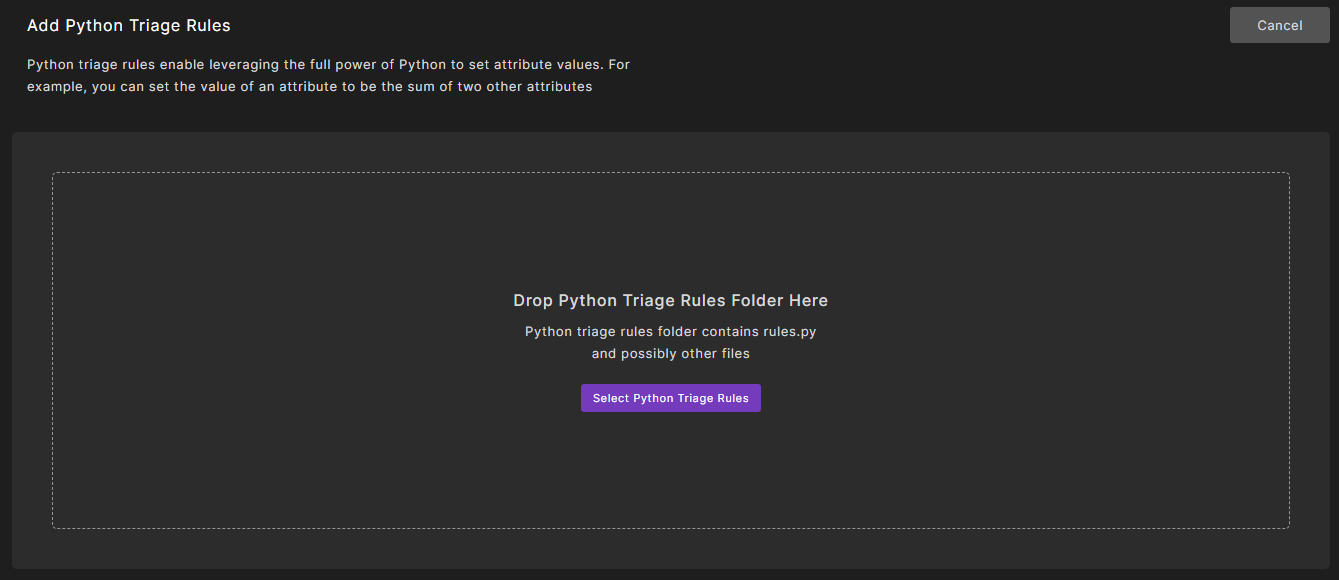
Result: The uploaded rules file is displayed.
Note
Your folder must contain a rules.py file. -
Click Done to continue, or delete icon to remove the uploaded python rules from the server, and upload a different folder.
58.7 Run rules calculation
You can initiate rules calculation in several ways:
-
On the Triage Attribute Rules page, click Apply Rules.
-
Use the Python SDK as a batch process. This will typically occur as a post-process stage of test suite execution, for example, on a nightly regression job.
-
Explicitly from the main view rules calculation Apply button. The Apply button becomes available when the "Triage rules have changed" message appears.
58.7.1 When is rules calculation needed
The "Triage rules have changed" message appears in the following cases:
-
New rules were created.
-
New data was introduced to the test suite result, for example, by changing the filter of the workspace or by grouping or ungrouping the workspace test suite results.
When the "Triage rules have changed" message appears, the Apply button becomes available, and you can decide when to rerun the rules calculation.
Note that until rules calculation is applied, attributes displayed in the triage view do not reflect the latest rules definition.