63. Other analysis methods
The Runs tab helps you identify the main issues in a test suite. As shown in Figure 1, the Runs tab displays a table on the left listing the runs in the selected test suites. From this table you can access the Debug Run window, which lets you review the selected run in the Visualizer.
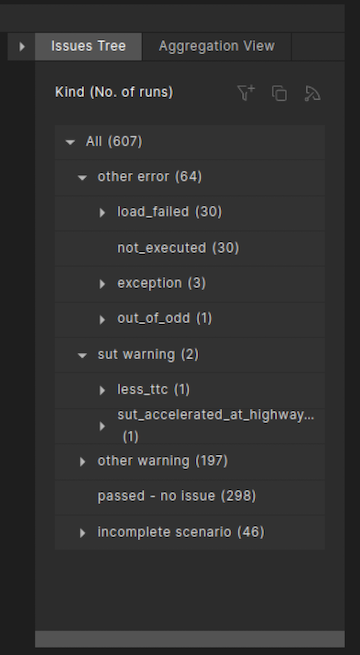
The Issues Tree to the right of the table displays a hierarchical list of issues that occurred during the selected test suite executions, ordered by category, such as SUT Error, Other Error and SUT Warning.
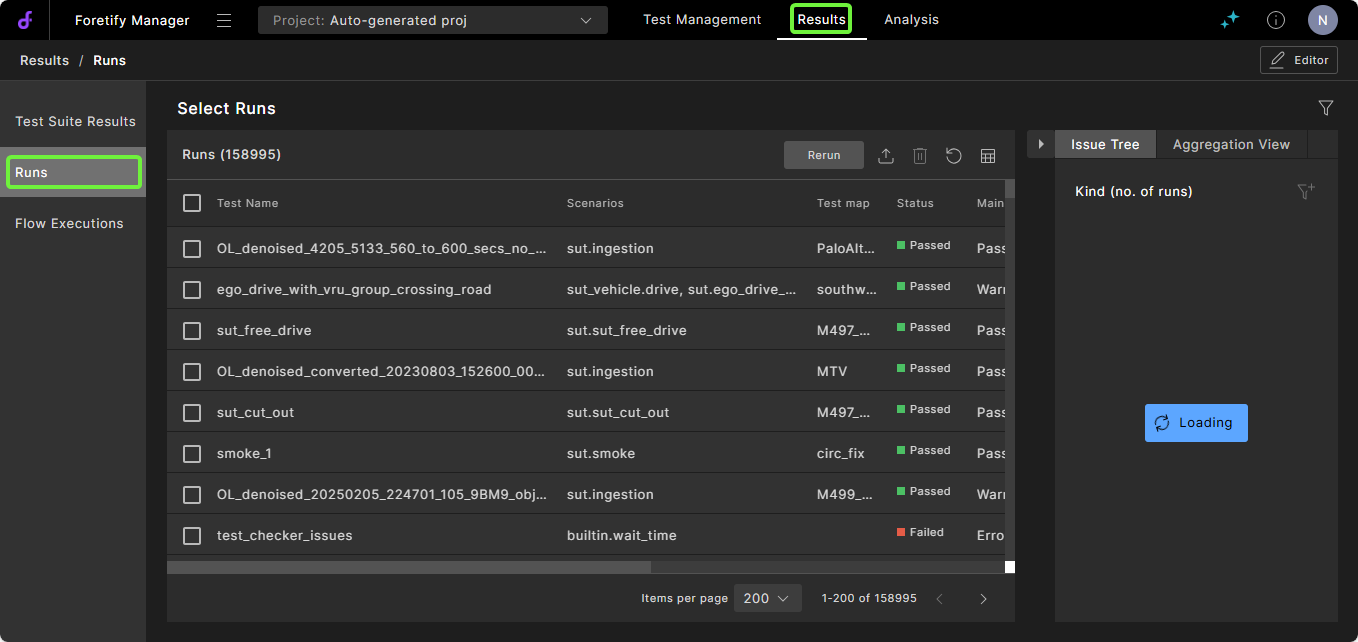
To open the Runs tab, do one of the following:
-
If your runs are not in your current project, click the Projects dropdown list and select a project.
-
From the project, click the Runs tab.
Note
You can also access runs by clicking the Test Suite Results tab, selecting one or more test suites and clicking Show Runs. The Runs tab displays with the runs from the selected test suite.
After opening the Runs tab, you can accomplish the following tasks:
- Modify the runs or run attributes displayed in the Runs tab.
- Identify the main issues of a test suite using the Issues Tree.
- Identify the issues associated with a VPlan section in the workspace.
- Debug a failing run.
Notes
-
The view of the Runs tab is the same regardless of whether you open it from the Test Suite Results tab or the workspace. However, some of the tasks listed above you can perform only when you open it from a workspace.
-
For more information on analyzing and resolving particular issues, defining custom issues, and so on, see Understanding and resolving issues.
63.1 Modify the Runs tab
You can modify the runs or run attributes displayed in the Runs tab by:
- Changing the rows or columns displayed in the table. See Table display.
- Creating or modifying run filters. See Create a run filter.
63.1.1 Understand run duration attributes
You can display various run attributes related to the duration of each run:
- Start time: The wall clock time at the start of the run.
- End time: The wall clock time at the end of the run.
- Simulation time: The duration of the run from the Ego/simulation perspective. This is the number you see in Visualizer.
- Load duration: The wall clock duration of the load phase of this particular execution. This is 0 for all subsequent runs in a consecutive run after the first one.
- First run load duration: The wall clock duration of the load phase of the test. This is equal to the load duration for a consecutive run's first run, and copied over from that to all subsequent runs.
- Run duration: The wall clock duration of the run phase of this particular execution.
- Duration: The wall clock duration of the entire run, including load, generation and simulation. This is equal to Load duration + Run duration.
Click the Column Selection icon, the rightmost icon in the table header, to display these columns.
63.2 Identify the main issue using the Issues Tree
Foretify defines a number of global checkers that identify issues that occur during a run and display an appropriate message. The V-Suites libraries also define scenario-specific checkers that also identify issues.
Issues are defined with a severity level ranging from info to error_stop_now. During a run, Foretify identifies the main issue—the issue with the highest severity—and collects various metrics about all issue occurrences. Foretify Manager aggregates these metrics across a test suite and facilitates analysis of common issues among the runs. This process of defining, analyzing and resolving issues is called verdict analysis.
-
In the Runs tab, review the categories, severity levels, and kinds of issues in the Issues Tree.
-
To see the full message of the main issue for a run, hover the cursor over the message.
-
Click on the category, severity or kind of issue you want to debug.
The Runs tab refreshes to show only the runs with the selected issues.
-
If necessary, you can narrow the list of failed runs further:
-
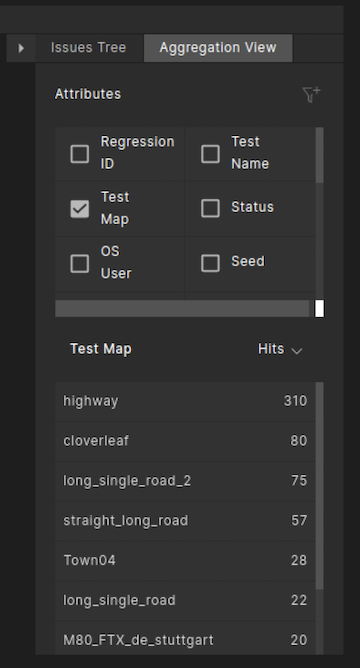
Click the Aggregation View tab next to Issues Tree.
The Aggregation View opens, displaying a list of run attributes above it.
-
Select a run attribute to group the runs by, for example, Test Map.
A list of maps used in the tests appears in the Aggregation tab.
-
Select a map from the list to display the runs of that test that used the map you selected.
-
63.3 Identify the issues associated with a VPlan section
To perform this task, you must open the Run window from a workspace.
To identify the issues in runs associated with a VPlan section:
-
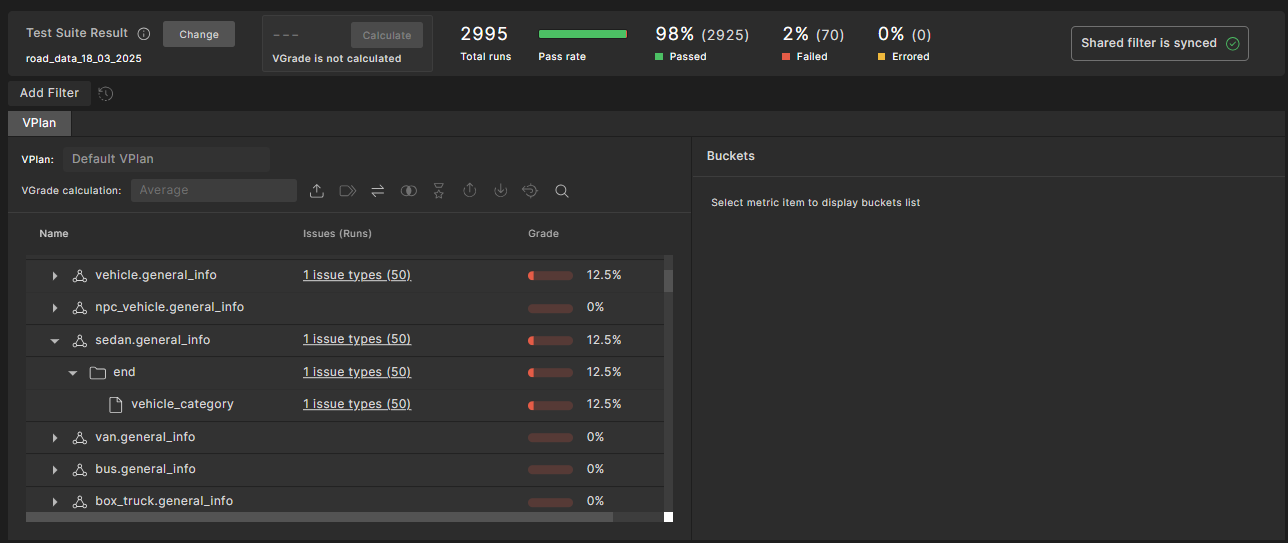
Click on the VPlan tab of the Workspace.
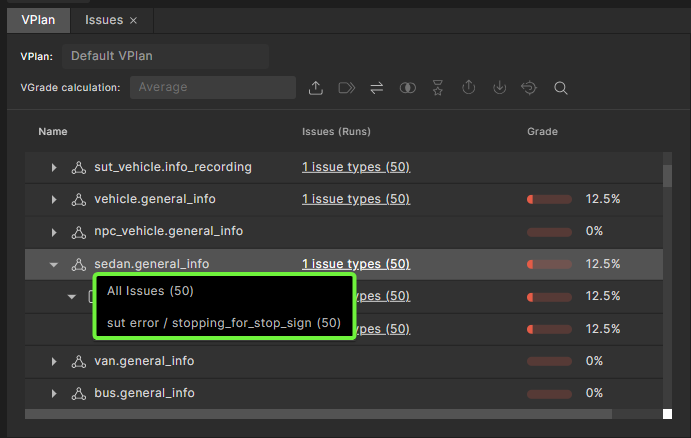
If an issue is associated with a VPlan section, a link appears in the Issues column of the VPlan tab for that VPlan section.
-
Click on the link in the Issues column.
A dropdown list of issues appears. You can choose to see runs for all SUT errors or only the runs associated with a specific SUT error.
-
Select an item from the dropdown list.
An Issues tab opens displaying the list of selected issues.

63.4 Debug a run in Foretify Manager
The Debug Run window is the same as the Debug Run tab in Foretify Developer. See Debugging a run for details.
Note
To re-execute the run, you must download the run folder and open it in Foretify Developer.
63.5 Verdict Analysis on runs during upload
Note
The following section describes the legacy verdict analysis methodology. This methodology is superceded by the more comprehensive Triage feature described above and should no longer be used.
When runs are first uploaded to Foretify Manager, it's possible to manipulate their status, mainIssueKind or mainIssueResult fields.
This mechanism is controlled by the contents of JSON file provided to Foretify Manager's application.properties.
-
Create a JSON file with conditions and results.
For example, this is the default JSON used by Foretify Manager:
JSON example for mapping run attributes{ "schema_version": "1", "issueResult": { "rules": [ { "conditions": [ { "field": "runtime_data.mainIssueResult", "value": "*" } ], "resultFrom": "runtime_data.mainIssueResult" }, { "conditions": [ { "field": "status", "value": "COMPLETED" } ], "result": "passed - no issue" }, { "conditions": [ { "field": "status", "value": "SUT_ERROR" } ], "result": "sut error" }, { "conditions": [ { "field": "status", "value": "DUT_ERROR" } ], "result": "dut error" }, { "conditions": [], "result": "other error" } ] }, "issueKind": { "rules": [ { "conditions": [ { "field": "runtime_data.mainIssueKind", "value": "*" } ], "resultFrom": "runtime_data.mainIssueKind" }, { "conditions": [ { "field": "runtime_data", "value": "*" }, { "field": "status", "value": "COMPLETED" } ], "result": "" }, { "conditions": [ { "field": "runtime_data", "value": "*" }, { "field": "status", "value": "*" } ], "resultFrom": "status" }, { "conditions": [], "result": "" } ] }, "status": { "rules": [ { "conditions": [ { "field": "status", "value": "RUN_TIMEOUT" } ], "result": "FAILED" }, { "conditions": [ { "field": "runtime_data.status", "value": "*" } ], "resultFrom": "runtime_data.status" }, { "conditions": [ { "field": "status", "value": "COMPLETED" } ], "result": "PASSED" }, { "conditions": [ { "field": "status", "value": "NOT_EXECUTED" } ], "result": "ERRORED" }, { "conditions": [], "result": "FAILED" } ] } }For each of the attributes (
status,mainIssueKindandmainIssueResult), there's a top-level field in the JSON file, e.g.,issueResultin the JSON code above.Each top-level field should contain a list of
rulesfor the mapping, each in turn containing a list ofconditionsand aresult. The rules are processed in order, and processing stops with the first rule of which all the conditions have been met. It's important that the last rule have an empty list ofconditions, so it becomes the default.conditionsis a list of objects, each containing thefield(mapped to a run attribute) and thevalueto assert (the*wildcard can be used to match any non-empty value).If all the conditions of a rule are met, the value of the mapped run attribute will be the value of the
resultfield or the value of another run attribute specified inresultFrom.In the JSON example above, if the status is not
COMPLETED, then the next set of conditions is processed. If theruntime_data.mainIssueResultattribute does not exist or is empty, then the next set is processed. Sinceconditionsis an empty list, the mapped value will beother error. -
Configure Foretify Manager to process the JSON by specifying its path in the
applications.propertiesfile:application.properties file syntaxtest_run_field_mapping=<PATH_TO_JSON_MAPPING_FILE>