13. Simulate
13.1 Selecting simulator settings during scenario editing sessions
The selected simulator determines which actor types and models are available when adding new actors to a scenario.
-
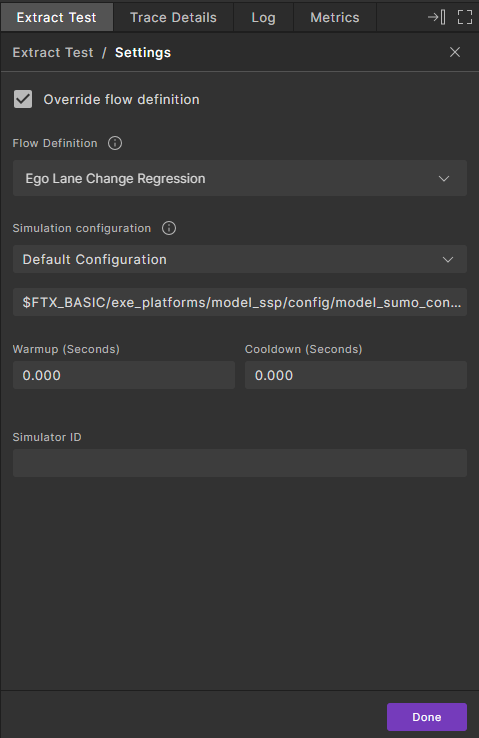
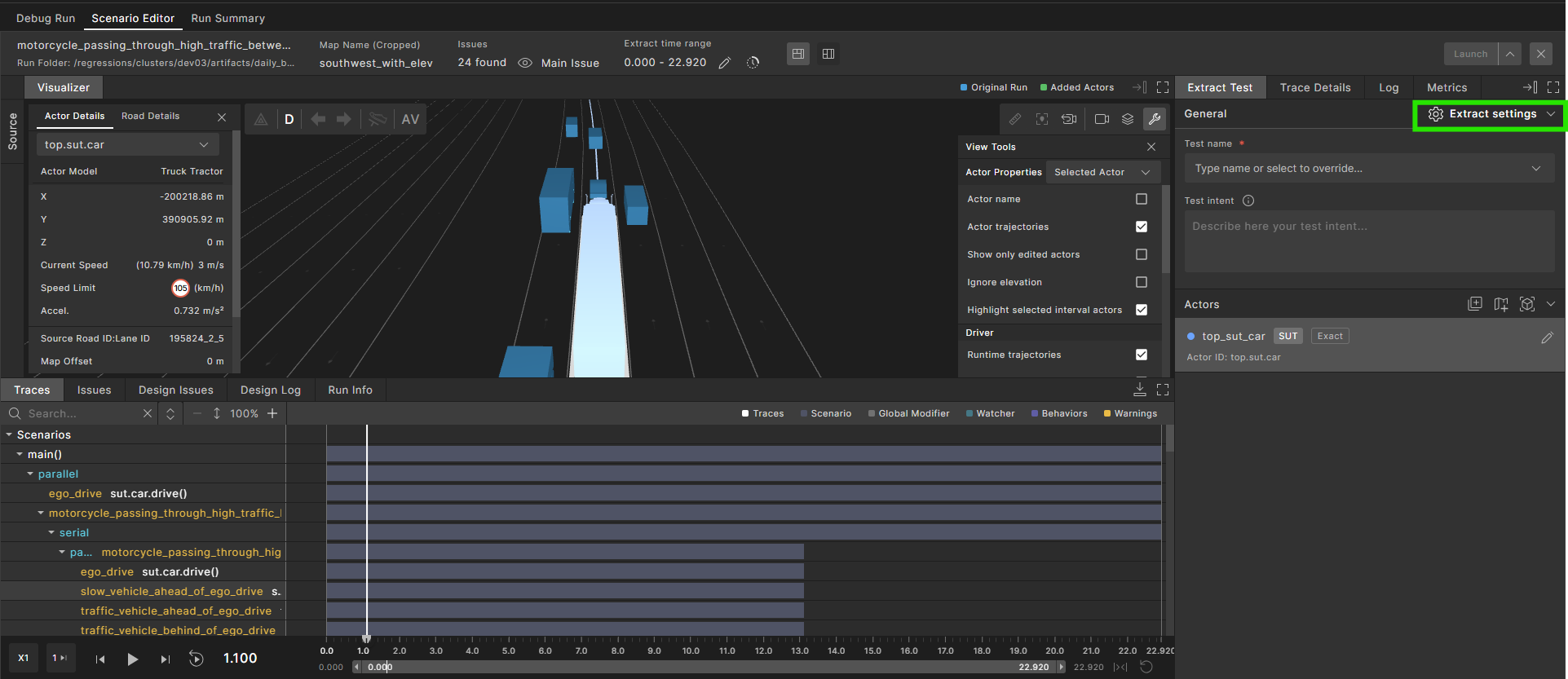
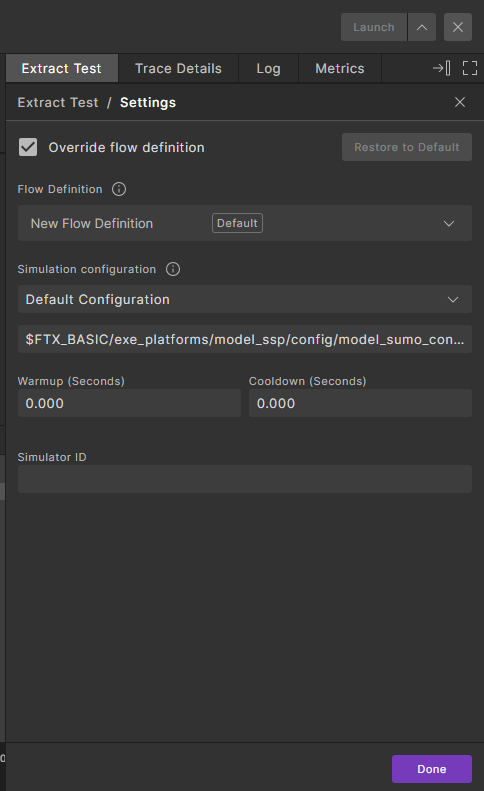
By default, simulation uses the Model SSP simulator. Click Extract Settings to view the default simulation definition:
-
To choose a different simulator (Carla):
- Click Extract Settings.
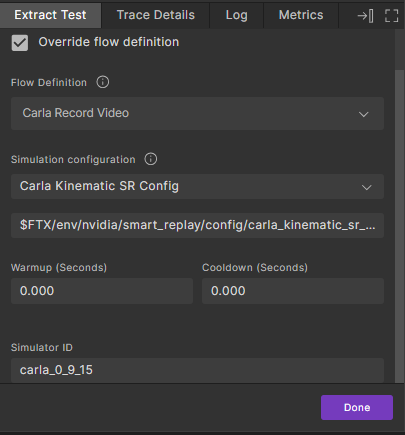
- Check Override flow definition.
- Under Flow definition, select either Carla Headless or Carla Record Video.
-
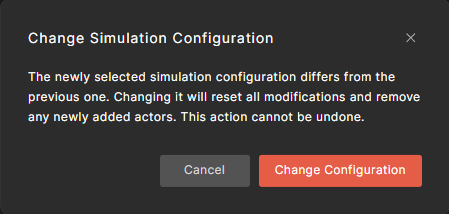
If the scenario editor already contains added or modified actors, the following warning is displayed:
-
Click Change Configuration.
This alters both the execution configuration and the simulation configuration to support the Carla simulator.
-
Click Done.
-
To switch back to Model SSP (if a different simulator was selected):
-
Click Extract Settings.
-
Check Override flow definition.

-
Under Flow Definition, select the required flow definition.
-
If the scenario editor already contains added or modified actors, the following warning is displayed:
-
Click Change Configuration.
This alters both the execution configuration and the simulation configuration to support Model SSP.
-
Click Done.
-
-
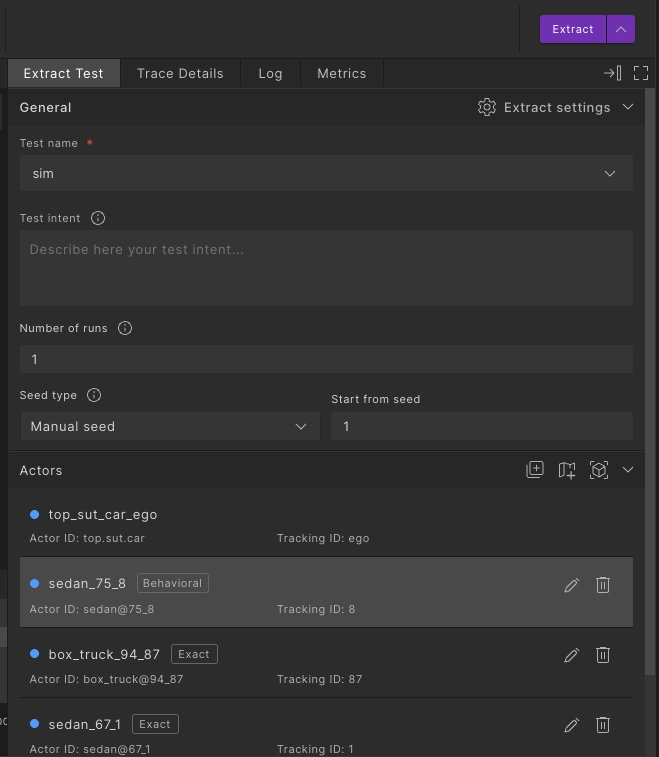
If you edited real-world actors and set any of the actors to behavioral replay, you can:
- Set the Number of runs to be executed.
- Select the Seed type (manual/random), and in case of manual, enter the initial seed.
- If you configured speed and lateral shift ranges earlier, each run samples values within those ranges to introduce controlled variability.
13.1.1 Setting the simulator configuration for a flow definition
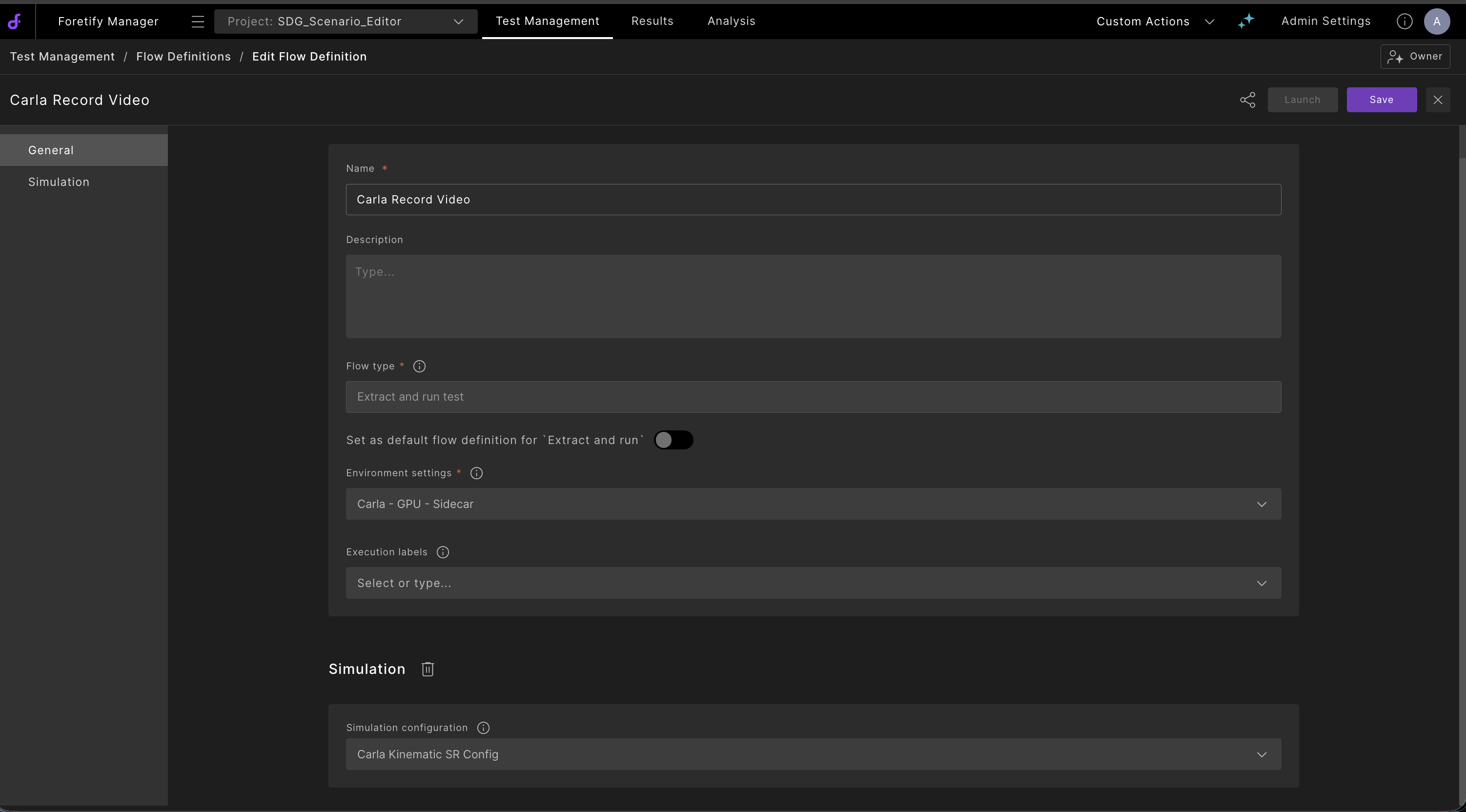
- Click Test Management.
- Click Flow Definitions.
- Create or edit an existing flow definition.
-
In the Simulation section, add or select a Simulation configuration.
For more information about simulation configuration, see Smart Replay Configuration Management.
13.1.2 Selecting simulator settings during scenario editing sessions
The selected simulator determines which actor types and models are available when adding new actors to a scenario.
-
By default, simulation uses the Model SSP simulator. Click Extract Settings to view the default simulation definition:
-
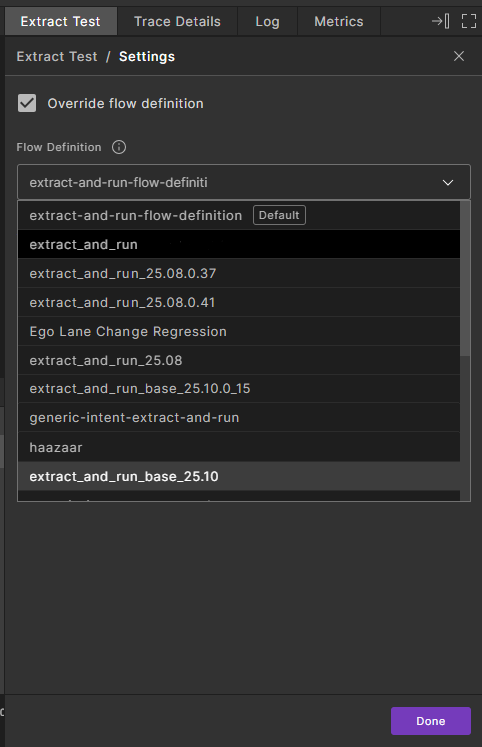
Check Override flow definition.
-
Under Flow definition, select the required flow definition.
-
If the scenario editor already contains added or modified actors, the following warning is displayed:
-
Click Change Configuration.
This alters both the execution configuration and the simulation configuration.
-
Click Done.