11. Resolve Design Issues
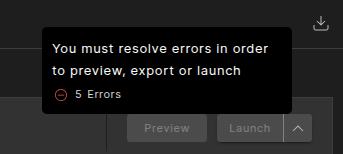
The Design Issues pane provides a detailed, real-time list of all design issues identified while you edit a scenario. These issues may prevent you from previewing or exporting the run.
Select the Design Issues tab alongside the other tabs (Traces, Issues, Design log, and Metrics) to display the pane.
An issues counter appears next to the pane title.
The table is updated live after each user action (for example, editing actors, waypoints, or modifications).

The table includes errors and warnings for both types of actors:
- Real‑world actors, marked with a blue dot
- Added/synthetic actors, marked with a green dot
For each issue, the table shows the actor name, severity (error or warning), a detailed message, a classified issue type, and, where available, the time, waypoint details, and involved actors.
You can filter the table by entering free text in the search box to match against issue rows. You can toggle rows by severity to show or hide errors and/or warnings.
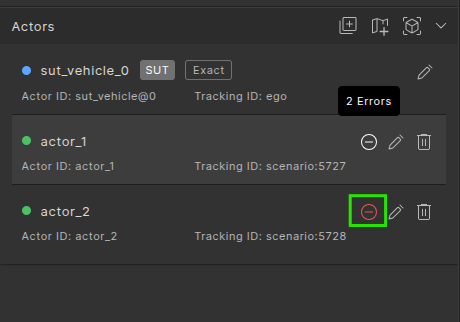
In the Extract Test tab, a summary of design issues appears next to the actor list.
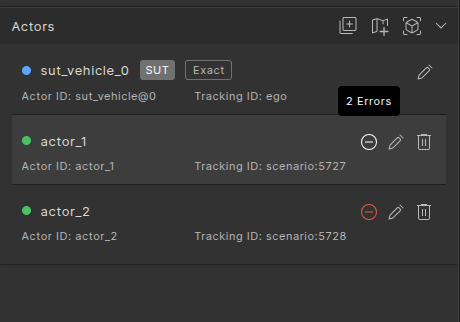
Click the design issue icon to:
- Switch to the Design Issues pane (if it is not already active).
- Automatically select the matching issue in the table.
If warnings are present and no errors exist, the system displays an “Are you sure?” confirmation dialog. You must confirm that you want to proceed with Preview or Launch despite the warnings.
Use the following steps to investigate each issue.
- Click a row in the Design Issues table.
-
The system will:
- Highlight the actor in the Visualizer (3D view).
- Highlight the actor in the Smart Replay actor list.
- Jump the timeline to the relevant time.
- Pan the camera so you see the problematic context.
-
Use the details to locate each issue, adjust the relevant actors or settings, and revalidate until errors and critical warnings are resolved.