95. Ego Vehicles
The Ego Vehicle represents a vehicle equipped with one or more sensors, forming a complete sensor rig for the SDG pipeline.
In the Ego Vehicles view, you can create and manage sensor rig configurations that define which sensors are attached to the Ego Vehicle and how they are positioned and oriented.
Important
Environment-specific restrictions
The Ego Vehicle and its attached sensors are specific to a single simulation environment. If you need equivalent rigs across multiple environments, you must create a separate Ego Vehicle in each one.
Ego vehicle setup is a prerequisite for the pipeline and is typically a one-time task — once configured, you can reuse Ego Vehicles across multiple Sensor Sim Plans.
95.1 Creating Ego Vehicles
-
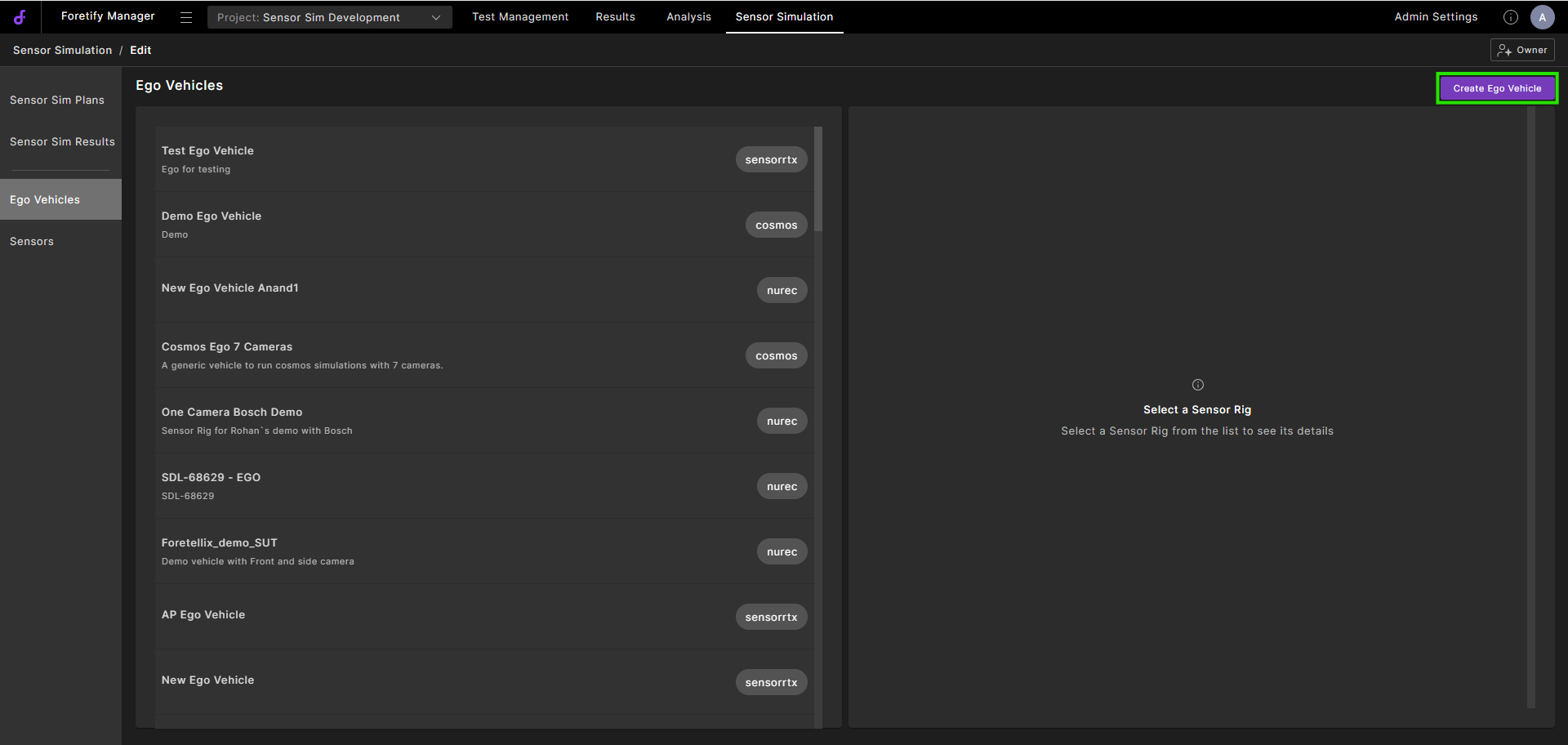
Click Sensor Simulation in the top navigation bar, then click Ego Vehicles in the left sidebar. The list shows all Ego Vehicles in your project, each labeled with its simulation environment.
-
Click Create Ego Vehicle.
-
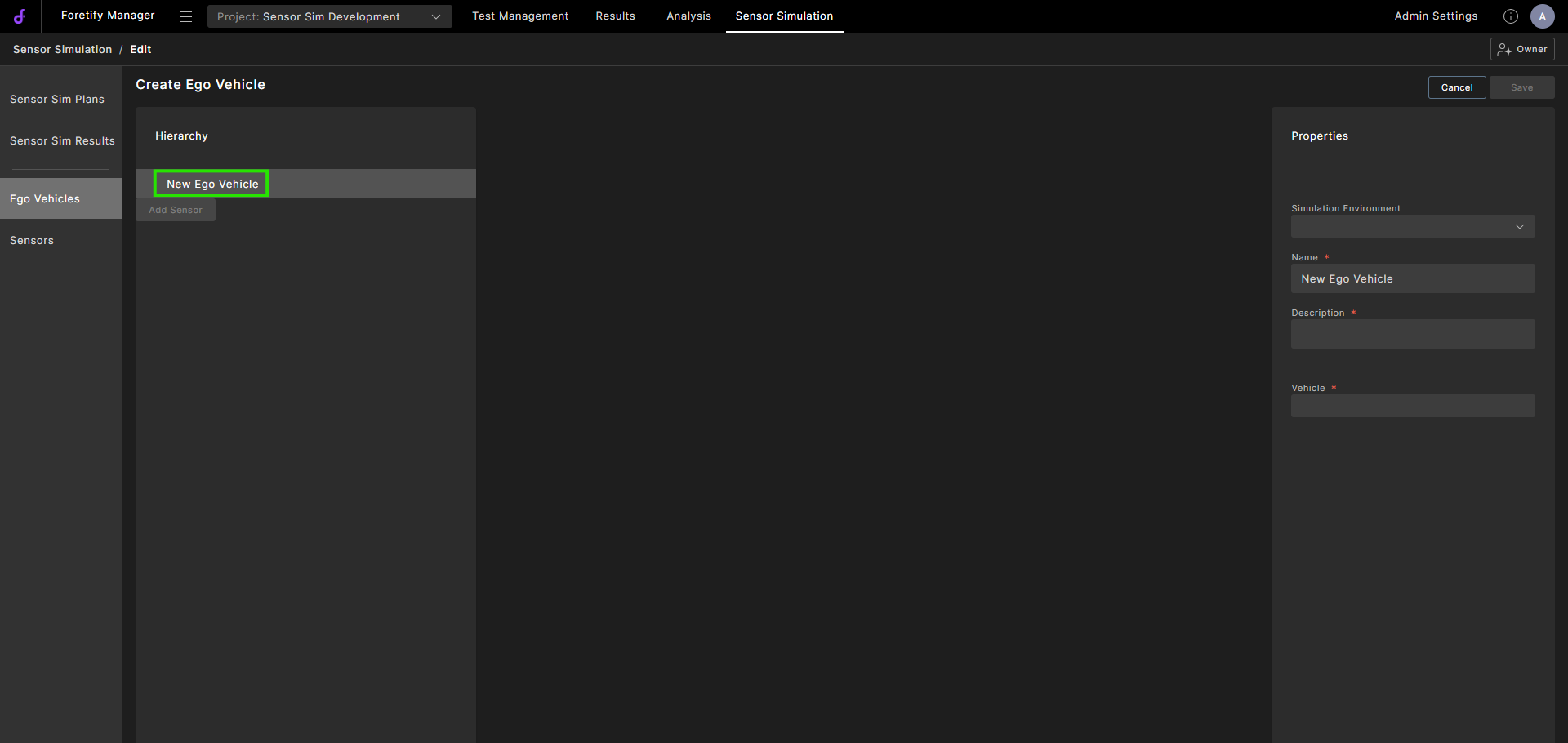
In the Create Ego Vehicle view, select New Ego Vehicle.
-
Define the Properties.
- Select a simulation environment.
- Enter a name for the Ego Vehicle.
- Enter a description for the Ego Vehicle.
-
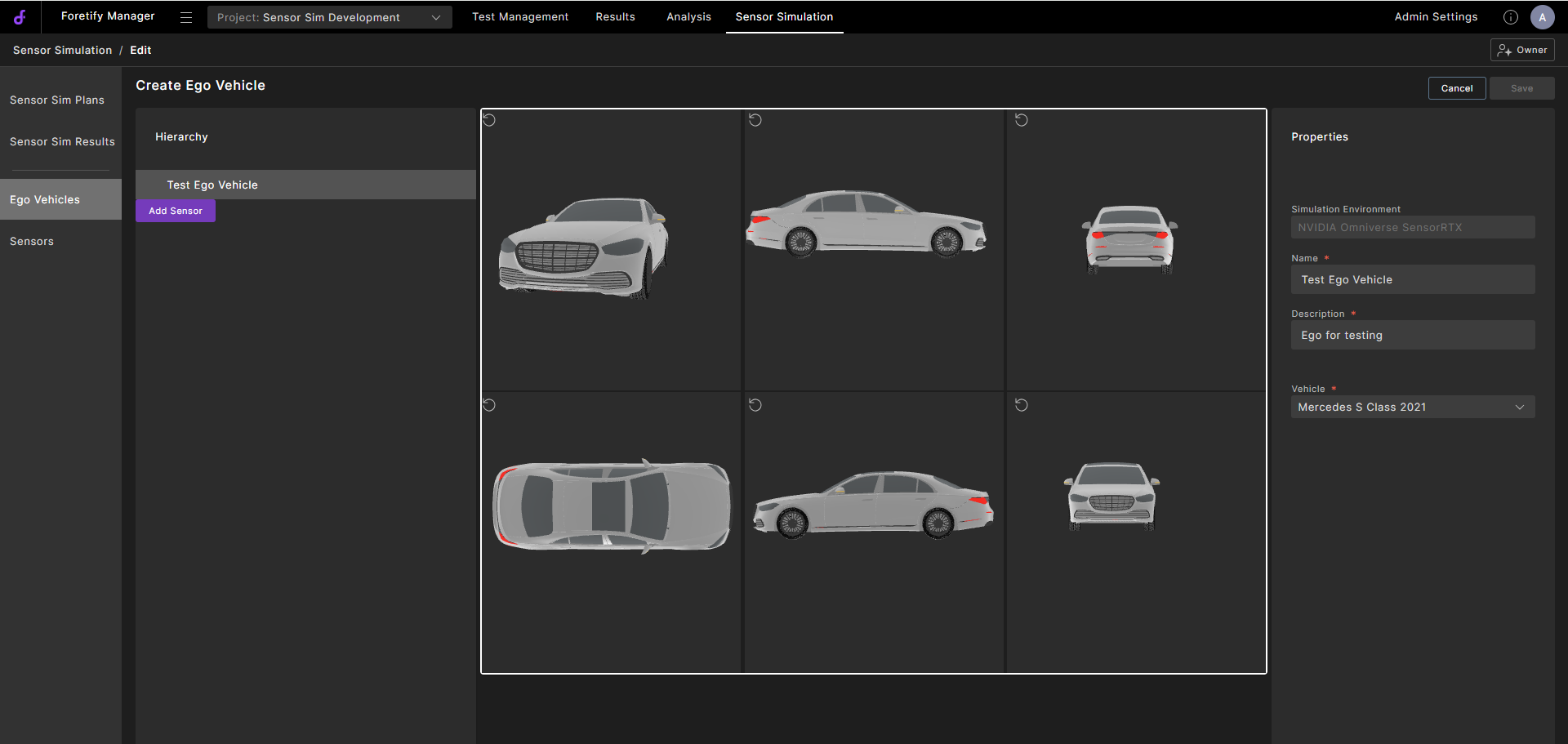
Select a vehicle type from the available options. The available vehicles depend on the selected simulation environment.
Images of the vehicle display in the 3D viewer.
Click and drag to rotate the view in the 3D viewer.
-
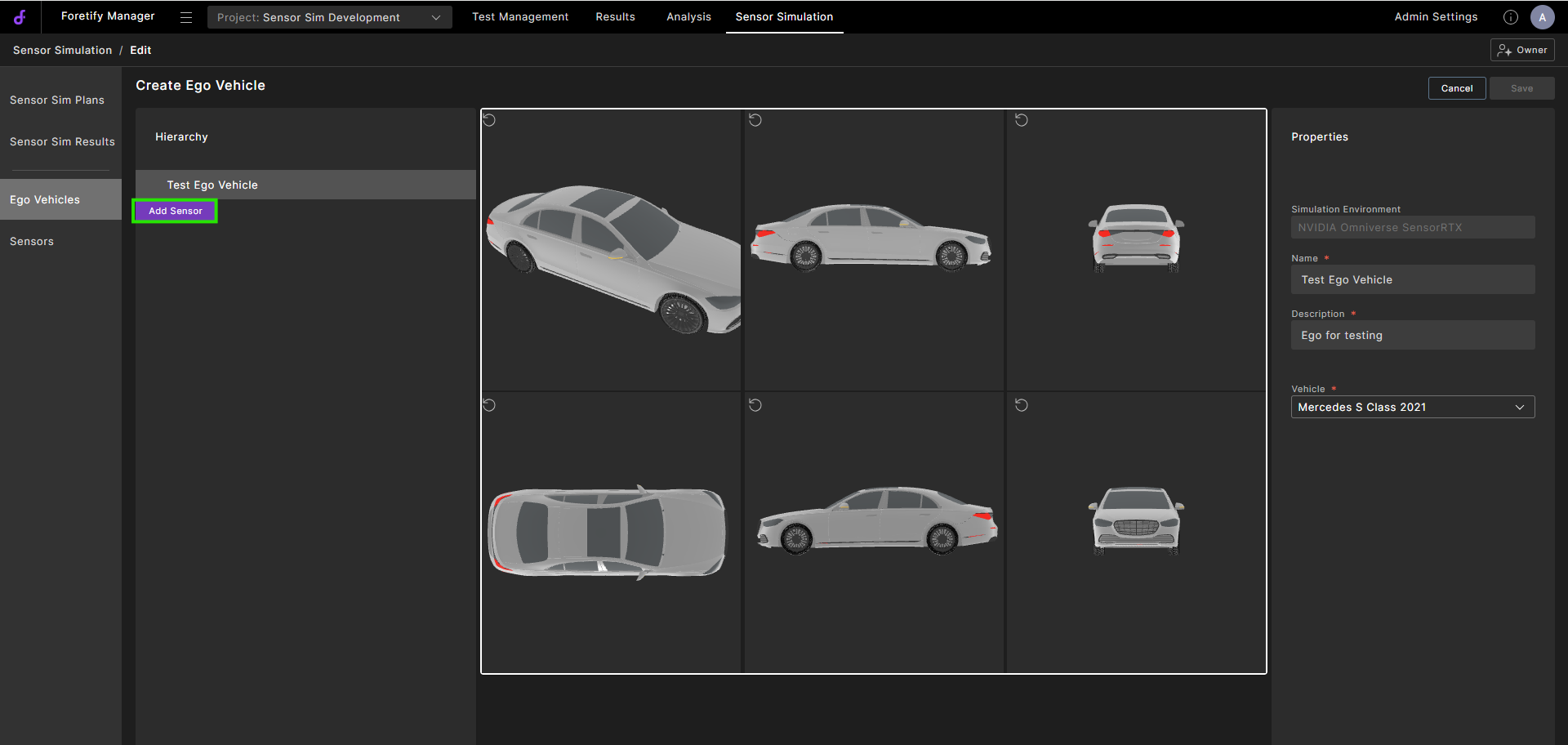
Click Add sensor and select one or more sensors from the list. Only sensors that belong to the same simulation environment are available.
-
In the 3D viewer:
- Adjust the Pose of sensor position and orientation for precise placement.
- Toggle the Output options to define the data layers the sensor generates.
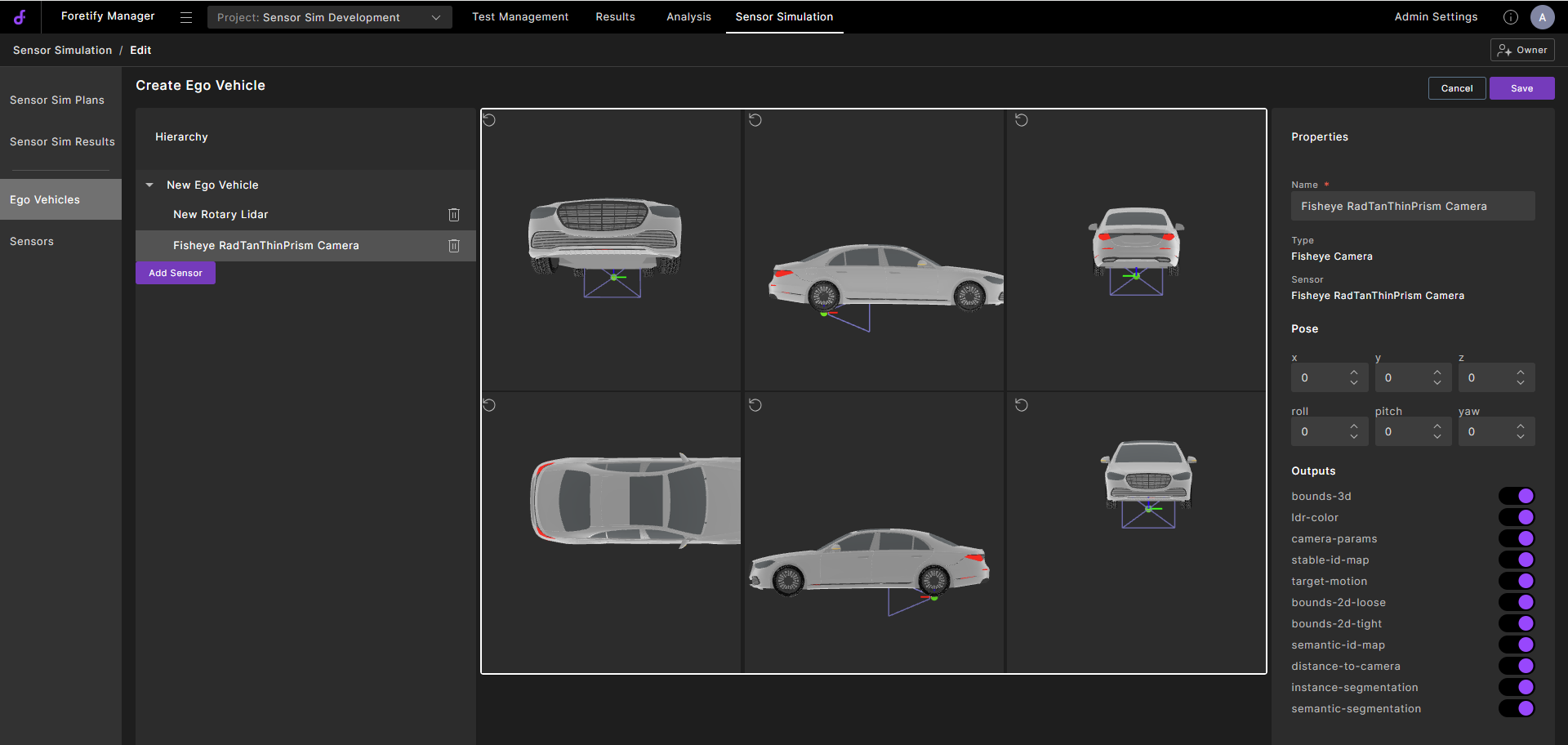
-
Click Save.
95.2 Editing Ego Vehicles
Select an Ego Vehicle from the list to modify its name, description, attached sensors, or sensor positions.
-
Select the Ego Vehicles tab.
-
Select the Ego vehicle to edit.
An image of the vehicle appears in the 3D viewer.
-
Click the Edit
 icon.
icon.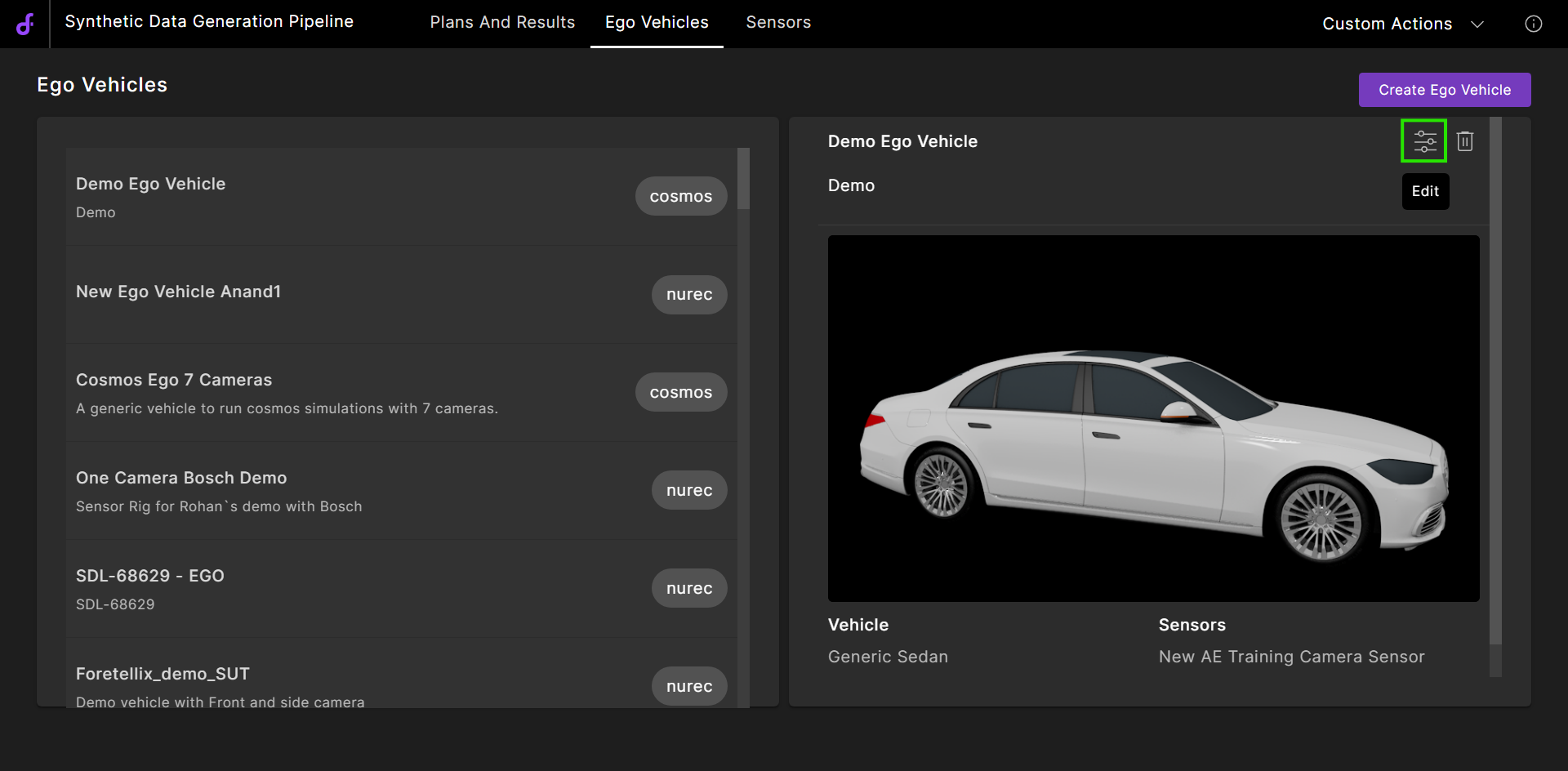
-
To edit sensor settings, click a sensor attached to the Ego vehicle.
-
Modify the name, Pose, and Outputs of the attached sensor.
-
Click Save.
95.3 Deleting Ego Vehicles
-
Select the Ego Vehicles tab.
-
Select the Ego Vehicle to delete.
-
In the 3D viewer, click the Delete
 icon.
icon.
-
At the confirmation prompt, click Delete.
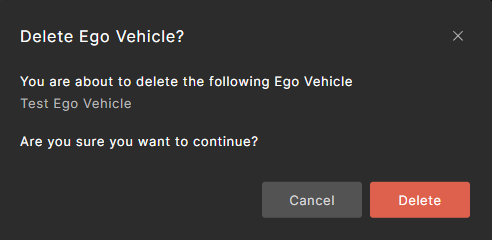
The Ego Vehicle is deleted.
Note
You cannot delete an Ego Vehicle that is referenced by an active Sensor Sim Plan.
95.4 Output layers
| Layer | Description |
|---|---|
| bounds-2d-loose | Loose 2D bounding boxes |
| bounds-2d-tight | Tight 2D bounding boxes |
| bounds-3d | 3D bounding boxes |
| camera-params | Camera intrinsic parameters |
| distance-to-camera | Depth map (distance to camera) |
| instance-segmentation | Per-instance segmentation mask |
| ldr-color | Low dynamic range color image |
| semantic-id-map | Semantic ID map |
| semantic-segmentation | Semantic class segmentation mask |
| stable-id-map | Stable object ID map |
| target-motion | Object motion vectors |