Create custom Triage views
Custom Triage views let you tailor analysis of test suite data. You can create your own issues tree, based on attributes that are most relevant to your analysis. You can also set an additional filter to control the data displayed in the view and you can select specific columns to display in the Runs table.
Once you've created a custom view, you work with it the same way you work with the standard Triage views.
Create a new custom view
Note
You need editor or owner permission of the workspace you're in to create a custom view. Views are created at the workspace level. Once you create a view, any other users of the workspace can use it.
To create a new view:
-
Create a view using one of the following methods:
-
Click Triage Configuration on the bottom left of the main Triage view, then select the Views tab and click Create New View on the top right.

-
Click the + button next to Triage Views on the Triage Views pane.

Note
The + button displays only if you have editor or owner permission for the workspace.
-
-
For View Name, enter a unique name.
-
Complete the Tree Clusters, Summary Display, Table Display, and Filter Runs for Triage sections described below, then click Create on the top right.
The view is added to the list of views under Triage Views and to the Triage Configuration Views tab.
To set the grouping structure of the view tree:
-
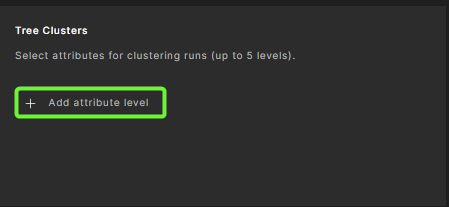
Under Tree Clusters, click + Add attribute level.
You can set up to 5 grouping levels.
-
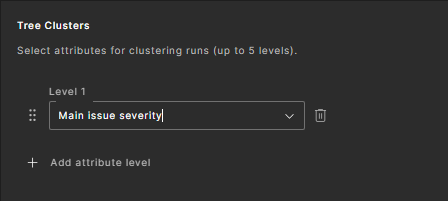
Select an attribute from the dropdown list.
The list contains all of the attributes in the system.
Tip
The tree structure of the view is created top to bottom, according to the selected attributes. So, for example, if the selected attributes are "Scenarios" and "Test Name" in that order, the tree is clustered first by the scenarios attribute, then by the test name.
-
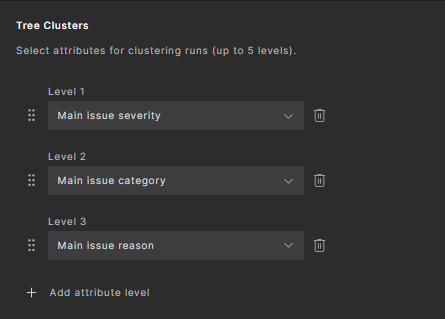
Rearrange the grouping structure of the view using the move handles to the left of the attributes.
-
To remove an attribute from the tree structure, select the Remove From Table (trash can) icon to the right of the attribute.
To select the summary display columns:
-
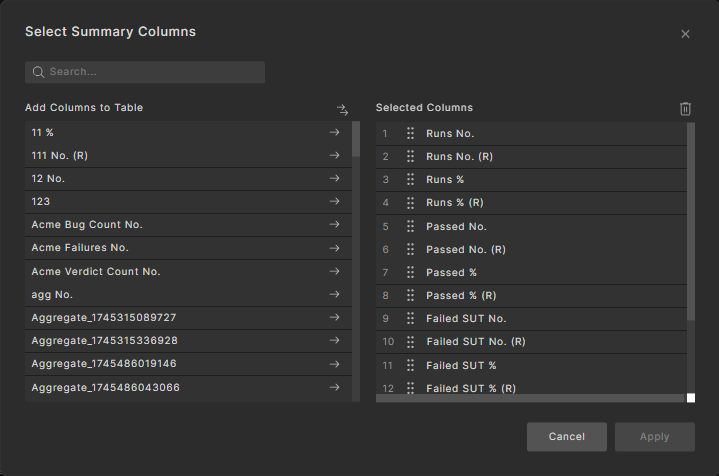
To customize which summary columns display for the view, under Summary Display, click Change.

-
Click the right arrows to add columns to the table. You can also use search to locate columns.
Note
Modifying the summary display columns in the main Triage View page will also change the selected columns for the view being displayed.
-
Click Save.
To select the Runs table display columns:
-
Under Table Display, click Change to customize which columns display in the Runs table for the view.
-
Click the right arrows to add attributes to the table. You can also use search to locate attributes.
See how to select columns to display in a table.
-
Click Save.
To customize the view filter:
-
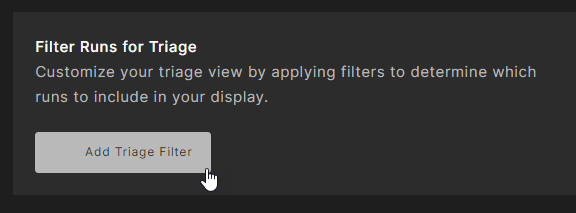
Under Filter Runs for Triage, click Add Triage Filter to further filter the view data.
-
Complete the filter.
See details on creating triage filters.
Update or delete a custom view
To update a custom view:
-
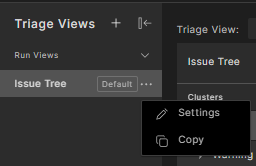
In the Triage Views pane, under Custom Views, hover over the view you want to update, click the three dots (...) that appear, and select Settings.
Note
The three dots appear only if you have editor or owner permissions for the workspace.
-
Update the custom view settings and click Save on the top right.
See Create a new custom view for descriptions of the custom view settings.
To delete a custom view:
-
In the Triage Views pane, under Custom Views, hover over the view you want to update, click the three dots (...) that appear, and select Settings.
-
On the bottom left, click Delete This Triage View (trash can) and confirm by clicking Delete Triage View.
Copy a custom view
To copy a custom view:
-
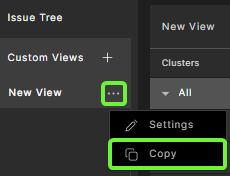
In the Triage Views pane, under Custom Views, hover over the view you want to update, click the three dots (...) that appear, and select Copy.
-
Provide a new View Name, customize further if needed, and click Create.
Create a custom triage view from a cluster
You can create a sub-view from an existing view in the Triage Views pane.
-
In the main triage view, hover over a cluster in the tree, click the three dots (...) that appear, and select Create New View From This Level.

-
For View Name, enter a unique name.
-
Complete the Tree Structure, Summary Display, Table Display, and Filter Runs for Triage sections. See Create a new custom view for details.
-
Click Create on the top right.
Note
It is not possible to create a view from an empty cluster.
Saved custom view user configuration
The following view information is saved for your next triage session:
- When opening the triage page, the last selected triage view is displayed.
- The collapse/expand state of tables (Clusters, Summary, or Runs List) is saved per view, per user.
- The column sizes in the Summary and Runs Tables are saved per view, per user.