Foretify Developer Assistant
The Foretify Developer Assistant provides insightful analysis and automation of tasks. The Assistant leverages advanced AI capabilities to enhance user productivity and efficiency. With the Assistant, users can easily interpret OpenSCENARIO 2.0 code, perform scenario modifications, analyze runs and logs, seamlessly use the V-Suite scenario library, and access Foretellix's extensive knowledge base. The Assistant streamlines workflows, allowing users to focus on more critical aspects of their projects.
Note
The Assistant is in an "Early Access" stage and may provide inaccurate answers.
Using the Assistant
The Assistant icon can be found in multiple locations throughout the application, offering contextual help tailored to the user's workflows. Additionally, the Assistant icon is available in the application's top panel, allowing users to open a context-aware conversational interface at any stage.
Features
V-Suite interface
The Assistant provides an interface to the V-Suite scenarios defined under $FTX/packages.
Users can interact with the Assistant to query available scenarios, compare different scenarios, and request specific scenarios to be loaded.
Example queries include: - "Which V-Suite scenario challenges the ego vehicle while merging onto the highway?" - "What is the difference between the various oncoming scenarios?" - "Load the scenario stopped vehicles"
To properly use a V-Suite scenario, configuration in OSC2.0 needs to be defined. By default, a dummy configuration utilizing the Sumo simulator and the Town04 map is used. Users can specify a relevant configuration by setting the environment variable $FTX_USER_CONFIG_FILE to point to the path of an OSC file containing the necessary definitions, such as the simulator, System Under Test (SUT) configuration, map, and other parameters. The Assistant will then load the selected scenario along with the defined configuration.
Example of OSC configuration file:
import "$FTX/config/sim/carla_default.osc"
import "[path to DSP configuration].osc"

extend test_config:
    set map = "$FTX/packages/maps/Town01.xodr"

# Any other customer-specific configuration...
Access Foretellix knowledge base
Foretellix's knowledge base encompasses extensive information about Foretellix products, the OpenSCENARIO 2.0 language, Safety-Driven Verification (SDV), and V&V in general. The Assistant offers an efficient way to query this knowledge base and receive context-specific insights.
Example queries include: - "What is the syntax of the watcher operator?" - "When should I use a relative modifier?"
Using the Assistant, users can quickly access detailed explanations and best practices, enhancing their understanding and application of Foretellix's technologies and methodologies.
Explain OpenSCENARIO 2.0 code and scenarios
The Assistant provides detailed guidance on using OpenSCENARIO 2.0 code, enhancing user understanding of its structure and syntax. This capability is designed to help both new and experienced developers by simplifying complex code into manageable explanations.
Example queries include: - "Explain the loaded scenario" - "How is the 'position' modifier used in the loaded scenario?"
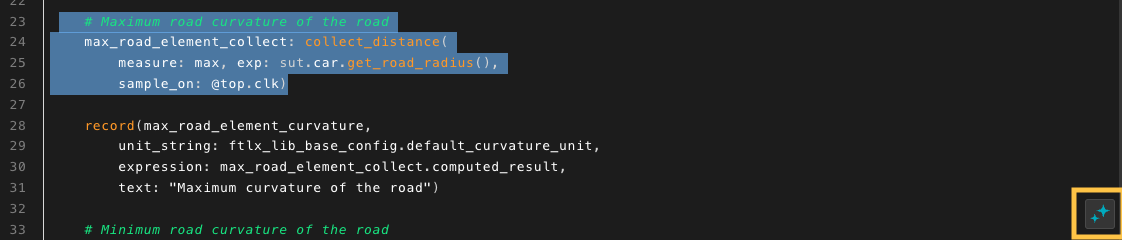
In addition, users can select specific OSC code lines in the source viewer, and then click on the embedded Assistant icon to receive an explanation of the chosen code:
Scenario modifications
Once an OpenSCENARIO 2.0 scenario is loaded, the Assistant enables users to extend the scenario by adding additional vehicles with specific behaviors. Currently, the Assistant supports a range of parameterized behaviors, including adding lead or follower vehicles at specific distances, inserting cut-in or cut-out vehicles, and positioning vehicles to the side of the System Under Test (SUT).
The generated code for these modifications will be saved under [work_dir]/assistant/. This functionality allows users to quickly and easily enhance their scenarios with additional complexity and dynamic interactions.
Example prompts include:
- "Add a vehicle that performs a cut-in maneuver from the left lane"
- "Insert a follower vehicle maintaining a distance of 10 to 20 meters behind the SUT"
- "Add a vehicle driving parallel to the SUT in the adjacent lane"
Analyze runs and logs
The Assistant enhances the analysis of runs by providing detailed answers to the user queries about issues encountered during the run. This capability enables users to identify and understand problems, facilitating faster debugging and refinement of their scenarios. For now, the Assistant is exposed to information such as the log, the source code, and the the main issue.
Example queries include: - "Explain the reason for the incomplete scenario" - "Which errors and warnings were printed to log?"
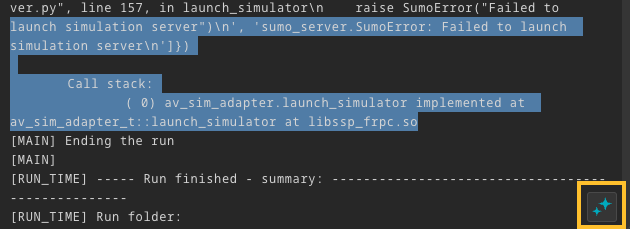
In addition, users can select specific log entries to receive directed explanations:
Generate Foretify actions
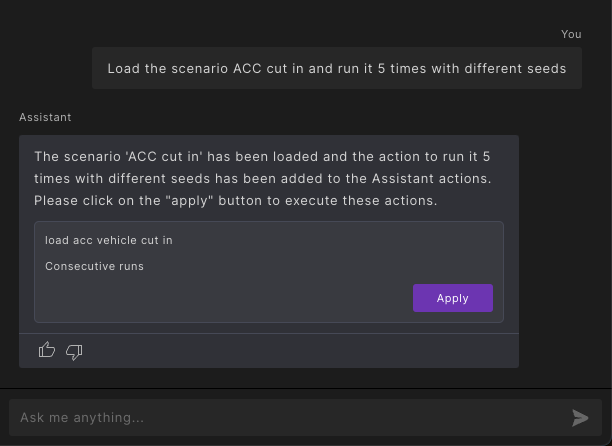
The Assistant enhances the application by automating specific tasks, such as loading scenarios and executing Foretify runs. When generating actions, the Assistant presents a list of these actions to the users, along with the option to "apply" them. This allows users to review and verify the actions before they are executed, providing an opportunity to ensure that everything is correct before changes affect the application state.
Setting up the Assistant
To use the Assistant, set up an environment variable holding the access token. The environment variable needs to be set on the server from which Foretify is executed. It's recommended to save it in the user's .bashrc file. For example, the following line should be added to the file: export FTX_ASSISTANT_KEY="token string"
To receive the token, contact Foretellix sales or support representatives.